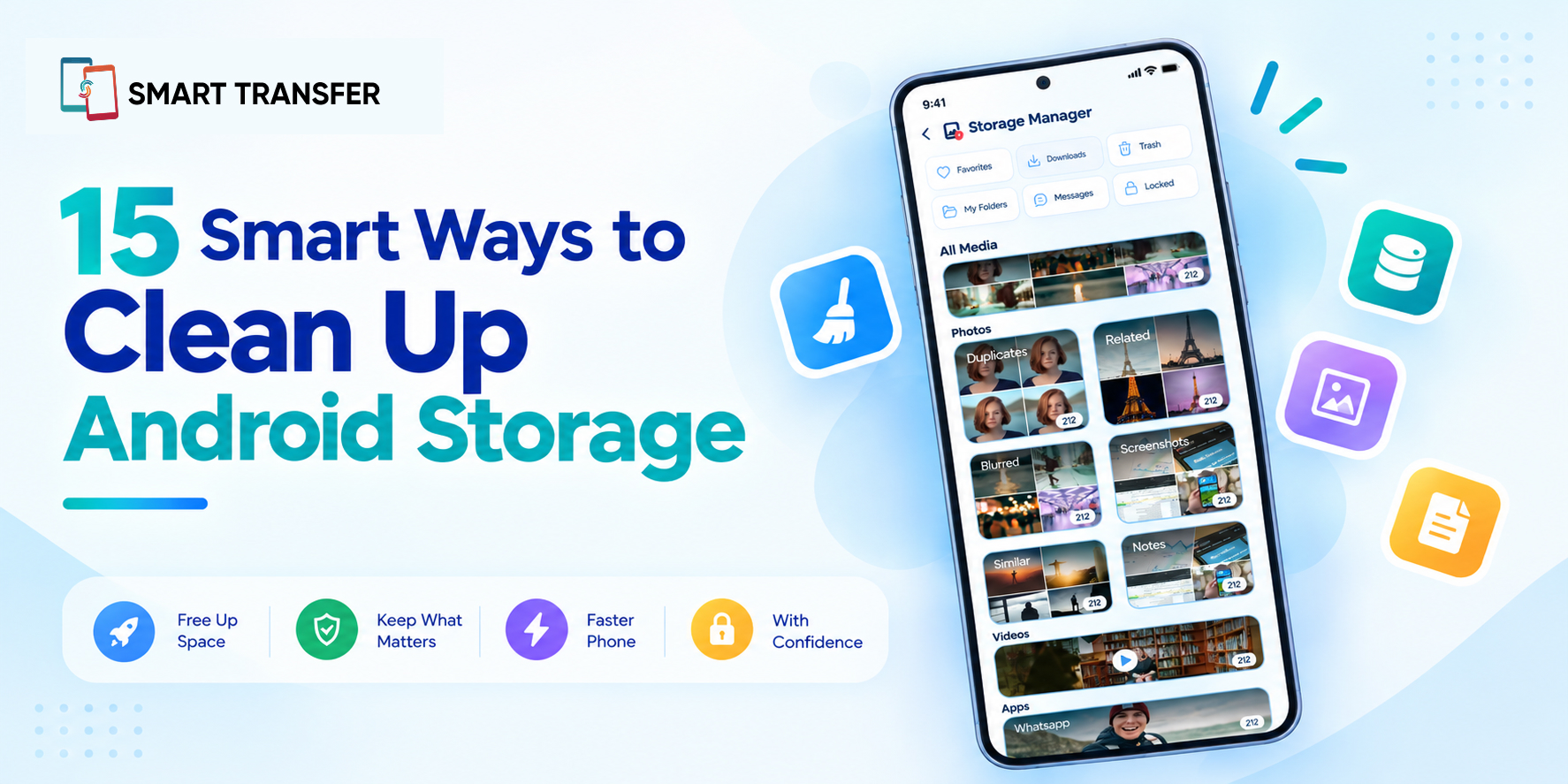
Running out of storage doesn't always mean you need to delete your favorite photos or important files. You can clean up Android storage by removing unnecessary clutter, reviewing large files, managing unused apps, and clearing temporary data.
Over time, downloads, duplicate photos, cached files, unused apps, and media from messaging platforms can quietly consume gigabytes of space. The challenge is knowing what is safe to remove and what you should keep.
In this guide, we'll cover 15 smart ways to clean up Android storage, from quick fixes you can do in a few minutes to simple habits that can help prevent storage from filling up again.
Key Takeaways
Clean up Android storage by removing unnecessary downloads, duplicate photos, large files, and unused apps.
Free up Android storage safely by reviewing what takes up space and backing up important data before deleting files.
Keep your Android phone storage organized with regular cleanup and storage management tools that help identify unnecessary files.
What Is Taking Up Your Android Storage?
Before you start deleting files, it helps to understand what is taking up storage on your Android phone. Photos and videos are often the biggest storage users, but apps, downloaded files, cached data, screenshots, documents, and media saved by messaging apps can also add up quickly.
Open your phone's Settings > Storage section to see a breakdown of how your space is being used. Look for categories taking up the most storage first. This gives you a clearer idea of where to start and helps you avoid deleting files you actually need.
Once you know what's consuming your storage, you can focus on the areas that will free up the most space rather than deleting files at random.
15 Smart Ways to Clean Up Android Storage
If your Android phone is running low on space, you don't need to delete everything at once. Start with the files and apps you no longer need, then work through the areas that tend to build up storage over time.
1. Review Your Storage Usage
Start by checking your Android phone's storage breakdown. Look at how much space is being used by apps, photos, videos, downloads, and other files.
This helps you identify the biggest storage users first, so you can free up Android storage where it matters most.
2. Delete Old Downloads
Your Downloads folder can collect PDFs, images, installation files, documents, and other files you only needed temporarily. Review the folder and remove anything you no longer need.
If you're unsure about a file, open it first rather than deleting it blindly.
3. Clear Unnecessary App Cache
Cached data helps apps load certain content faster, but some apps can accumulate a significant amount of cache over time. If an app is using unusually large amounts of storage, check its cache through your Android settings.
Be careful not to confuse clearing cache with clearing app data. Clearing app data can remove saved information or reset the app, so only use it when you understand what will happen.
4. Remove Duplicate Photos and Videos
Duplicate photos and videos can consume a surprising amount of storage, especially if you've saved the same files multiple times.
Review duplicate copies and keep the version you actually want. Removing unnecessary duplicates is one of the easiest ways to clean up Android storage without losing important memories.
5. Delete Blurry or Unwanted Photos
Your gallery may contain blurry shots, accidental photos, screenshots, and images you no longer need. These files may seem small individually, but hundreds of unnecessary images can take up considerable space.
Start with obvious throwaways rather than manually reviewing every photo in your gallery.
6. Remove Large Files You No Longer Need
Large videos, archived files, old documents, and other media can quickly consume available storage. Sort your files by size if your file manager supports it and review the largest items first.
Deleting a few unnecessary large files can often free up more space than removing dozens of small ones.
7. Uninstall Apps You Don't Use
Unused apps take up storage even if you rarely open them. Review your installed apps and remove those you no longer use.
Before uninstalling an app, check whether you need any locally stored information from it. Some apps may keep important downloads or files on your device.
8. Review Messaging App Media
Photos, videos, GIFs, voice notes, and documents shared through messaging apps can accumulate over time. Check your messaging apps for old media, particularly large videos and files.
Keep anything important and remove media you no longer need. This can be especially useful if you participate in active group chats.
9. Clean Up Screenshots and Screen Recordings
Screenshots are easy to forget about, while screen recordings can be surprisingly large. Check your gallery for old screenshots, duplicate captures, and recordings that no longer serve a purpose.
If you've already shared or saved the information elsewhere, deleting unnecessary captures can quickly reclaim space.
10. Organize Your Documents
Review folders containing PDFs, presentations, spreadsheets, ZIP files, and other documents. Remove outdated copies and files you downloaded for one-time use.
For documents you still need, consider organizing them into clearly named folders so you can find them easily instead of creating multiple copies.
11. Back Up Important Files Before Cleaning
Storage cleanup should not come at the cost of losing something important. Before deleting valuable photos, contacts, documents, or other personal data, make sure you have a backup.
Smart Transfer's Backup & Restore feature can help you back up and restore supported data, giving you an additional step of protection before a major cleanup.
12. Move Important Data Before Deleting It
If you need to free up a large amount of space but don't want to lose important files, move them to another device before deleting them from your phone.
For example, you can transfer photos, videos, documents, or other supported files to another device using Smart Transfer's file sharing feature.
13. Check Offline Downloads
Streaming and social apps often let you save content for offline use. Downloaded movies, music, podcasts, maps, and other offline content can quietly take up significant storage.
Open the apps you use regularly and review their offline downloads. Remove anything you've already watched, listened to, or no longer need offline.
14. Use a Storage Management Tool
If manually finding unnecessary files feels like a chore, a storage management tool can make the process easier. Smart Transfer's Phone Cleaner helps identify clutter such as duplicate files, similar photos, and other unnecessary data so you can review what should be removed.
The key is to review suggested files before deleting them rather than treating every recommendation as disposable.
15. Make Storage Cleanup a Regular Habit
You don't have to wait until your Android phone displays a low-storage warning. A quick cleanup every few weeks can prevent unnecessary files from piling up.
Check your downloads, gallery, apps, and offline media regularly. Small cleanups are easier to manage than trying to recover several gigabytes when your storage is already full.
What Should You Delete First From Android Storage?
If you need to free up space quickly, start with files that are clearly unnecessary and unlikely to contain important information. Old downloads, duplicate files, blurry photos, unused apps, and large media files are usually safer places to begin than personal documents or app data.
When cleaning Android storage, don't focus only on the number of files. A single large video can take up more space than hundreds of documents or screenshots. Prioritize items by size and usefulness, and back up anything important before deleting it.
Common Android Storage Cleanup Mistakes
Cleaning up your Android storage can free up significant space, but deleting files too quickly can create new problems. Avoid these common mistakes to make sure you reclaim storage without losing data you still need.
The goal isn't to delete as much as possible. Effective Android storage cleanup means removing unnecessary data while keeping the files, apps, and information you actually use.
Clean Up Android Storage Without Losing Important Files
Cleaning up your Android phone does not have to mean getting rid of files you want to keep. The safest approach is to review what is taking up space, back up important data, and remove only files you no longer need.
If your phone is getting full, focus first on obvious clutter such as duplicate photos, old downloads, unused apps, and large files. For more practical ways to reclaim space while keeping important data, see our guide on how to free up phone storage without deleting important files.
Once you've cleared the unnecessary data, check your storage again. You may be surprised by how much space a few targeted changes can recover.
Frequently Asked Questions About Cleaning Android Storage
How do I clean up storage on my Android phone?
Start by checking your storage usage, then remove unnecessary downloads, duplicate photos, large files, unused apps, screenshots, and offline content. Clear app cache when appropriate and back up important files before deleting them.
What can I delete to free up storage on Android?
You can usually start with old downloads, unwanted photos and videos, duplicate files, unused apps, screenshots, and offline downloads. Always review files first to make sure they are no longer needed.
How do I free up Android storage without deleting photos?
Back up or move important photos to another device, remove duplicate or blurry images, uninstall unused apps, delete old downloads, and clear unnecessary temporary data. This can help free up Android storage without deleting photos you want to keep.
Why is my Android storage still full after deleting files?
Deleted files may still be in a trash or recently deleted folder. Large apps, cached data, messaging media, offline downloads, and system files can also continue using storage. Check your storage breakdown to identify what is still taking up space.
How often should I clean up my Android storage?
A quick storage check every few weeks is a practical approach. Regularly reviewing downloads, photos, apps, and offline content can prevent unnecessary files from building up and filling your phone.