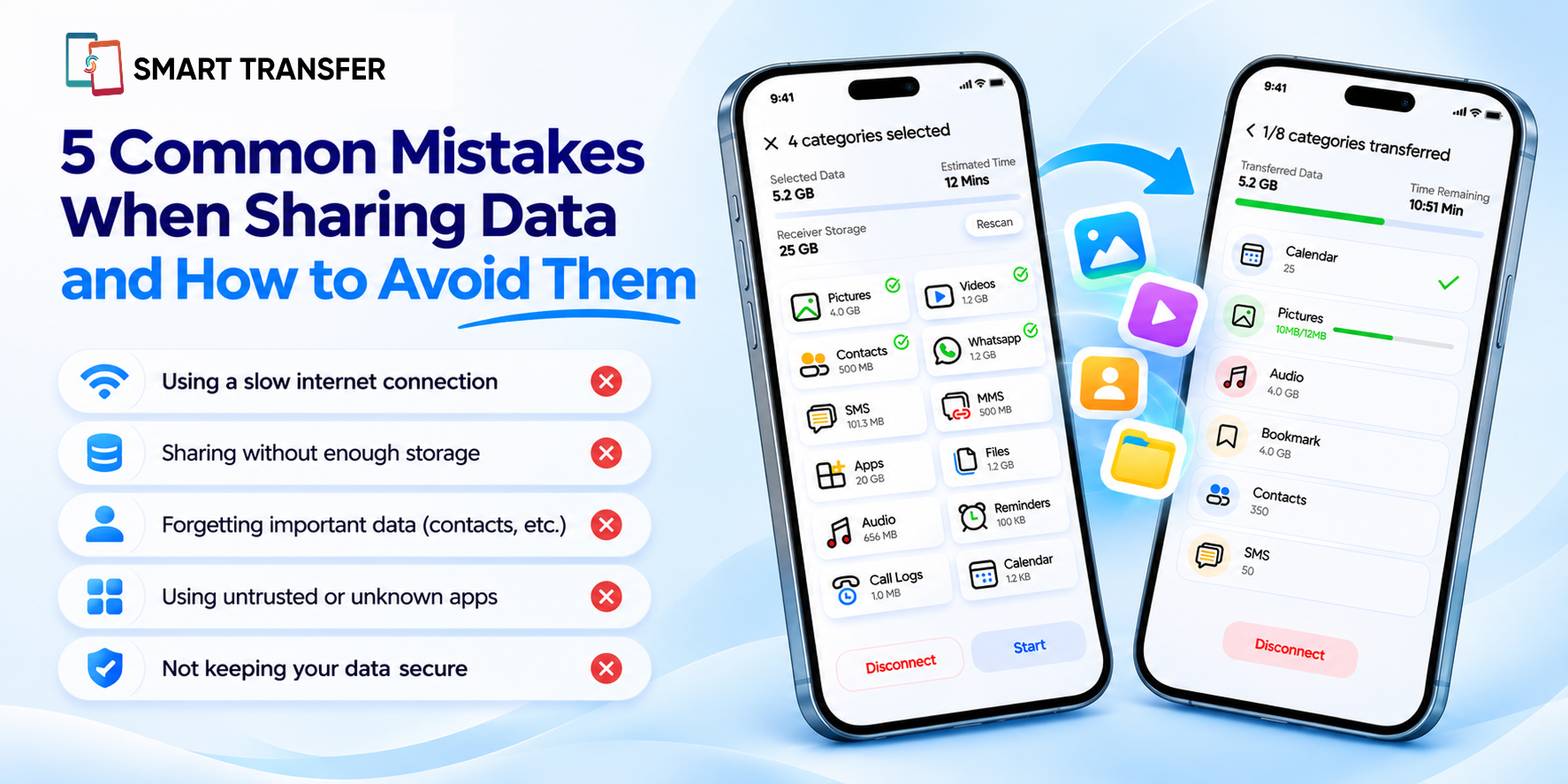
Sharing data between phones should be simple. Whether you are sending vacation photos to a friend, moving documents to another device, or transferring files to a new phone, you want everything to arrive quickly and intact.
But small mistakes can turn a straightforward transfer into a frustrating experience. Files may fail to send, videos may take longer than expected, important information may be left behind, or you may accidentally share something with the wrong person.
The good news is that most data-sharing problems are preventable. Choosing the right transfer method, checking your connection, selecting files carefully, and verifying the results can make the process much smoother.
Here are five common data-sharing mistakes, why they happen, and how to avoid them.
Key Takeaways
Most modern smartphones can scan QR codes directly through their built-in camera apps.
Dedicated QR code scanners offer added convenience through scan history and saved results.
Camera apps are ideal for occasional scans, while dedicated scanners suit frequent QR code users.
The best QR scanning option depends on how often you scan and whether you need to manage previous results.
1. Choosing the Wrong File-Sharing Method
Not every file-sharing method works equally well for every situation. Sending a single photo through a messaging app is different from transferring hundreds of videos or moving important files between phones.
For example, email attachments may have file-size limits, while messaging apps can compress photos and videos. Cloud services may require an internet connection, sufficient storage, and access to the correct account. A dedicated transfer app may be more convenient when you need to share multiple supported files directly between compatible devices.
How to Avoid This Mistake
Choose your sharing method based on the type, size, and number of files you need to send.
Sharing method | Best suited for | What to consider |
Messaging apps | Quickly sending a few files | File-size limits and possible media compression |
Email attachments | Documents and smaller files | Attachment limits and recipient access |
Cloud storage | Sharing files through links or syncing across devices | Internet access, storage space, and link permissions |
Dedicated transfer apps | Sharing supported files between compatible devices | Device compatibility and connection requirements |
Bluetooth | Transferring selected files between nearby compatible devices | Transfer speed and device compatibility |
If you regularly share photos, videos, and documents between phones, a dedicated transfer app can simplify the process.
Smart Transfer's Share Files feature supports sharing files between compatible devices. The available transfer options depend on the devices and feature you use, so check the app's requirements before starting.
Quick tip: Before choosing a method, ask yourself three questions: How large are the files? How many do I need to share? Do I need to preserve the original quality?
These answers can help you avoid unnecessary delays and repeated transfers.
2. Ignoring Your Network Connection
A weak or unstable connection can interrupt file sharing, increase transfer times, or prevent a connection from being established.
This is especially frustrating when transferring large videos, high-resolution photos, or multiple documents. A transfer may start normally but slow down or fail if the connection becomes unstable.
However, not every transfer method relies on the same type of connection. Some use Wi-Fi, some require internet access, and others use Bluetooth or a different local connection method.
How to Avoid This Mistake
First, check which connection method your sharing app requires. If it relies on Wi-Fi or the internet, make sure the connection is stable before starting.
Here are a few practical steps:
Move closer to your Wi-Fi router if the signal is weak.
Avoid starting large transfers over an unstable network.
Check whether both devices meet the app's network requirements.
Pause bandwidth-heavy downloads or streaming if your connection is struggling.
Keep both devices close enough for the connection method being used.
If a transfer fails, check the app's instructions before trying again.
You can also review your connection details and monitor network performance with Smart Transfer's Network Information feature.
Quick tip: If a transfer keeps failing, do not automatically assume the files are the problem. Check the connection method and network conditions first.
3. Sharing Files Without Checking Them First
Selecting files in a hurry can lead to mistakes. You might send the wrong photo, overlook an important document, include duplicate files, or accidentally share something private.
The problem becomes more noticeable when your phone contains thousands of photos, multiple versions of the same document, or files with similar names.
Sending files without checking them can also create extra work for the recipient, who may need to sort through unnecessary content.
How to Avoid This Mistake
Take a moment to review your selection before tapping the send or transfer button.
Before sharing, check the following:
File names: Confirm that you have selected the correct documents.
File contents: Open important files to make sure they are the right versions.
Duplicates: Remove unnecessary copies from the selection.
Privacy: Make sure the files do not contain information you did not intend to share.
File quality: Check whether the selected sharing method preserves the quality you need.
If your phone contains many duplicate or similar photos, cleaning up your selection can make file sharing easier to manage. Smart Transfer's Phone Cleaner feature can help identify duplicate photos and other storage clutter, making it easier to organize your files.
You do not need to clean your entire phone before every transfer. Focus on the files you plan to share and remove unnecessary items from that selection.
Quick tip: For important transfers, review the selected files twice: once before starting and again after the transfer is complete.
4. Forgetting to Verify the Transfer
Seeing a progress bar reach 100% does not always mean every file is ready to use. A file may not have transferred successfully, may be saved in an unexpected folder, or may not open correctly.
This can be particularly troublesome when sharing important documents or moving personal files to a new phone. If you discover the problem after deleting the originals, recovering the missing information may be difficult.
How to Avoid This Mistake
Always check the receiving device after a transfer. A quick review can help you catch missing or incomplete files while you still have access to the originals.
Use this checklist:
What to check | Why it matters |
File count | Helps identify missing files when you know how many were selected |
Photos and videos | Confirms that media files arrived and open correctly |
Documents | Ensures important files are readable |
File size | Can help identify files that may be incomplete |
Destination folder | Helps you find transferred files quickly |
Important information | Confirms that the specific content you needed is available |
For larger transfers, check a representative sample of files and pay particular attention to anything important. If you are moving essential data to a new phone, keep the original files until you have confirmed that the new copies work.
If you are transferring data as part of a phone upgrade, creating a backup first provides an additional recovery option. Smart Transfer's Backup & Restore feature offers backup and restoration options for supported data.
Quick tip: Never delete the original copy of important data just because the transfer appears complete. Verify the new copy first.
5. Overlooking Privacy and File-Sharing Permissions
Sharing files is not just about getting them from one device to another. It is also about controlling who can access them.
A common mistake is sending a file to the wrong recipient, sharing a cloud link with overly broad permissions, or leaving access enabled longer than necessary. Sensitive documents may contain personal details, financial information, business records, or other content that should not be widely accessible.
Even when you are sharing ordinary photos or documents, it is worth checking who will receive them and how they can access them.
How to Avoid This Mistake
Before sharing a file, consider whether the recipient should be able to view it, download it, edit it, or share it with others.
Follow these precautions:
Confirm the recipient: Double-check the device, contact, or account before sending.
Review link permissions: If you share through cloud storage, avoid public access when it is unnecessary.
Limit access: Give recipients only the permissions they need.
Remove access when appropriate: Disable shared links or revoke permissions when the files no longer need to be available.
Avoid sensitive public networks: Be mindful of the connection method and the information being transferred.
Use trusted apps: Download transfer tools from official app stores and review the permissions they request.
QR codes can also make device pairing easier, but only scan codes from sources you trust. Check the app and connection request before approving it.
Quick tip: Before sending a file, ask yourself: Would I be comfortable if this file reached someone other than the intended recipient? If not, double-check the destination and sharing permissions.
A Simple Checklist for Sharing Data Without Problems
You do not need a complicated process every time you share a file. A few quick checks can prevent many common problems.
Use this checklist before and after your next transfer:
Choose a sharing method that suits your file types and sizes.
Check the connection requirements for your chosen method.
Confirm that you have selected the correct files.
Review the recipient and any sharing permissions.
Make sure both devices have enough available storage where required.
Keep devices connected until the transfer finishes.
Open important files on the receiving device.
Keep the original copies until you have verified the transfer.
Back up important data before a major phone migration.
These habits take very little time but can save you from repeated transfers, missing files, and avoidable privacy problems.
Share Your Data With More Confidence
Most file-sharing problems do not require complicated solutions. Choosing the right method, checking your connection, reviewing your files, verifying the results, and protecting your privacy can make a noticeable difference.
When you need to share supported files between compatible devices, Smart Transfer offers a convenient way to manage the process. Prepare your files, follow the app's connection instructions, and confirm that everything arrives as expected.
Get started with Smart Transfer on Google Play or the Apple App Store.
Frequently Asked Questions
What are the most common data-sharing mistakes?
The most common mistakes include choosing an unsuitable sharing method, ignoring network requirements, selecting the wrong files, failing to verify a transfer, and overlooking privacy or sharing permissions. Checking these details before and after sharing helps prevent many problems.
Why does file sharing sometimes fail?
File sharing may fail because of an unstable connection, incompatible devices, insufficient storage, unsupported file types, app permissions, or interruptions during the transfer. Check the requirements of your sharing method and address any errors before trying again.
How can I share large files between phones?
Choose a method that supports your file sizes and the types of devices you are using. Dedicated transfer apps, compatible cloud services, and other supported file-sharing methods may be suitable. Check connection requirements and available storage before sending large files.
How do I share files without losing quality?
Choose a transfer method that preserves the original file rather than automatically compressing it. Some messaging services reduce the quality of photos and videos, so check the service's file-sharing settings before sending important media.
How do I know whether a file transfer was successful?
Check the receiving device after the transfer finishes. Confirm that the expected files are present, open important documents and media, and compare file counts where possible. Keep the originals until you are satisfied that the transferred copies work.
Is it safe to share files between phones?
File sharing can be safe when you use a trusted method, confirm the recipient, and control access to the files. Avoid scanning QR codes from unknown sources, review app permissions, and check link-sharing settings when using cloud services.
Should I back up my data before sharing files?
For a small transfer of files that you already have elsewhere, a separate backup may not be necessary. However, backing up important information before a major transfer or phone migration is a sensible precaution. It gives you another recovery option if something goes wrong.