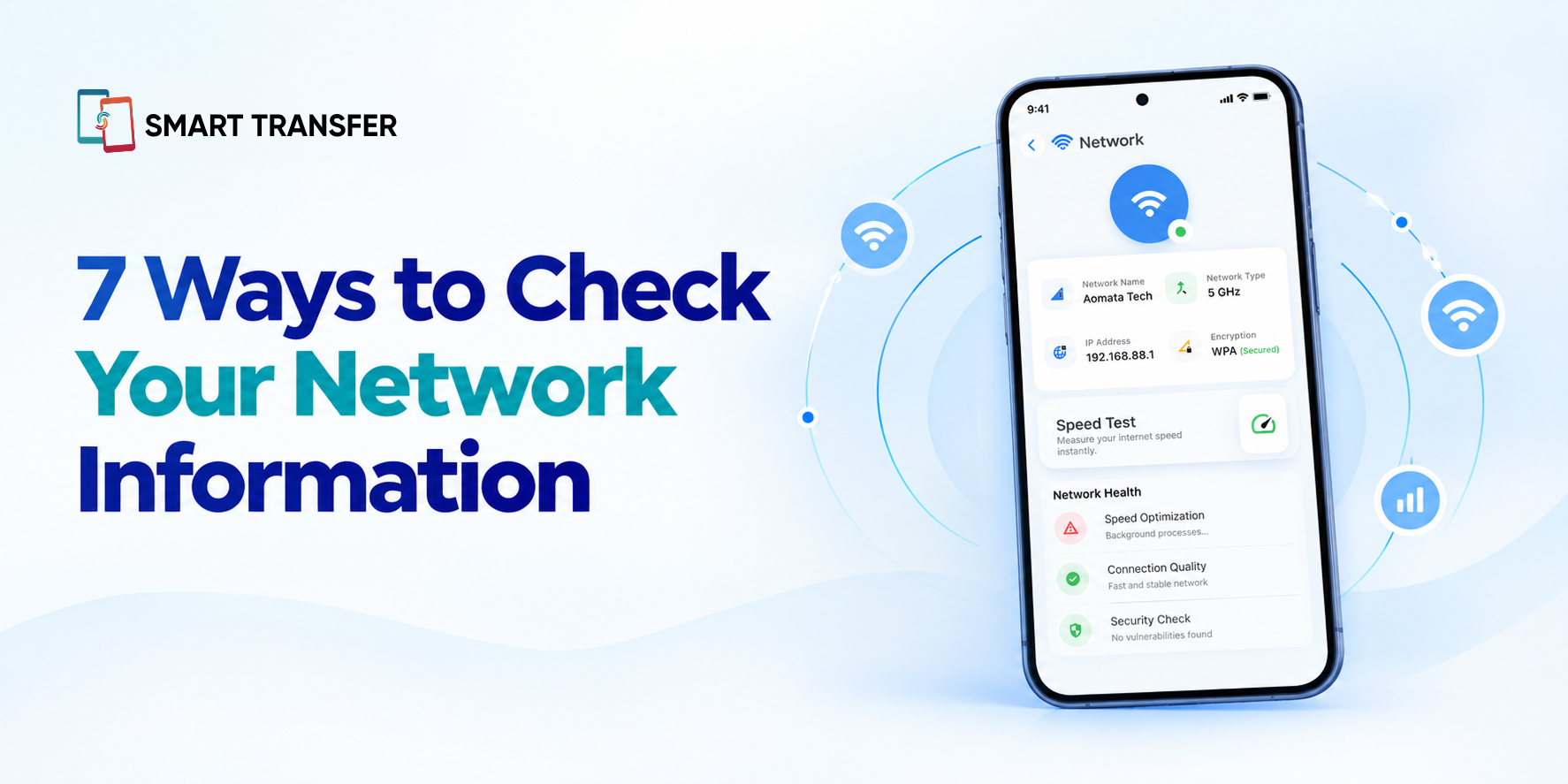
Your phone's network information can tell you more than whether you're connected to Wi-Fi or mobile data. It can help you check your connection type, view your IP address, assess signal strength, and troubleshoot connectivity problems before they interrupt browsing or file transfers.
The good news? You can find most of these details in less than a minute using your phone's built-in settings or a network information tool. You don't need technical expertise or complicated diagnostic procedures to understand the basics.
In this guide, we'll cover seven quick ways to check network information on your phone, explain what each detail means, and show you when it can be useful. Whether you're troubleshooting a slow connection or preparing to share files between devices, these checks can help you understand your network at a glance.
Key Takeaways
Check your connection type, IP address, and Wi-Fi details through your phone's network settings.
Review signal strength and connection speed to identify possible connectivity issues.
Use a network information tool to access important network details in one place and troubleshoot more efficiently.
1. Check Your Wi-Fi Connection Details
Time needed: 15–20 seconds
Your Wi-Fi settings are the quickest place to start when you want to check which network your phone is using. They typically show the connected network name, connection status, and additional technical details.
On most Android phones, open Settings > Wi-Fi or Settings > Network & Internet > Internet. Tap your connected network to view the available information.
Depending on your device, you may find details such as the network name (SSID), IP address, security type, and connection frequency. These details are useful when connecting another device to the same network or checking whether your phone is connected to the Wi-Fi network you intended to use.
2. Find Your Phone's IP Address
Time needed: 20–30 seconds
An IP address identifies your device on a network and helps devices communicate with one another. Your phone may have a private IP address assigned by your Wi-Fi router, while your public IP address is associated with your internet connection.
To find your local IP address on Android, open your connected Wi-Fi network's details in Settings. Look for IP address or a similar field. The exact location varies by Android version and manufacturer.
Remember that your local and public IP addresses are different. Your local IP address is generally used for communication within your network, while your public IP address is the address external services typically see when your device connects to the internet. Knowing which one you need can make network troubleshooting much easier.
3. Check Your Network Signal Strength
Time needed: 10–15 seconds
A weak signal can make browsing slower, interrupt downloads, and cause file transfers to take longer. Checking your signal strength helps you determine whether poor connectivity might be contributing to the problem.
For mobile data, start with the signal bars displayed in your phone's status bar. For Wi-Fi, check the Wi-Fi icon to see how strong your connection appears.
These indicators provide a quick estimate, but they don't tell the whole story. A phone can show a strong signal and still experience slow internet because of network congestion, router issues, or problems with the internet service itself.
If your connection seems unreliable, try moving closer to your router or to an area with better mobile coverage. Then check whether your connection improves.
4. Check Your Internet Connection Speed
Time needed: 30–60 seconds
Your internet speed determines how quickly your phone can download and upload data. Checking it can help you understand why webpages load slowly, downloads take longer than expected, or cloud uploads seem to stall.
You can run a speed test using a reputable online speed-testing service or app. For a useful result, make sure no large downloads or uploads are running in the background.
Pay attention to three measurements:
Download speed: How quickly your phone receives data, such as when streaming videos or downloading files.
Upload speed: How quickly your phone sends data, which matters when uploading photos, sending files, or backing up content.
Latency (ping): How long it takes for data to travel to a server and back. Lower latency generally means a more responsive connection.
A speed test measures your internet connection, not necessarily your phone's ability to transfer files directly to another device. Local wireless transfers can behave differently, especially when the devices communicate over the same Wi-Fi network.
5. Check Your Network Type and Connection Frequency
Time needed: 15–30 seconds
Knowing whether you're connected through Wi-Fi, 4G, or 5G helps you understand how your phone is accessing the network. If you're using Wi-Fi, checking the connection frequency can also provide useful context.
Open your phone's network settings to see the available connection details. Depending on your device, you may find information about your mobile network type or whether your Wi-Fi connection uses the 2.4 GHz or 5 GHz band.
The 2.4 GHz band generally offers better range and can pass through walls more effectively, while 5 GHz often supports higher speeds at shorter distances. Actual performance depends on your router, surroundings, and network conditions.
If you're preparing to transfer files between devices, checking that both devices are connected as expected can help you identify connection mismatches before troubleshooting more complicated issues.
6. Review Your Mobile Data Usage
Time needed: 20–30 seconds
If your mobile data seems to disappear too quickly, checking data usage can help you identify which apps are consuming it.
On Android, open Settings > Network & Internet > SIMs or look for Data Usage under your phone's network settings. Menu names vary by manufacturer, but most devices provide a breakdown of mobile data consumption by app.
Look for apps that use unusually large amounts of data. Video streaming, social media, cloud backups, and automatic downloads can consume significant data, particularly when you're away from Wi-Fi.
You can also set a data warning or usage limit if your phone supports it. Keep in mind that these figures may not match your carrier's records exactly, so use your mobile provider's app or account information to confirm your remaining data allowance.
7. Use a Network Information Tool for a Quick Overview
Time needed: Under a minute
Checking each network setting individually can become tedious when you need several details at once. A network information tool can make the process more convenient by bringing important connection information together in one place.
Smart Transfer's Network Information feature helps you review available network details from your phone without navigating through multiple settings screens. It's useful when you want a quick overview of your connection before troubleshooting or sharing files.
For example, you can check your network information before attempting a wireless file transfer. If something doesn't work as expected, reviewing the available connection details gives you a starting point for identifying what might be wrong.
If you're planning to share files between devices, checking your network beforehand can help you understand your connection setup and troubleshoot more efficiently.
When Should You Check Your Network Information?
You don't need to inspect your network settings every day. However, a quick check can be useful when something isn't working as expected.
These checks can help you narrow down the cause of a problem before restarting your phone, resetting network settings, or changing your router configuration.
Check Your Network Information in Seconds
Knowing how to check your network information can save time when you're dealing with slow internet, unstable Wi-Fi, or interrupted file transfers. From finding your IP address to checking signal strength and data usage, these simple checks help you understand what's happening with your connection.
You don't need to inspect every setting each time. Start with the information most relevant to your problem, then investigate further if necessary. For a more convenient overview, Smart Transfer's Network Information feature can help you review available network details in one place.
Ready to simplify your network checks? Download Smart Transfer from Google Play or the Apple App Store and explore its useful features for everyday phone management.
Frequently Asked Questions
How do I check network information on Android?
Open your phone's Settings and navigate to Wi-Fi, Network & Internet, or Mobile Network. Depending on your device, you can find details such as your connected network, IP address, network type, and data usage. A network information tool can make some of these details easier to review.
How can I check my IP address on my phone?
Open your connected Wi-Fi network's details and look for the IP address field. This generally shows your phone's local IP address. To find your public IP address, use a reputable online IP-checking service.
How do I know if my network connection is good?
Check your signal strength and run an internet speed test. Download speed, upload speed, and latency can help you assess performance, although the best results depend on what you're trying to do. A strong signal alone doesn't guarantee a fast internet connection.
Can I check network information without an internet connection?
Yes. Your phone can usually display local network details, such as the connected Wi-Fi network and local IP address, even if the network has no internet access. However, online speed tests and public IP-checking services require an internet connection.
Why is my Wi-Fi connected but the internet isn't working?
Your phone may be connected to the router even if the router has lost its internet connection. Check whether other devices can access the internet, reconnect to Wi-Fi, and restart your router if necessary. If the issue persists, contact your internet service provider.
Does checking network information improve internet speed?
Checking network information doesn't directly make your connection faster. It helps you identify potential issues, such as weak signals, low speeds, or unexpected network settings, so you can take the appropriate steps to improve performance.