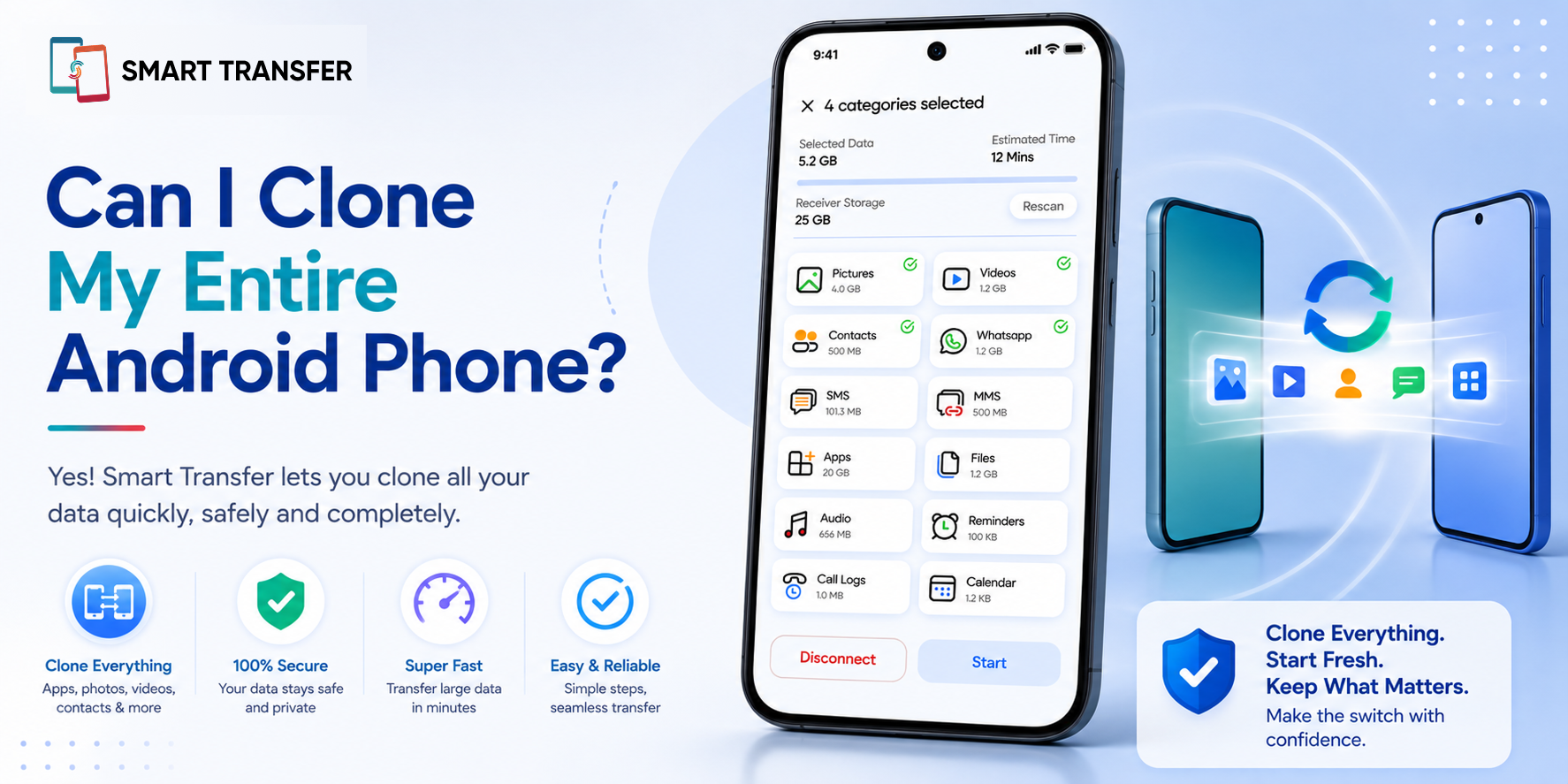
Yes, you can clone most of your Android phone, including your photos, videos, contacts, documents, and many of your apps. However, "cloning your entire phone" doesn't always mean every piece of data will transfer. Certain app data, system settings, and security-protected information may need to be set up again on your new device.
The good news is that cloning an Android phone is easier than ever. With the right phone clone app, you can securely transfer your important data to a new device without manually copying files one by one or starting from scratch.
In this guide, you'll learn what can and can't be cloned, why some data may not transfer, and how to clone your Android phone step by step using Smart Transfer's Phone Clone feature. If you're looking for a complete walkthrough, our guide on How to Transfer Data from Android to Android covers the entire transfer process in detail.
Key Takeaways
You can clone most of your Android phone, but not every type of data. Photos, videos, contacts, documents, music, and many apps can usually be transferred, while certain app data, security credentials, and system settings may require manual setup.
Using a phone clone app is the fastest way to switch to a new Android device. Instead of copying files individually, you can transfer multiple types of data in one process, making the transition quicker and more convenient.
Preparing both phones before you start helps ensure a successful transfer. Charging your devices, connecting to a stable Wi-Fi network, and verifying your data before resetting your old phone can help you avoid interruptions and protect your important information.
What Does It Mean to Clone an Android Phone?
Cloning an Android phone means copying your important data from one device to another so your new phone is ready to use with minimal setup. Instead of transferring files one by one, a phone clone app moves multiple types of data in a single process, saving time and reducing the risk of leaving something behind.
In most cases, cloning an Android phone includes your photos, videos, contacts, documents, music, and other personal files. Many phone clone apps can also transfer supported apps and additional data, making it much easier to switch to a new device.
However, cloning your phone doesn't create an identical copy of everything. For security and privacy reasons, some data cannot be transferred automatically. Certain banking apps, app-specific settings, saved passwords, and protected content may need to be downloaded again or set up manually on your new phone.
With Smart Transfer's Phone Clone feature, you can securely move your important data to a new Android device without manually copying each file. The process is designed to make upgrading your phone faster while keeping your personal information organized throughout the transfer.
Cloning vs. Copying Files: What's the Difference?
Although the terms are sometimes used interchangeably, cloning and copying aren't the same thing.
For most people upgrading to a new Android phone, using a phone clone app is the quickest and most convenient way to move important data while minimizing manual work.
What Can You Clone to a New Android Phone?
One of the biggest concerns when switching phones is whether everything will make it to the new device. The good news is that most of your personal data can usually be transferred successfully. However, some types of data depend on the apps you use, your Android version, and your device manufacturer.
The table below shows what you can typically expect when cloning an Android phone.
Most users can transfer everything they need for a smooth transition to a new Android phone. If a few items don't carry over automatically, they're usually related to security restrictions rather than a problem with the transfer itself.
With Smart Transfer's Phone Clone feature, you can move your important data in a single process, making it easy to set up your new Android phone without manually copying your files one by one.
How to Clone Your Entire Android Phone Using Smart Transfer
Once you're ready to switch devices, cloning your Android phone only takes a few simple steps. With Smart Transfer's Phone Clone feature, you can securely transfer your photos, videos, contacts, documents, and other supported data to your new Android phone without manually moving each file.
The time required to clone your Android phone depends on how much data you're transferring. Smaller transfers may finish in just a few minutes, while larger photo libraries, videos, and documents can take longer. Keeping both devices connected to a stable Wi-Fi network and avoiding interruptions helps ensure the process completes successfully.
Why Some Data May Not Transfer
While you can clone most of your Android phone, there are a few types of data that may not transfer automatically. This is completely normal and is usually the result of security, privacy, or operating system restrictions rather than a problem with the cloning process.
Understanding these limitations helps set realistic expectations before you switch to your new device.
Banking and Financial Apps
For security reasons, banking and payment apps typically require you to sign in again on your new phone. Many also use device verification or two-factor authentication to protect your account, so their data isn't transferred automatically.
App-Specific Data
Some apps securely store their information on remote servers instead of your device. While the app itself may transfer successfully, you'll often need to sign in again to restore your account, preferences, or saved content.
System Settings
Settings such as wallpapers, accessibility preferences, Wi-Fi passwords, and manufacturer-specific customizations may not transfer completely. The exact behavior depends on your Android version and the devices you're using.
Copyright-Protected Content
Movies, music, ebooks, and other digital purchases protected by digital rights management (DRM) may need to be downloaded again from the service where you originally purchased or accessed them.
Security Credentials
For your protection, saved passwords, authentication tokens, and biometric data such as fingerprints and facial recognition aren't typically copied during the cloning process. These security features are designed to be set up again on your new device.
Although a few items may require manual setup, most users can successfully transfer the files they use every day, including photos, videos, contacts, documents, and other personal data. Spending a few minutes signing back into certain apps is usually all that's needed to complete the transition.
Tips for a Successful Android Phone Clone
Cloning your Android phone is usually quick and straightforward, but taking a few precautions before you begin can help prevent interruptions and ensure your data transfers successfully.
Charge Both Phones
Phone cloning can take anywhere from a few minutes to over an hour, depending on how much data you're transferring. Make sure both devices have plenty of battery life or keep them connected to a charger throughout the process.
Connect to a Stable Wi-Fi Network
A reliable Wi-Fi connection helps maintain a stable transfer between your devices. If the connection drops during the process, the transfer may pause or need to be restarted.
Make Sure Your New Phone Has Enough Storage
Before cloning your data, check that your new Android phone has enough available storage. If it's already running low on space, some files may not transfer successfully.
Keep Both Phones Close Together
To maintain a stable connection, keep both devices close to each other throughout the transfer. Avoid switching between apps or turning off either phone until the process is complete.
Verify Everything Before Resetting Your Old Phone
Once the transfer is finished, take a few minutes to review your photos, videos, contacts, documents, and other important files on your new device. Only factory reset, sell, or trade in your old phone after you've confirmed that everything you need has transferred successfully.
Clone Your Android Phone with Confidence
Cloning your Android phone is one of the fastest and easiest ways to move your important data to a new device. While some app-specific information and security-protected data may require a little extra setup, most of your photos, videos, contacts, documents, and other personal files can be transferred quickly and securely.
With Smart Transfer's Phone Clone feature, you can simplify the entire process and spend less time setting up your new phone. Download Smart Transfer from Google Play or the Apple App Store to clone your Android phone securely and start using your new device with confidence.
Frequently Asked Questions About Cloning an Android Phone
Can I clone my entire Android phone?
You can clone most of your Android phone, including your photos, videos, contacts, documents, music, and many apps. However, certain app data, security credentials, and some system settings may not transfer because of Android security restrictions or app-specific limitations.
Will my apps transfer to my new Android phone?
Many apps can be transferred during the cloning process. However, some apps may need to be downloaded again from Google Play, and you may be asked to sign in again to restore your account and app data.
Can I clone my Android phone without a computer?
Yes. Most modern phone clone apps, including Smart Transfer's Phone Clone feature, allow you to transfer data wirelessly between devices without connecting them to a computer.
How long does it take to clone an Android phone?
The time depends on how much data you're transferring. A smaller transfer may take only a few minutes, while cloning thousands of photos, videos, and documents can take considerably longer. A stable Wi-Fi connection helps the process run more efficiently.
Will cloning my Android phone erase the data on my old phone?
No. Cloning your Android phone copies supported data to your new device without deleting anything from your old phone. Once you've confirmed that everything transferred successfully, you can choose to factory reset, sell, or trade in your old phone if needed.