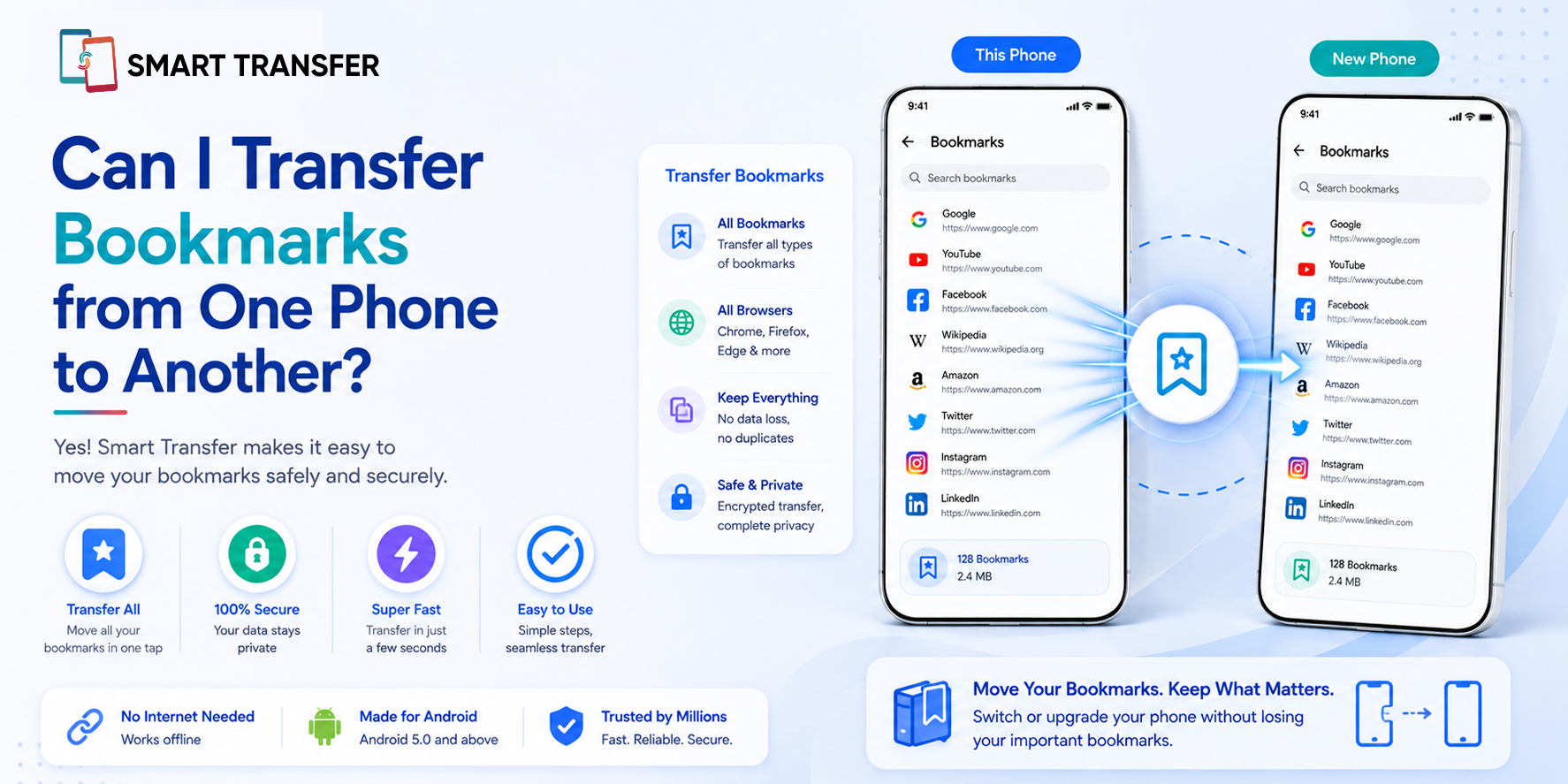
Yes, you can transfer bookmarks from one phone to another, but the easiest method depends on where your bookmarks are stored and whether you're switching browsers or operating systems.
Your saved websites may include everything from work resources and travel plans to shopping pages and articles you want to revisit. Losing them during a phone upgrade can mean rebuilding years of saved links from scratch.
Fortunately, you don't have to. Browser syncing, bookmark exports, and dedicated bookmark management tools can all help you move your saved links to a new device. In this guide, you'll learn how bookmark transfers work, which methods you can use, and how Smart Transfer's Bookmarks Manager can help you keep your saved links organized when you switch phones.
Key Takeaways
You can transfer bookmarks from one phone to another. Your saved websites can be moved using browser syncing, bookmark backups, exports, or dedicated bookmark management tools.
The best transfer method depends on your browser and devices. Bookmarks may sync automatically when you use the same browser and account, but switching browsers or operating systems may require an additional method.
Backing up and organizing your bookmarks makes switching easier. Tools like Smart Transfer's Bookmarks Manager can help you keep your saved links together, back them up, and restore them when moving to a new phone.
What Happens to Your Bookmarks When You Switch Phones?
Your bookmarks don't always move to a new phone automatically. Whether they appear on your new device depends on how you saved them, which browser you use, and whether you're signed in to the same account.
If your bookmarks are synced with your browser account, they may appear automatically when you sign in on your new phone and enable syncing. However, this becomes less straightforward when you switch browsers, move between Android and iPhone, or have bookmarks stored locally rather than in a synced account.
It's also possible to end up with duplicate or missing bookmarks if you use multiple browsers or import the same collection more than once. That's why it's worth checking where your bookmarks are stored before switching devices.
Do Bookmarks Transfer Automatically?
Sometimes. If you're using the same browser and account on both phones with bookmark syncing enabled, your saved websites can usually appear on the new device automatically. If you're changing browsers or platforms, you'll generally need to use another transfer method.
Understanding where your bookmarks are stored is the first step toward making sure your saved links don't get left behind when you switch phones.
How to Transfer Bookmarks from One Phone to Another
There are several ways to move your bookmarks to a new phone, and the right option depends on your browser and the devices you're switching between. If you're staying with the same browser, syncing may be enough. If you're changing browsers or want more control over your saved links, you may need to back them up and restore them instead.
Using Browser Sync
If your bookmarks are already synced with your browser account, transferring them can be as simple as signing into the same account on your new phone. Once synchronization is enabled, your saved websites should become available on the new device.
This is usually the easiest option when you're staying with the same browser, but it may not work as expected when switching between different browsers or accounts.
Exporting and Importing Bookmarks
Some browsers allow you to export your bookmarks and import them on another device or browser. This gives you more control over your saved links, particularly when you're changing browsers.
The exact steps vary by browser, so check the browser's bookmark or synchronization settings to see which options are available.
Using a Bookmark Management Tool
A dedicated bookmark management tool can be useful when you want to keep your saved websites together instead of relying entirely on browser-specific syncing.
Smart Transfer's Bookmarks Manager helps you consolidate your saved links in one place, making it easier to manage, back up, and restore your bookmarks when moving to a new phone.
The important thing is to choose a method that matches how your bookmarks are currently stored. Before wiping or trading in your old phone, always confirm that your saved websites are accessible on the new device.
How to Transfer Bookmarks Using Smart Transfer
If you're switching to a new phone, you don't have to recreate your saved websites manually. Smart Transfer's Clone feature can transfer your bookmarks along with other supported data, making it easier to move your important information in one process.
If you have a large collection of saved links, Bookmarks Manager can then help you keep them organized in one place. This gives you a simple two-step approach: use Clone to move your bookmarks, then use Bookmarks Manager to manage them.
What If Your New Phone Uses a Different Browser?
Moving to a different browser can make bookmark transfers a little more complicated. Your bookmarks may be tied to the browser or account you used to save them, so signing into a different browser does not always bring them over automatically.
For example, if you move from Chrome to Safari, Safari to Chrome, or another browser combination, your saved websites may need to be exported, imported, or transferred using another method.
The same applies when switching between Android and iPhone. Your bookmarks can still be moved, but the process may depend on the browsers installed on each device and how your bookmarks are stored.
If you're using Smart Transfer's Clone feature, you can select supported bookmarks along with other data during the transfer process. Once they're on your new phone, Bookmarks Manager can help you consolidate and organize your saved links so they're easier to find.
Before resetting your old phone, always open your new browser and confirm that the bookmarks you need are available. This simple check can save you from discovering missing links after you've already erased your old device.
How to Keep Your Bookmarks Organized After Moving
Once your bookmarks are safely on your new phone, it's worth taking a few minutes to organize them. A phone switch is a good opportunity to clear out links you no longer need and make the websites you use most often easier to find.
Start by removing outdated or broken links. Old articles, expired offers, and websites you no longer visit can quickly make a large bookmark collection difficult to navigate. You can also look for duplicate bookmarks that point to the same page.
If you've accumulated saved links across different browsers or sources, Smart Transfer's Bookmarks Manager can help consolidate them in one place. Keeping your bookmarks organized means less scrolling and makes it easier to find an important link when you need it.
It's also a good idea to back up your bookmarks periodically. That way, if you change phones again, your carefully organized collection won't have to be rebuilt from scratch.
Common Bookmark Transfer Problems and How to Fix Them
Even when the transfer itself is successful, you may occasionally notice that some bookmarks are missing, duplicated, or difficult to find. Most of these issues are easy to resolve once you know where to look.
If something appears to be missing after the transfer, don't erase your old phone immediately. Check your original bookmark collection first, identify what is missing, and then try the appropriate transfer method. Keeping the old device available until you've verified your data gives you a safer fallback.
Transfer Your Bookmarks Without Starting Over
Your bookmarks may seem like small pieces of data, but they often contain years of useful websites, resources, and information you don't want to lose when switching phones. The good news is that you can move them to your new device instead of rebuilding your collection from scratch.
Whether you use browser syncing, export and import, or Smart Transfer's Clone feature, take a moment to verify your bookmarks before resetting your old phone. Once they're safely transferred, Bookmarks Manager can help you keep your saved links organized and easier to find.
Ready to move your bookmarks to your new phone? Download Smart Transfer from Google Play or the Apple App Store and transfer your saved links along with your other supported data.
Frequently Asked Questions About Transferring Bookmarks
Can I transfer bookmarks from Android to iPhone?
Yes. You can transfer bookmarks from Android to iPhone, although the exact method depends on the browsers you use on each device. Browser syncing, exporting and importing bookmarks, or a supported phone transfer method can help move your saved websites.
Can I transfer bookmarks from iPhone to Android?
Yes. Your bookmarks can be moved from an iPhone to an Android phone. If you're changing browsers, you may need to export your bookmarks or use a transfer method that supports bookmarks rather than relying solely on browser syncing.
Will my bookmarks automatically transfer to a new phone?
Not always. If you're using the same browser and account with syncing enabled, your bookmarks may appear automatically. If you're changing browsers, accounts, or operating systems, you'll likely need to transfer them separately.
How do I transfer Chrome bookmarks to a new phone?
If you're using Chrome on both phones, sign into the same Google account and make sure bookmark syncing is enabled. You can also use a supported bookmark transfer or backup method if you need more control over the process.
Can I transfer bookmarks between different browsers?
Yes, but the process varies between browsers. You may need to export bookmarks from your old browser and import them into the new one. A phone transfer tool that supports bookmarks can also provide another option when changing devices.
Are bookmarks included when transferring phone data?
It depends on the transfer method. Some phone transfer tools don't include browser bookmarks, while others support them as part of the data you can move. With Smart Transfer's Clone feature, you can select supported bookmarks when transferring data to your new phone.