
Upgrading to a new iPhone is exciting, sharper cameras, faster performance, and that fresh, out-of-the-box magic. But moving your data from the old device to the new one can feel overwhelming… unless you have the right tool.
Smart Transfer makes iPhone-to-iPhone data transfer simple, fast, and cable-free. Whether it’s photos, videos, contacts, reminders, or important documents, Smart Transfer helps you clone phone data with precision, reliability, and ease.
So if you've ever searched for a trustworthy phone clone app, a smarter way to switch phones, or a clean alternative to iCloud and iTunes transfers, you're in the right place.
Why Choose Smart Transfer for iPhone to iPhone?
There are many reasons users prefer Smart Transfer over Apple's default migration tools. Here's what sets it apart:
No iCloud or iTunes Required
Skip the iCloud backup and restore process. Smart Transfer allows you to clone it directly from one iPhone to another, no cloud storage needed.
Lightning-Fast Share Speeds
Smart Transfer delivers fast share speeds that outperform traditional Bluetooth transfers and internet-based syncing.
Easy for Anyone to Use
You don’t need to be tech-savvy to clone my phone. The app offers step-by-step instructions that guide you through the entire process.
No Data Loss, Total Control
Unlike some other apps, you decide exactly what you want to transfer. Whether it’s just your contacts or your entire gallery, the choice is yours.
How to Clone Phone from iPhone to iPhone with Smart Transfer
Ready to start your phone switch? Here’s a simple, step-by-step guide to help you clone phone data using Smart Transfer.
Step 1: Install Smart Transfer
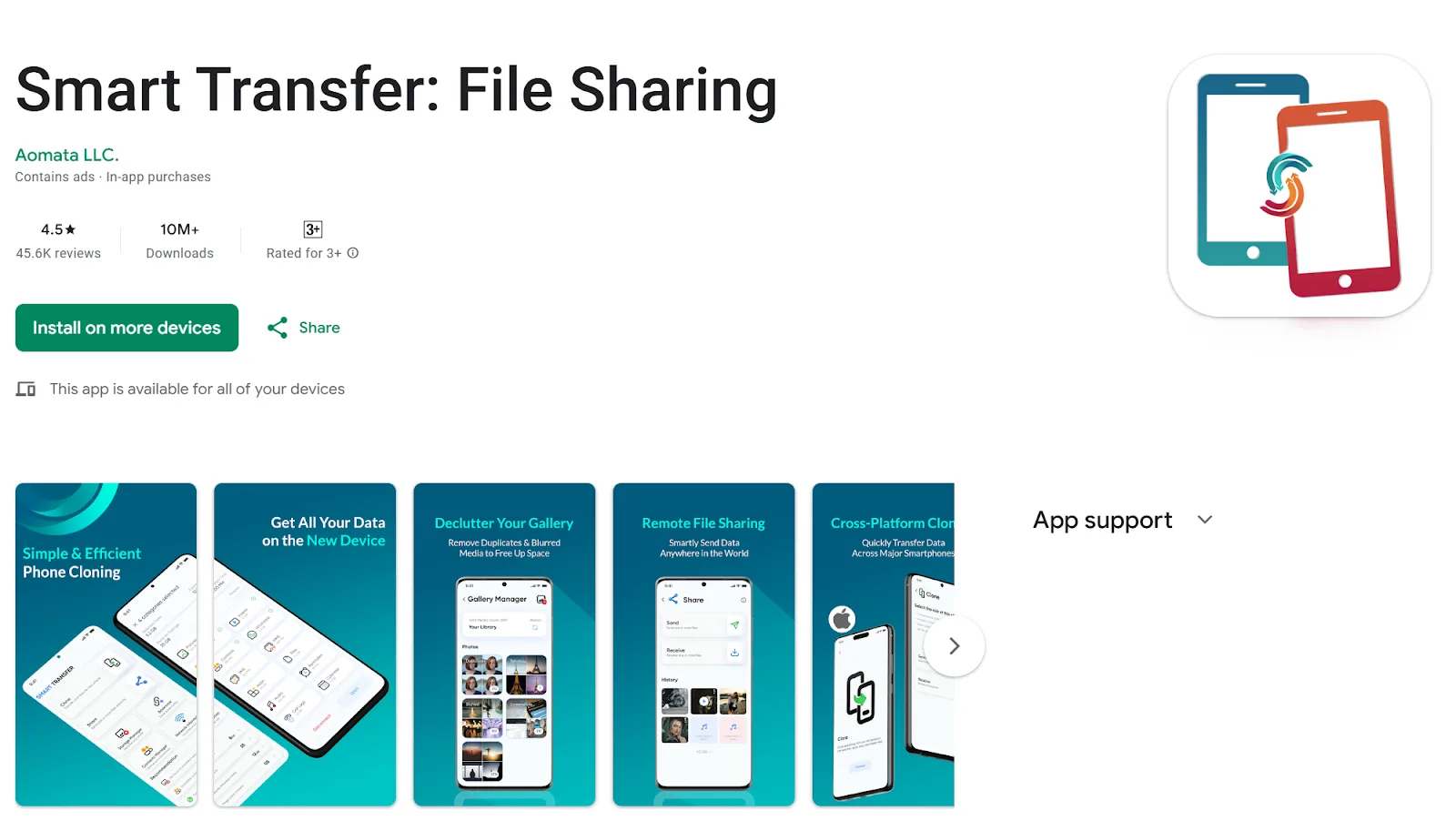
First, download Smart Transfer from the App Store on both iPhones, the old one (Sender) and the new one (Receiver). It’s free and lightweight.
Step 2: Launch the App and Tap Continue
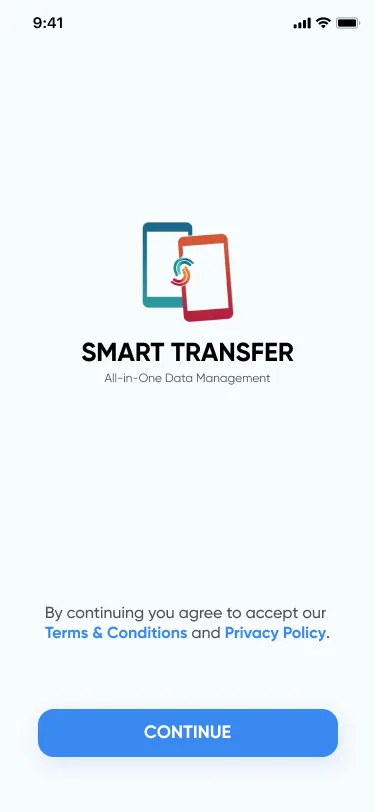
Open Smart Transfer on both devices. Tap "Continue" to proceed past the welcome screen.
Step 3: Select the "Clone" Option
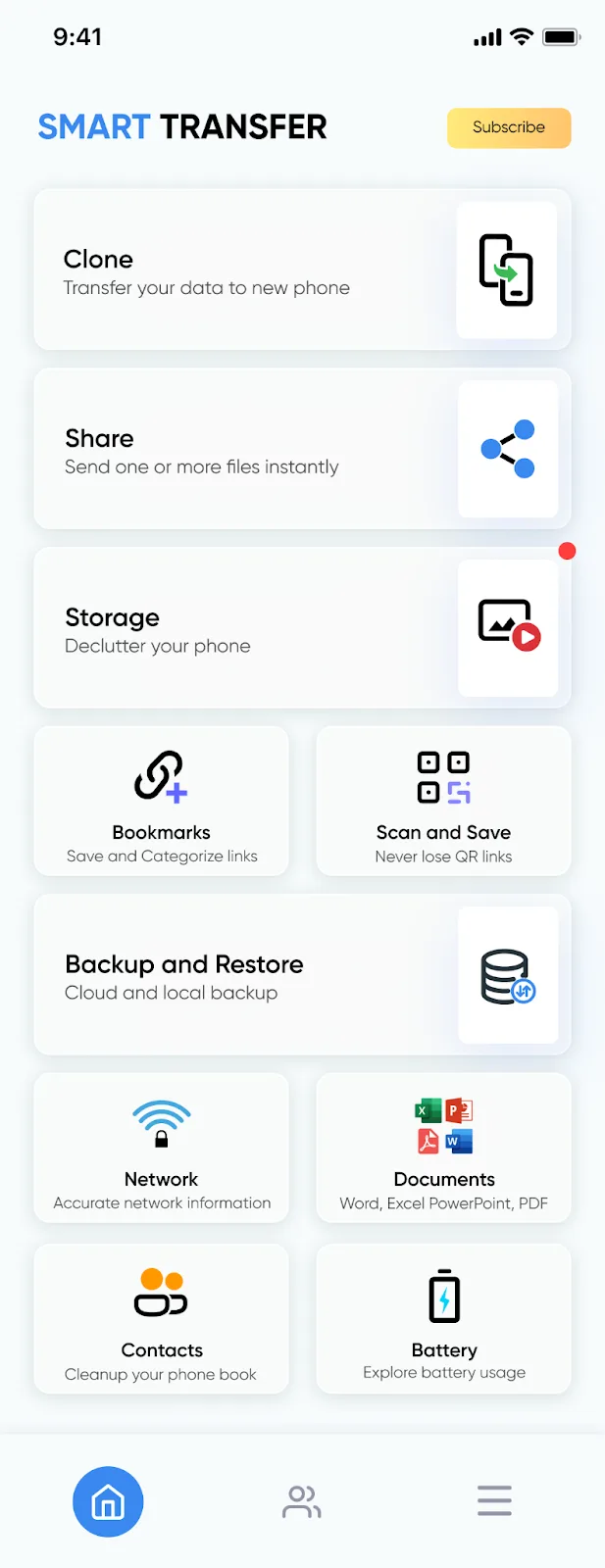
From the main dashboard, select the “Clone” option on both iPhones. This will initiate the smart switch phone clone setup.
Step 4: Assign Device Roles
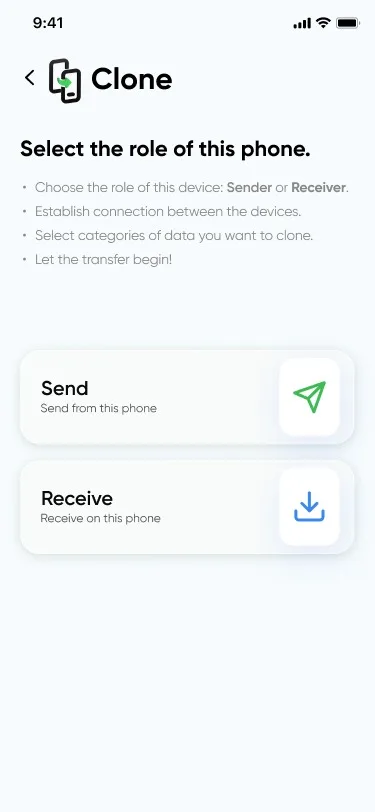
On one iPhone, select Send. On the other, select Receive.
Step 5: Scan QR Code or Enter Passcode
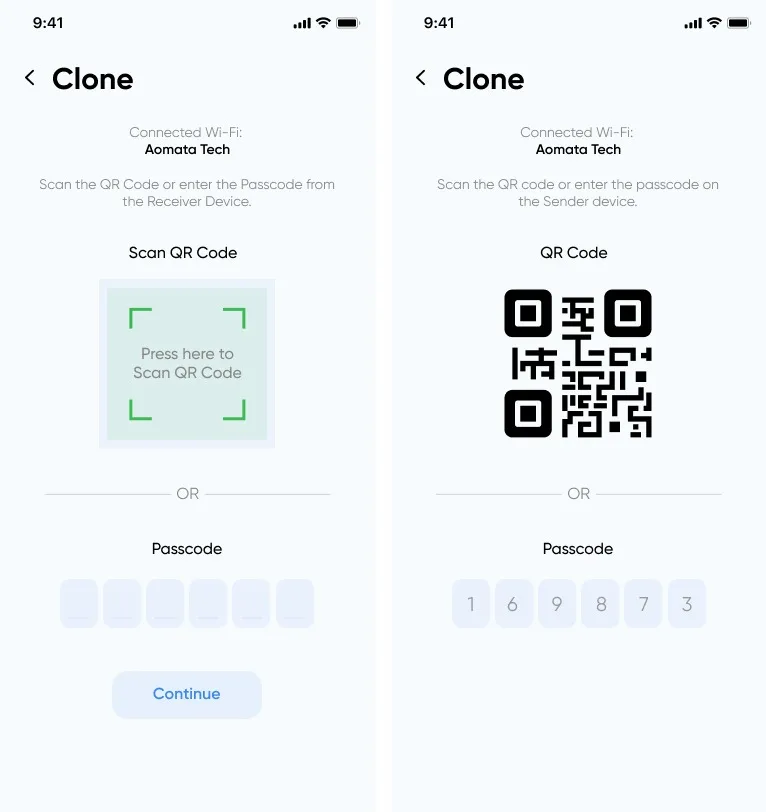
Once the Receiver displays a QR code and passcode, use the Sender device to either scan the QR code or manually enter the passcode. This establishes a secure connection between both iPhones.
Note: Ensure Both Devices Are on the Same Wi-Fi
Both devices should be connected to the same Wi-Fi network to enable seamless switch phone functionality.
Step 6: Accept the Connection Request
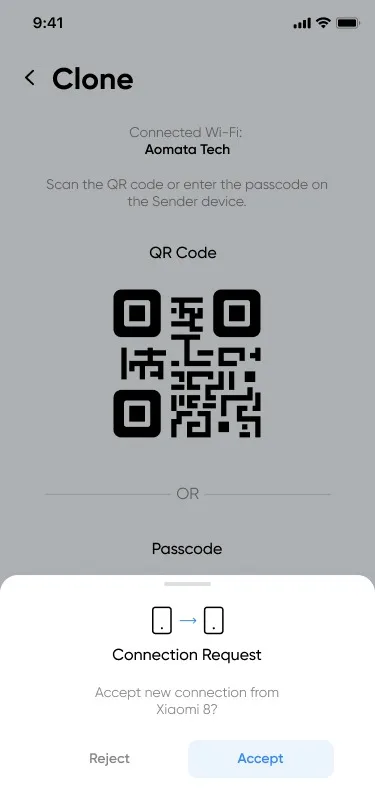
On the Receiver device, you’ll see a prompt to accept the connection. Tap “Allow” to confirm the pairing.
Step 7: Choose What to Transfer
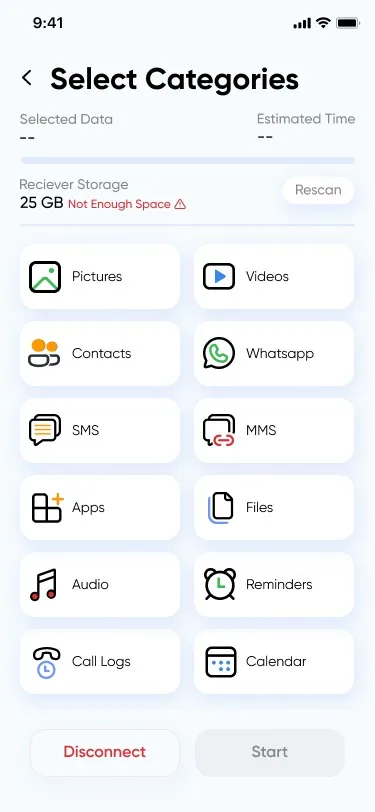
On the Sender iPhone, select the data you'd like to transfer. Smart Transfer supports:
Photos
Videos
Contacts
Calendar events
Reminders
This targeted selection helps you make the most of your clone a mobile experience.
Step 8: Grant Permissions on Sender
You’ll be prompted to grant Smart Transfer access to the data you selected. This ensures the app can securely perform the mobile clone operation.
Step 9: Tap Start
Once everything is set, tap “Start” on the Sender device. The transfer will begin immediately.
Step 10: Allow Final Permission on Receiver
The Receiver iPhone will ask for confirmation to accept the incoming data. Approve this to complete the transfer.
Step 11: Done!
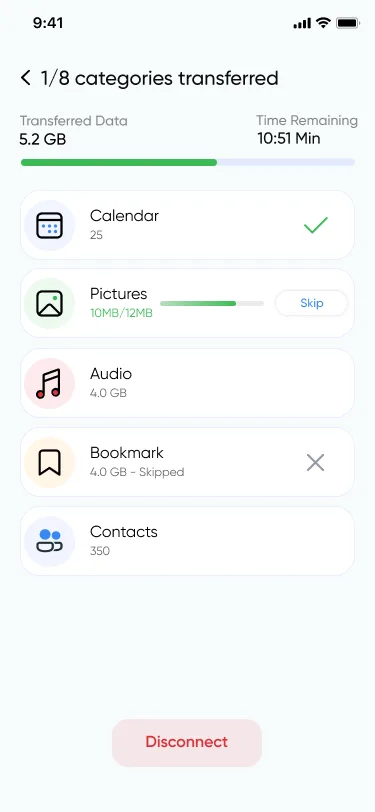
Within minutes, your new iPhone will have all the data from your old one. Just like that, you’ve successfully completed a smart switch phone transfer using Smart Transfer.
Smart Transfer is the Easiest Way to Clone a Mobile Phone!
Getting a new iPhone doesn’t have to mean starting from scratch. With Smart Transfer, you can effortlessly clone phone data from your old iPhone to your new one in just minutes. No cloud, no cables, and no confusion, just a simple, secure, and lightning-fast smart switch phone clone. So the next time you upgrade or help a friend set up a new iPhone, you’ll know exactly how to clone a mobile phone without breaking a sweat.
Download now from Google Play or the Apple App Store to start your next phone switch in minutes. If you have any questions drop us an email on support@smarttransferapp.com.
Frequently Asked Questions (FAQs)
1. Can I transfer data from one iPhone to another without using iCloud?
Yes. Smart Transfer lets you move your data directly from one iPhone to another without iCloud or iTunes. Just connect both devices to the same Wi-Fi network and begin the transfer.
2. Does Smart Transfer require an internet connection?
Yes. Both iPhones must be connected to the same Wi-Fi network for the transfer to work. Smart Transfer does not support offline transfers.
3. What types of data can I clone from my old iPhone?
Smart Transfer supports photos, videos, contacts, reminders, calendar events, files, and more. You can choose exactly what you want to transfer.
4. Does Smart Transfer work with all iPhone models?
Yes. Smart Transfer supports all modern iPhone models running iOS 12 or later. Whether you’re switching from an older device or the latest iPhone, the transfer works the same way.
5. How long does an iPhone-to-iPhone transfer take?
Most transfers finish in just a few minutes, depending on your Wi-Fi speed and the total size of your files. Larger photo and video libraries may take slightly longer.
6. Do I need to reset my new iPhone before transferring?
No. Smart Transfer works even if your new iPhone is already set up. There’s no need to erase or factory reset the device.
7. Is my data safe during the transfer?
Absolutely. Smart Transfer sends data directly over your private Wi-Fi network. Nothing is uploaded to external servers, ensuring your memories stay secure and private.
8. What if the devices fail to connect?
Try these quick fixes:
Make sure both iPhones are on the same Wi-Fi network
Restart the Smart Transfer app on both devices
Turn Wi-Fi off and on again
Close heavy background apps
Disable any VPNs
This usually resolves connection issues immediately.
9. Can I transfer only selected files instead of everything?
Yes! Smart Transfer gives you full control. Choose specific categories, like only contacts, only photos, or a custom combination.
10. Can Smart Transfer move large videos or full-resolution photos?
Yes. Smart Transfer supports large file transfers as long as your Wi-Fi connection is stable. It’s perfect for users with big photo libraries or long 4K videos.