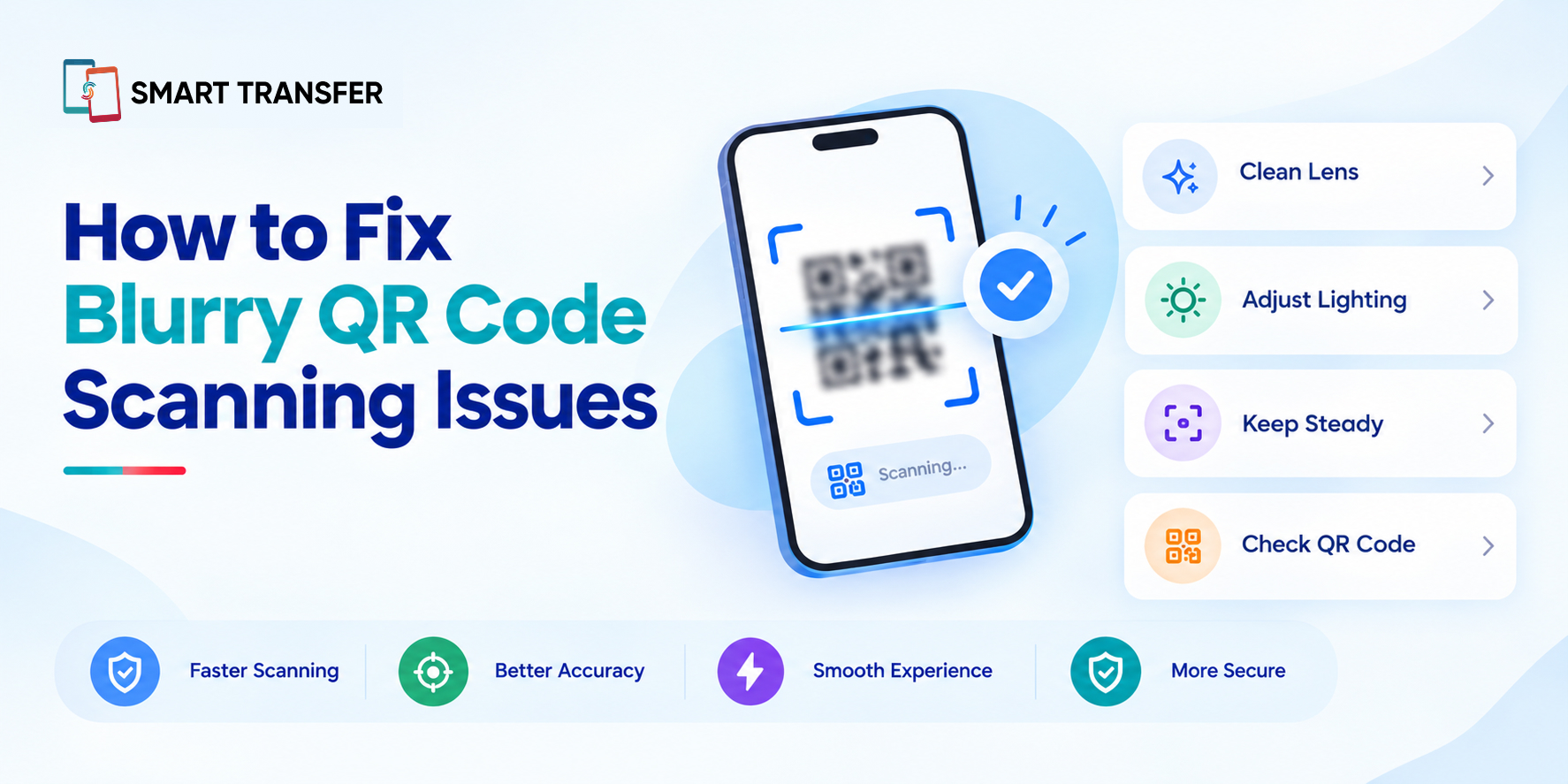
A blurry QR code can be difficult or impossible for your phone to scan because the camera needs to clearly recognize the code's patterns and alignment markers. Fortunately, a few simple adjustments can often fix the problem.
Start by cleaning your camera lens, improving the lighting, holding your phone steady, and adjusting the distance until the QR code comes into focus. If the QR code itself is low-resolution, damaged, or heavily blurred, however, you may need a clearer version rather than a camera adjustment.
In this guide, we'll explain how to fix blurry QR code scanning issues, why your phone may struggle to recognize a QR code, and what to do when the problem is with the code itself.
Key Takeaways
A blurry QR code may not scan because your camera cannot clearly recognize its patterns. Focus, lighting, distance, camera movement, and a dirty lens can all affect scanning accuracy.
Simple camera adjustments can often fix QR code scanning issues. Clean the lens, improve the lighting, hold your phone steady, and adjust the distance until the QR code appears sharp and fully visible.
A low-quality or damaged QR code may need to be replaced. If the code itself is heavily blurred, distorted, or missing details, changing your camera settings may not be enough to make it readable.
Why Is My QR Code Not Scanning When It Looks Blurry?
A QR code may fail to scan when the camera cannot clearly distinguish its black-and-white patterns. Even a QR code that looks only slightly blurry can become difficult for a scanner to recognize, especially when the image is small, poorly lit, distorted, or viewed at an angle.
The problem can come from either your phone's camera or the QR code itself. Before assuming the code is broken, check these common causes:
The first step is to determine whether your camera view is blurry or the QR code itself is blurry. If the camera produces a clear image but the code remains pixelated or distorted, adjusting your phone may not solve the problem.
How to Fix Blurry QR Code Scanning Issues
If your phone is struggling to scan a QR code, start with the simplest fixes before assuming the code is damaged. Cleaning the camera lens, improving the lighting, adjusting your distance, and keeping the phone steady can often make a blurry QR code readable.
Give the camera a moment to focus rather than repeatedly moving the phone around. The goal is to get a sharp, well-lit view of the entire QR code, not simply to move closer.
If these adjustments do not work and the QR code itself remains heavily blurred or damaged, the issue may be with the code rather than your phone. In that case, getting a higher-quality copy is usually the better solution.
Clean Your Phone's Camera Lens
Sometimes, the problem isn't the QR code at all. A dirty camera lens can make a QR code appear blurry and prevent your phone from scanning it correctly. Fingerprints, dust, and smudges can reduce contrast and make the code's small patterns harder to recognize.
Use a soft, clean microfiber cloth to gently wipe the camera lens. Avoid using rough materials that could scratch the lens or leaving moisture around the camera.
After cleaning the lens, open your camera or QR code scanner and try again. Hold the phone steady and give the camera a moment to focus on the code.
If the QR code still looks blurry after cleaning the lens, move on to other factors such as lighting, distance, glare, and the quality of the QR code itself.
Adjust Your Distance and Focus
If a QR code is blurry, changing the distance between your phone and the code can help the camera focus more clearly. Holding your phone too close is a common mistake, particularly when scanning a small QR code.
Start by positioning the QR code in the center of the screen and slowly move your phone closer or farther away until the code looks sharp. Keep the entire code visible, including all four corners, and avoid zooming in so much that part of the code leaves the frame.
Once the QR code is in focus, hold your phone steady for a moment while the scanner recognizes it. If your camera continues to struggle, try tapping the QR code on your screen to encourage the camera to focus on it.
If the code remains blurry even when your camera is producing a clear image, the problem may be with the QR code's image quality rather than your phone's focus.
Improve Lighting and Reduce Glare
Good lighting can make a significant difference when scanning a QR code. If the code is too dark, overexposed, or covered by reflections, your phone's camera may struggle to distinguish its patterns clearly.
If you're scanning a QR code printed on paper, move to a well-lit area and avoid placing the code directly under a harsh light. If the QR code is displayed on another phone or computer screen, increase the screen brightness and tilt the device slightly to reduce glare.
Avoid using your phone's flashlight directly against a reflective screen, as this can create additional glare. Instead, change your position or the angle of the QR code until the entire pattern is clearly visible.
The goal is a sharp QR code with clear contrast between the code and its background. If the image remains pixelated or distorted even under good lighting, the QR code itself may be too low-quality to scan reliably.
Make Sure the QR Code Is Clear and Complete
Sometimes, your phone is working perfectly and the QR code itself is the problem. A low-resolution, heavily compressed, stretched, or damaged QR code may not contain enough clear information for a scanner to recognize it.
If you're scanning a QR code from a screenshot, image, or website, try getting the original version instead of repeatedly enlarged or compressed copies. When scanning from a screen, make sure the entire code is visible and avoid cropping out its edges or surrounding space.
For printed QR codes, check for scratches, folds, faded areas, or anything covering part of the pattern. A slightly imperfect code may still scan, but significant damage can make it unreadable.
If the QR code itself is too blurry or damaged, there may be no camera setting that can fix it. In that situation, asking for a clearer copy or generating a new QR code is the most reliable solution.
Try a Different QR Code Scanner
If you've cleaned your camera lens, adjusted the lighting and distance, and confirmed that the QR code itself is clear, the scanning app may be the next thing to check. Different QR code scanners can vary in how they detect and interpret codes, particularly when the image is small, displayed on a screen, or not perfectly aligned.
Choose a scanner that can recognize QR codes quickly while giving you a clear view of the code before opening its contents. Smart Transfer's QR Code Scanner provides a dedicated way to scan QR codes from your Android phone.
However, switching scanners cannot restore information that has been lost from a severely blurred or damaged QR code. If the code itself lacks enough detail, you'll still need a clearer version to scan it reliably.
Common QR Code Scanning Mistakes to Avoid
Sometimes the problem is not the QR code or the scanner itself. The way you position your phone can also make a QR code difficult to scan. Avoiding a few common mistakes can make the scanning process faster and more reliable.
A good scanning setup is simple: clear code, good lighting, correct distance, and a steady phone. If you've tried all of these and the QR code still won't scan, the code itself may be damaged or too low-quality to read.
Fix Blurry QR Codes and Scan with Confidence
A blurry QR code doesn't always mean the code is unusable. In many cases, cleaning your camera lens, improving the lighting, adjusting your distance, reducing glare, and keeping your phone steady can solve the problem. If the QR code itself is pixelated, damaged, or missing important details, however, getting a clearer version is usually the only reliable fix.
Once the code is clear and complete, a capable QR code scanner should be able to recognize it quickly. Ready for a simpler way to scan QR codes? Download Smart Transfer from Google Play or the Apple App Store and keep QR scanning close at hand.
Frequently Asked Questions About Blurry QR Code Scanning
Why won't my phone scan a blurry QR code?
A blurry QR code may be difficult to scan because the camera cannot clearly distinguish its patterns. Clean the camera lens, improve the lighting, adjust the distance, and hold your phone steady. If the QR code itself is low-quality or damaged, you'll need a clearer version.
How do I make a blurry QR code readable?
If the camera view is blurry, try cleaning the lens, changing the lighting, and adjusting the phone's distance from the code. If the QR code image itself is blurry or pixelated, increasing the camera quality may not help. Use the original or a higher-resolution version instead.
Can a QR code work if it is slightly blurry?
Sometimes. QR codes have built-in error correction, so a slightly damaged or unclear code may still be readable. However, severe blurring, missing sections, or heavy distortion can prevent a scanner from decoding it.
Why won't my camera focus on a QR code?
Your camera may have trouble focusing if the phone is too close to the QR code, the lighting is poor, or the lens is dirty. Move the phone slightly farther away, improve the lighting, clean the lens, and keep the device steady while scanning.
Can I scan a QR code from a screenshot?
Yes, if the screenshot contains a clear, complete QR code with enough resolution. Avoid heavily compressed or enlarged screenshots because pixelation can make the code harder to recognize.
What should I do if a QR code is damaged?
Try scanning it under better lighting and from different distances first. If parts of the QR code are missing, covered, or severely distorted, ask for a new copy or generate a replacement code. A scanner cannot reliably recover information that is no longer present in the QR image.