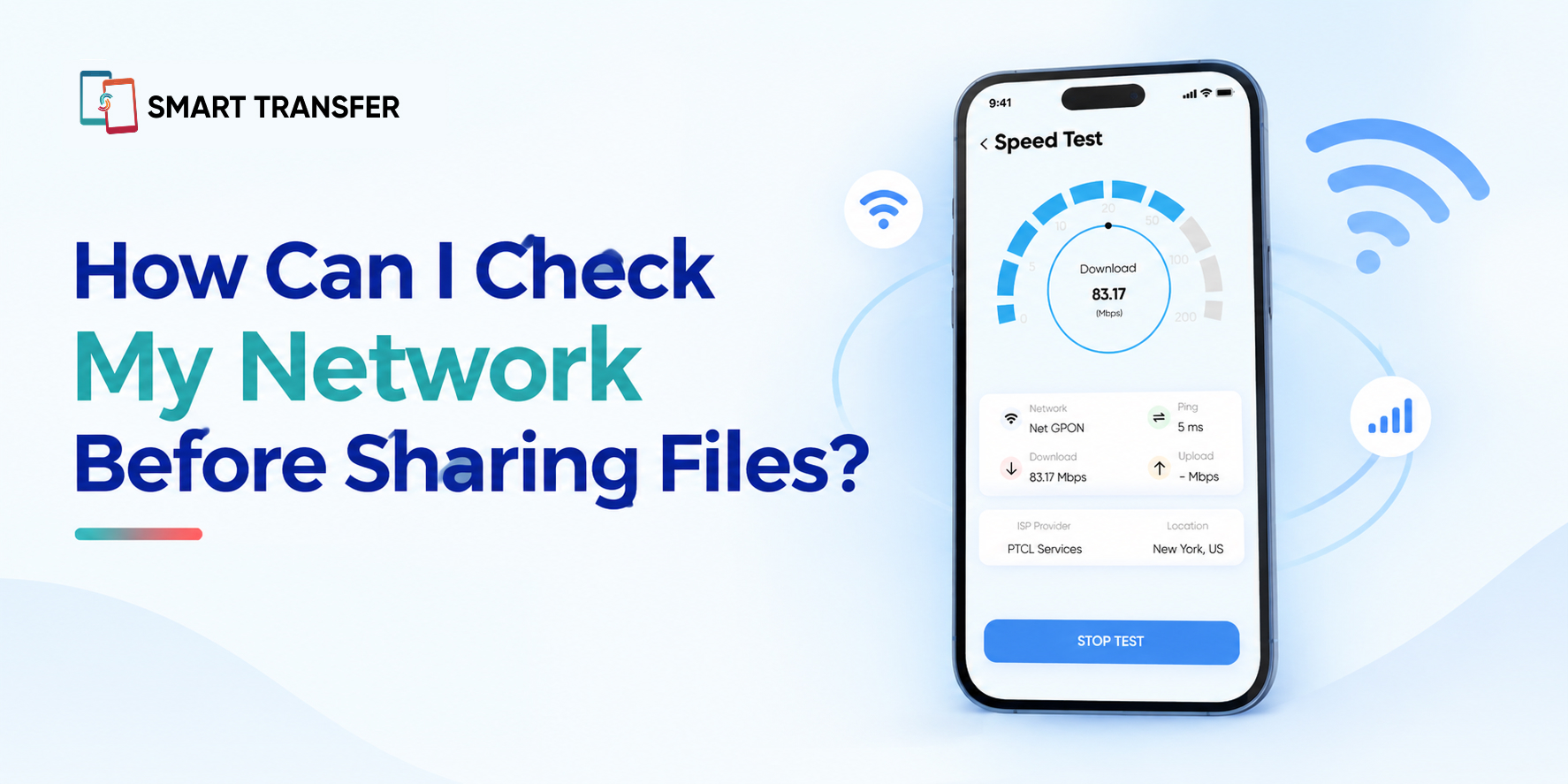
Before sharing files, it helps to check whether your network is connected, stable, and fast enough for the transfer. A weak Wi-Fi signal or an unreliable connection can slow down large file transfers or cause them to fail before they are complete.
You can start by checking your Wi-Fi connection, signal strength, and network details from your phone's settings. For larger transfers, checking your connection speed can also give you a better idea of what to expect.
In this guide, we'll show you how to check your network before sharing files, what network information matters most, and how to improve your connection for a smoother file transfer.
Key Takeaways
Check your Wi-Fi connection before sharing files to make sure your device is connected to the correct network with a stable signal.
Check your network speed and signal strength before sending large files, as a weak or slow connection can make transfers take longer or fail.
Choose the right sharing method for your network because nearby and remote file transfers can have different connection requirements.
Why Should You Check Your Network Before Sharing Files?
A stable network can make the difference between a smooth file transfer and one that slows down, disconnects, or fails midway. Checking your network before sharing files helps you identify connection problems before they interfere with the transfer.
This is especially important when sending large videos, photo collections, documents, or multiple files at once. A strong Wi-Fi signal does not necessarily mean you have a fast internet connection, so checking both signal strength and connection speed can give you a clearer picture.
It is also important to know how your chosen sharing method works. A nearby transfer and a remote transfer may have different network requirements, so confirming the connection first can save time and prevent unnecessary transfer issues.
How to Check Your Wi-Fi Connection Before Sharing Files
Before starting a file transfer, check that your phone is connected to the right Wi-Fi network and that the connection is stable. On Android, open Settings > Network & internet > Internet or the equivalent Wi-Fi settings on your device. You should see the network you're connected to and, on many phones, an indication of signal strength.
If you're sharing files between devices nearby, check the connection on both phones, not just the device sending the files. A mismatch in network settings can prevent devices from connecting properly.
For larger transfers, don't rely on the Wi-Fi icon alone. A full signal does not necessarily mean the network is fast or free from congestion. If the connection seems slow, move closer to the router, reduce interference, or try a more stable network before starting the transfer.
How to Check Your Network Details on Android
Your Android phone can show useful network information beyond the Wi-Fi name and signal bars. Checking these details can help you identify connection problems before starting a file transfer.
Open your phone's network or Wi-Fi settings to review details such as the connected network, signal strength, connection status, and, on many devices, your IP address and other network information. The exact menu names can vary depending on your Android version and phone manufacturer.
For a more convenient overview, Smart Transfer's Network Information feature brings important connection details together and also includes a speed test and app data usage information. This can give you a clearer picture of your network before you begin sharing files.
Does File Sharing Require the Same Wi-Fi Network?
Not always. It depends on how you're sharing the files. Some nearby file-sharing methods require both devices to be connected to the same network, while remote sharing can work when the devices are connected to different Wi-Fi networks.
For a nearby transfer, having both devices connected to the same Wi-Fi network can help them communicate directly and make local file sharing possible. If the devices are on different networks, they may not be able to find each other.
For remote file sharing, the devices do not necessarily need to be on the same Wi-Fi. The transfer can take place over the internet, allowing you to send files to someone who is elsewhere.
Before starting, check which sharing method you're using and make sure both devices meet its connection requirements. This simple check can prevent unnecessary connection problems and failed transfers.
What Internet Speed Is Good for Sharing Files?
There is no single internet speed required for every file transfer. The right connection depends on the size of the files, how many files you are sending, and whether the transfer is nearby or remote. For small photos and documents, a stable connection is usually enough. Large videos and multi-gigabyte transfers benefit from a faster, more consistent connection.
File Type or Transfer | What Matters Most |
Small documents | A stable connection |
Photos | Stable Wi-Fi with reasonable upload speed |
Large videos | Faster upload speed and a stable connection |
Multiple GBs of data | Strong, consistent network performance |
Remote transfers | Reliable internet, especially upload speed |
Remember that your internet speed test result may not match the actual file transfer speed. The transfer can also be affected by network congestion, the performance of both devices, the sharing service, and the connection between the devices.
For large file transfers, stability matters as much as speed. A slightly slower connection that remains consistent can be more useful than a faster connection that repeatedly drops.
How to Improve Your Network Before Sharing Large Files
If your connection seems slow or unstable, a few simple changes can help improve your file-sharing experience. Before sending large files, make sure your phone has a strong connection and avoid unnecessary network activity that could compete for bandwidth.
Try these steps:
Move closer to the router. A stronger Wi-Fi signal can help maintain a more stable connection.
Reduce network congestion. Pause large downloads, streaming, or other bandwidth-heavy activity on devices using the same network.
Reconnect to Wi-Fi. Disconnecting and reconnecting can sometimes resolve temporary connection issues.
Restart the router if necessary. If multiple devices are experiencing slow connectivity, the router may need a fresh connection.
Keep both devices connected. Avoid switching between Wi-Fi and mobile data while a transfer is in progress.
Check your connection before starting. Running a quick speed test can help identify unusually slow network conditions.
For particularly large transfers, spending a minute checking your network beforehand can save you from discovering a connection problem halfway through the process.
How Smart Transfer Helps You Check Your Network
Checking your network before sharing files doesn't have to mean jumping between several settings screens. Smart Transfer brings useful connection information together so you can get a clearer view of your network before starting a transfer.
Its Network Information feature lets you check Wi-Fi details, run a speed test, and review app data usage from one place. This can help you understand whether your current connection is suitable for the file-sharing task ahead, particularly when you're preparing to send larger files.
Once you've checked your connection, you can choose the appropriate sharing method and start your transfer with a better understanding of your network conditions.
Check Your Network Before You Start Sharing Files
A quick network check can save you from a slow or interrupted file transfer. Before sharing files, confirm that you're connected to the right network, check your signal strength, and test your connection speed when sending larger files.
If the connection is unstable, move closer to the router, reduce network congestion, or reconnect before starting the transfer. For nearby sharing, make sure both devices meet the network requirements of the transfer method. For remote sharing, confirm that your internet connection is reliable enough for the files you're sending.
With Smart Transfer, you can check your network details and connection speed before sharing files, giving you a clearer idea of your connection conditions. Ready to share? Download Smart Transfer from Google Play or the Apple App Store and make file transfers simpler.
Frequently Asked Questions About Checking Your Network Before Sharing Files
How do I check my network before sharing files?
Check that your phone is connected to the correct Wi-Fi network, review the signal strength, and run a speed test if you're transferring large files. A stable connection can help reduce interruptions during file sharing.
Do both phones need to be on the same Wi-Fi to share files?
Not necessarily. Nearby file-sharing methods may require both devices to use the same network, while remote file sharing can work when the devices are connected to different networks.
How fast should my internet be for file sharing?
There is no universal speed requirement. Small files can transfer over a modest but stable connection, while large videos and multi-gigabyte transfers benefit from faster and more consistent upload speeds.
Why does my file transfer keep failing?
An unstable network, weak Wi-Fi signal, network congestion, or switching connections during the transfer can cause problems. Check your connection and make sure the devices meet the requirements of the sharing method you're using.
Does Wi-Fi speed affect file transfer speed?
Yes, but Wi-Fi speed is not the only factor. Network congestion, signal strength, device performance, file size, and the transfer method can all affect how quickly files move between devices.
Can I share files between phones on different networks?
Yes, some remote file-sharing methods allow transfers between devices on different Wi-Fi networks. Nearby sharing methods may have different network requirements, so check which transfer mode you're using before you begin.