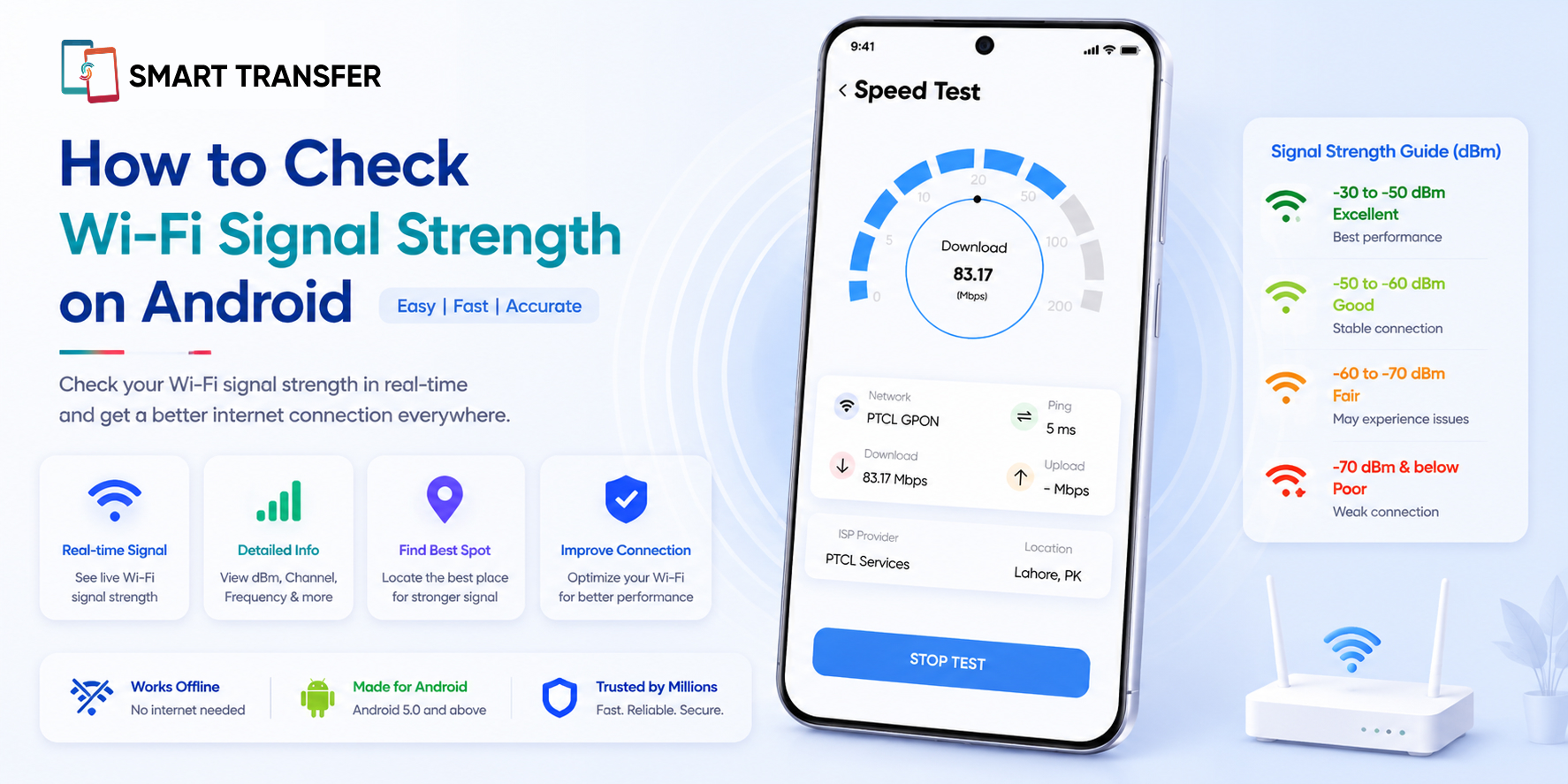
You can check Wi-Fi signal strength on Android through your phone's Wi-Fi settings, built-in network information, or a Wi-Fi analyzer app. The exact steps vary by Android phone, but the goal is the same: find out how strong your connection really is and whether a weak signal is causing your connection problems.
The Wi-Fi icon gives you a quick idea of signal strength, but those little bars only tell part of the story. Your phone might show a strong connection while websites load slowly, videos buffer, or downloads take much longer than expected. Checking the actual Wi-Fi signal strength on Android can help you figure out whether distance, walls, interference, or another network issue is behind the problem.
One of the most useful measurements you'll come across is dBm, which gives you a more precise picture of your Wi-Fi signal. Once you know how to read it, you can check different areas of your home, identify weak spots, and make informed changes instead of moving your router around and hoping for the best. Here's how to check your Wi-Fi strength and what those numbers actually mean.
Key Takeaways
Check Wi-Fi signal strength on Android through your Wi-Fi settings or network information to see how strong your connection really is.
Understand dBm readings to tell whether your signal is strong, fair, or weak and identify areas where your connection may struggle.
Improve weak Wi-Fi by reducing interference, moving closer to the router, changing its location, or expanding coverage when needed.
What Does Wi-Fi Signal Strength Mean?
Wi-Fi signal strength tells you how strongly your Android phone is connected to your wireless router. A stronger signal generally means a more stable connection, while a weaker signal can lead to slower speeds, buffering, or dropped connections.
Your phone usually represents signal strength with Wi-Fi bars, but those bars are only a rough estimate. For a more precise measurement, you can look at the signal level in dBm, short for decibel-milliwatts. This measurement may look confusing at first because the numbers are negative, but there is a simple rule to remember: the closer the dBm value is to 0, the stronger the Wi-Fi signal.
For example, a signal around -45 dBm is considerably stronger than one around -75 dBm. A reading between roughly -30 and -50 dBm is typically considered excellent, while signals below -70 dBm are more likely to cause connection problems.
Keep in mind that signal strength is only one part of your connection. A strong Wi-Fi signal does not automatically mean fast internet. Network congestion, interference, router performance, and the quality of your internet service can all affect how quickly data reaches your phone.
If you want to see more information about your current network directly from your phone, Smart Transfer also includes a Network Information feature that provides useful details about your connection. This can be helpful when you're troubleshooting connectivity or checking your network before making changes.
How to Check Wi-Fi Signal Strength on Android
The easiest way to check Wi-Fi signal strength on Android is to start with your phone's Wi-Fi settings. Depending on your Android version and phone manufacturer, you may see the connection quality, signal level, or other network details directly on the Wi-Fi screen.
Check Your Wi-Fi Connection From Settings
On most Android phones, you can check your current Wi-Fi connection with these steps:
Open Settings on your Android phone.
Tap Wi-Fi or Network & Internet.
Select the Wi-Fi network you're currently connected to.
Look for connection details, signal strength, or network information.
The exact wording and available options can differ between Samsung, Google Pixel, OnePlus, Xiaomi, and other Android devices. Some phones show a signal strength indicator, while others provide a more detailed reading.
If your phone only displays Wi-Fi bars, don't worry. They can still help you spot obvious changes in connection strength. For example, walk farther away from your router and check whether the number of bars drops. This gives you a quick way to identify areas where your Wi-Fi signal starts to weaken.
For a more precise measurement, look for a dBm reading or use a Wi-Fi analyzer that can display one. This is particularly useful if you're trying to find a dead zone or figure out why your connection becomes unreliable in a specific room.
How to Check Wi-Fi Signal Strength With a Wi-Fi Analyzer
If your Android phone doesn't show a detailed signal reading in its Wi-Fi settings, a Wi-Fi analyzer can give you a clearer picture. These tools can display your connection's signal strength in dBm, making it easier to see exactly how strong your Wi-Fi is rather than relying only on the bars in your status bar.
A Wi-Fi analyzer can also be useful when you're trying to find the best place to use your phone or position your router. Walk around your home while checking the signal reading and watch how it changes from room to room. A small drop is normal as you move farther away, but a sharp decline can point to thick walls, floors, appliances, or other sources of interference.
You can also use an analyzer to compare nearby Wi-Fi networks and identify areas where several wireless networks are competing for the same channels. This can help explain why your connection feels unreliable even when the signal itself appears reasonably strong.
For a quick check, you don't need to analyze every technical detail. Focus on the dBm value, note where the signal becomes noticeably weaker, and compare the results in the places where you normally use your phone. This gives you a much clearer starting point for troubleshooting your Wi-Fi connection.
How to Check Wi-Fi Signal Strength in Different Areas
Checking your Wi-Fi next to the router can make almost any connection look good. The more useful test is to check the signal where you actually use your Android phone.
Start near the router and note the signal strength or dBm reading. Then move to other areas, such as your bedroom, home office, kitchen, or another room where the connection tends to feel slow. Check the reading again in each location.
If the signal drops significantly as you move between rooms, distance or physical obstacles may be affecting the connection. Thick walls, floors, metal objects, and large appliances can all interfere with Wi-Fi signals. A weak reading in one particular room can also help you identify a potential dead zone rather than assuming your entire network is performing poorly.
This simple comparison can tell you more than a single reading. If your connection is strong near the router but weak in one area, the issue is likely related to coverage or interference. If the signal remains strong throughout your home but your internet is still slow, the problem may lie elsewhere, such as network congestion or your internet service.
For an even clearer picture, you can use Smart Transfer's Network Information feature to check useful details about your current network directly from your phone.
Why Is My Wi-Fi Signal Weak on Android?
If your Android phone shows a weak Wi-Fi signal, the router is not necessarily the problem. Several factors can weaken the connection between your phone and router. Identifying the cause makes it much easier to find the right fix.
Distance from the router: Wi-Fi signals generally become weaker as they travel farther. Your phone may have an excellent connection in the same room as the router but struggle in a bedroom, upstairs, or another distant area.
Walls and physical obstacles: Thick concrete walls, floors, metal surfaces, and large appliances can interfere with the wireless signal. The more obstacles between your phone and router, the more likely you are to experience signal loss.
Wireless interference: Nearby Wi-Fi networks and other wireless devices can compete for the same radio space. In areas with many connected devices, interference can make your connection less stable.
Router location and performance: A router hidden inside a cabinet or placed at one end of your home may provide uneven coverage. Older routers can also struggle to maintain reliable connections across larger spaces or when many devices are connected.
Internet or network problems: A weak Wi-Fi signal is not the only possible cause of slow performance. If your signal remains strong but websites, streams, or downloads are still slow, the issue could be network congestion, your internet service, or the router itself.
How to Improve Wi-Fi Signal Strength on Android
Once you've identified where your Wi-Fi signal becomes weak, you can make a few practical changes to improve the connection. The best solution depends on what your signal test reveals.
Move closer to the router: If your signal drops sharply with distance, reducing the space between your Android phone and router may be enough to improve the connection.
Choose a better router location: Place the router in a central, elevated, and open area rather than inside a cabinet or behind large furniture. This can help distribute the signal more evenly throughout your home.
Reduce obstacles and interference: Keep the router away from thick walls, metal objects, and devices that may interfere with the wireless signal. Even a small change in placement can sometimes make a noticeable difference.
Choose the right Wi-Fi band: If your router supports both 2.4 GHz and 5 GHz networks, consider which one works best for your location. A 2.4 GHz connection generally travels farther and passes through obstacles more easily, while 5 GHz can provide faster speeds at shorter distances.
Restart your router: If your connection suddenly becomes weaker or less reliable, restarting the router can resolve temporary network issues and give the connection a fresh start.
Expand your Wi-Fi coverage: If one part of your home consistently has a weak signal despite changing the router's position, a Wi-Fi extender or mesh system can help provide more consistent coverage.
After making a change, check the signal again from the same location. Comparing the readings before and after the adjustment shows whether you've actually improved your Wi-Fi signal strength on Android instead of relying on guesswork.
Check Network Information With Smart Transfer
If you regularly troubleshoot connectivity issues on your phone, having network details available in one place can make the process easier. Smart Transfer includes a Network Information feature that provides useful details about the network your device is connected to.
This can be useful when you're trying to understand what is happening with your connection rather than simply looking at the Wi-Fi icon. You can check your network information while troubleshooting a weak signal, comparing different locations, or investigating why your connection isn't performing as expected.
For example, you might notice that your Wi-Fi signal becomes weaker in your bedroom than it is near the router. Checking your network information alongside the signal reading can give you more context and help you decide whether you need to reposition the router, reduce interference, or improve coverage.
Smart Transfer brings this information together with other practical tools for managing and understanding your mobile device, making it useful beyond simple file transfers.
Wi-Fi Signal Strength vs. Internet Speed
A strong Wi-Fi signal does not always mean you're getting a fast internet connection. The two are connected, but they measure different parts of your connection.
For example, your phone might show -50 dBm, which is a strong Wi-Fi signal, while a speed test shows unusually low download speeds. In that case, moving closer to the router probably won't solve the problem because the signal itself isn't the issue.
On the other hand, if your internet speed is fine near the router but drops when you move into another room, weak Wi-Fi coverage could be the reason. Checking your Wi-Fi signal strength on Android in different locations can help you tell these two problems apart and choose the right solution.
How Can I Check and Improve Wi-Fi Signal Strength on Android?
Checking your Wi-Fi signal strength on Android gives you a clearer picture of what is happening with your connection. Instead of relying only on the Wi-Fi bars, you can check dBm readings, test different areas of your home, and identify whether distance, walls, interference, or router placement is affecting your signal.
Remember that a strong Wi-Fi signal does not automatically mean fast internet. If your signal is good but your connection is still slow, check other factors such as network congestion, router performance, and your internet service.
Once you know where the problem is, fixing it becomes much easier. A better router location, fewer obstacles, or expanded Wi-Fi coverage may be all you need to improve your connection. If you want an easy way to check network details while troubleshooting, Smart Transfer's Network Information feature puts useful information about your connection right on your phone.
Ready to check your network? Get Smart Transfer on Google Play or the Apple App Store and keep your connection information close at hand.
Frequently Asked Questions Wi-Fi Signal Strength on Android
How do I check Wi-Fi signal strength on Android?
Open Settings, go to Wi-Fi or Network & Internet, and select the network you're connected to. Depending on your Android phone and software version, you may see signal information or connection details. For a more precise reading, use a Wi-Fi analyzer that displays the signal in dBm.
What is a good Wi-Fi signal strength on Android?
A reading between -30 dBm and -60 dBm is generally considered strong to good. Around -60 to -70 dBm can still provide a usable connection, while readings below -70 dBm may lead to slower or less reliable performance.
Is -70 dBm good for Wi-Fi?
-70 dBm is generally considered a weak to fair Wi-Fi signal. It may be sufficient for basic browsing, but you could experience slower speeds, buffering, or connection drops, particularly when performing bandwidth-heavy activities.
Why does my Wi-Fi have full bars but run slowly?
Wi-Fi bars only indicate your phone's connection to the router. They don't measure your internet speed. A strong signal can still have slow performance because of network congestion, interference, router issues, or problems with your internet service.
How can I improve Wi-Fi signal strength on my Android phone?
Start by moving closer to the router and checking the signal again. You can also reposition the router, reduce physical obstacles and interference, switch between available Wi-Fi bands, or use a Wi-Fi extender or mesh system to improve coverage.
Can I check Wi-Fi signal strength without an app?
Yes, depending on your Android phone. Some devices show additional signal information within their Wi-Fi settings or network diagnostics. If your phone doesn't provide a dBm reading, a Wi-Fi analyzer can give you a more precise measurement.