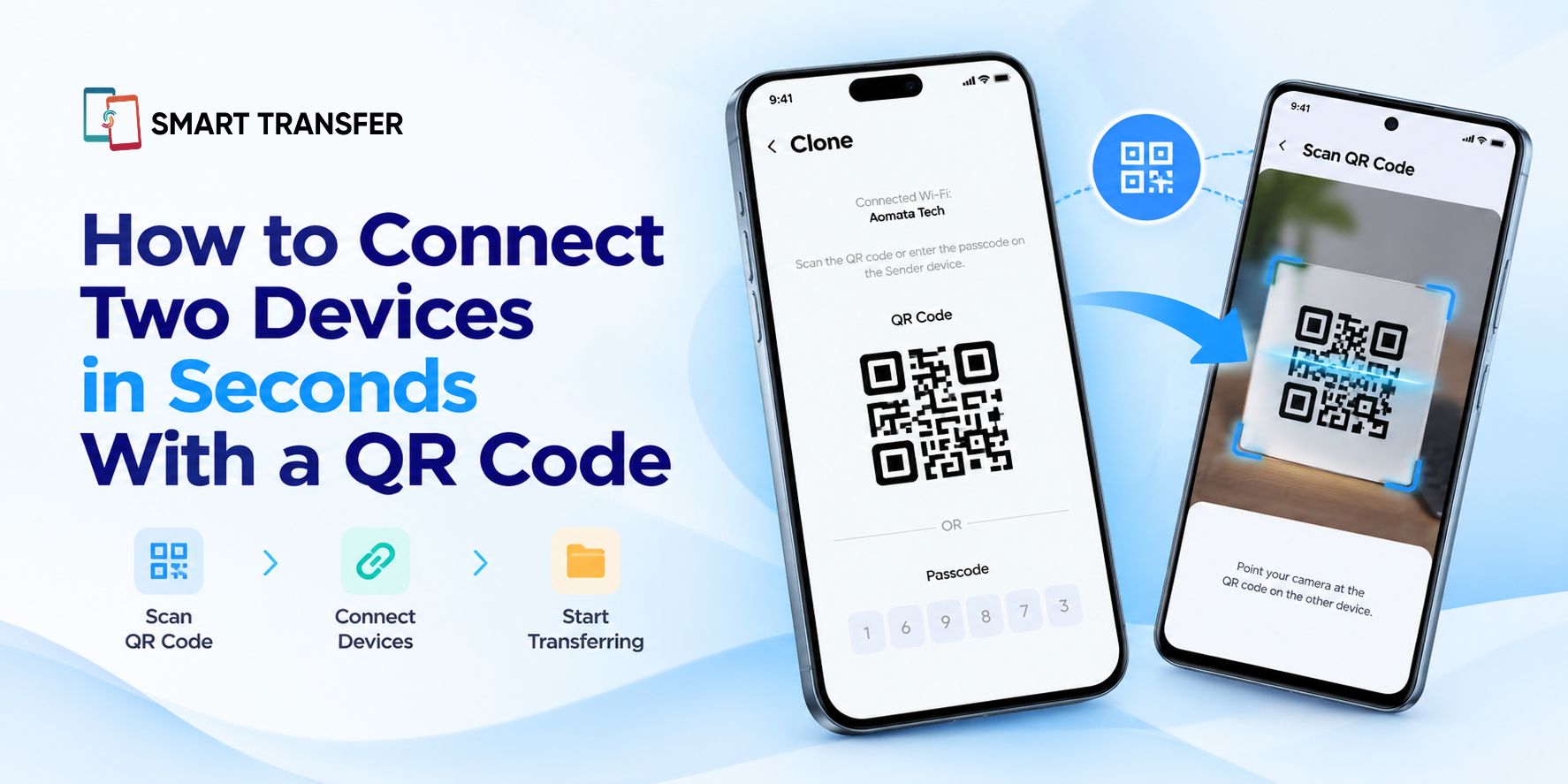
Connecting two devices should not involve complicated settings, lengthy instructions, or manually entering connection details. Whether you want to transfer files, pair two phones, or start sharing data, a QR code can make the process much quicker.
Instead of searching for a device name or entering connection information manually, you can scan a QR code with a compatible device and follow the on-screen instructions to establish a connection.
However, scanning a QR code does not automatically connect every pair of devices. The process depends on the app, device compatibility, and connection method being used.
In this guide, you will learn how QR code pairing works, how to connect two phones, how to share files after connecting, and what to do if your device cannot scan the code.
How Do You Connect Two Devices Using a QR Code?
To connect two compatible devices using a QR code, open the relevant app on both devices, display the pairing code on one device, and scan it with the other. Follow the instructions on both screens to complete the connection.
The exact steps vary by app, but the general process is straightforward:
Open the compatible app on both devices if required.
Select the connection or pairing option on the device you want to connect.
Display the QR code generated by the app.
Scan the code using the second device's supported QR scanner.
Follow the on-screen prompts to approve the connection and begin using the available features.
Once the devices are connected, you may be able to share files or access other supported functions, depending on the app.
For example, Smart Transfer provides a QR-based pairing process to help compatible devices establish a connection. The available options depend on the devices and features supported by the app.
Why Use a QR Code to Connect Two Phones?
Traditional pairing methods can require several steps. You might need to find a device in a list, confirm a pairing request, or enter connection details manually. QR codes simplify this process by letting one device scan information displayed on another.
Here is why QR-based connections can be useful.
Faster Device Pairing
Scanning a code can reduce the number of steps needed to initiate a connection. Instead of searching through device names, you can scan the displayed code and continue with the setup process.
This is particularly convenient when you need to connect devices briefly to share files or perform another supported task.
Less Manual Input
QR codes can contain the information an app needs to initiate pairing. You do not have to type connection details manually when the app supports QR-based setup.
This can also help reduce errors caused by entering the wrong information.
Convenient File Sharing
When a compatible app supports QR-based pairing and file transfer, connecting devices becomes a convenient first step toward sharing photos, videos, documents, and other supported files.
Rather than sending every file through a separate messaging app or email, you can use a dedicated transfer tool to share selected files between compatible devices.
Useful Across Different Situations
QR codes are commonly used for device pairing, app setup, and opening digital content. In supported transfer apps, they can help establish a connection between phones without requiring users to navigate multiple settings screens.
Keep in mind that a QR code is a way to initiate a process, not a guarantee that every device can connect. Both devices must support the app's pairing method.
How to Connect Two Phones With Smart Transfer
If you want to connect two compatible phones for data transfer, Smart Transfer provides features designed to make sharing and moving supported data more convenient.
The exact interface may vary depending on your device and app version, but the general process involves preparing both phones, initiating pairing, and following the instructions displayed on their screens.
Step 1: Open Smart Transfer on Both Devices
Install and open Smart Transfer on the compatible devices you want to connect. Make sure both devices are ready to follow the app's connection instructions.
If you are using a different transfer app, check whether it requires installation on both phones or provides another way to initiate pairing.
Step 2: Start the Connection Process
Open the relevant connection or pairing option in the app. One device may display a QR code that the other device needs to scan.
Follow the instructions shown in Smart Transfer rather than relying on a generic QR scanner alone. A standard scanner may read a code without completing the app-specific pairing process.
Step 3: Scan the QR Code
Use the supported scanner or scanning option provided by the app to scan the code displayed on the other phone.
Hold the scanning device steady and make sure the entire QR code is visible on the screen. If the code is not recognized, adjust the distance, lighting, or angle and try again.
Step 4: Complete the Pairing Instructions
Follow any confirmation prompts or permissions required by the app. Depending on the connection method, you may need to approve the request or ensure that both devices meet the app's network requirements.
Do not assume the devices are connected simply because the code was scanned. Wait for the app to confirm the connection or display the next step.
Step 5: Select What You Want to Transfer
Once the connection is established, choose the files or supported data you want to share. Review your selection before starting the transfer, particularly if you are moving a large number of photos, videos, or documents.
Explore the Smart Transfer Share Files feature to learn more about sharing supported files between compatible devices.
If you want to move supported data when switching phones, the Clone Phone feature may be more relevant. Check the supported data types and device compatibility before beginning.
Can You Connect Android and iPhone Using a QR Code?
Yes, QR-based pairing can work between Android phones and iPhones when the app supports both operating systems and the relevant connection method.
However, scanning a QR code does not make two devices automatically compatible. The app must support the devices you are connecting, and certain features may work differently depending on the operating system.
Before starting, check that:
The app is available for both devices.
Both devices meet the app's compatibility requirements.
You are following the correct pairing process for the app.
Any required network or permission settings are enabled.
The data you want to transfer is supported by the selected feature.
If your goal is to move data to a new phone rather than simply share individual files, check the available migration options carefully. Contacts, photos, messages, app data, and settings may have different transfer requirements.
What Can You Do After Connecting Two Devices?
Once two compatible devices are connected, the available actions depend on the app and connection method. In a file-sharing app, pairing may allow you to select and transfer supported content.
Common examples include:
What you want to do | How a compatible app may help |
Share photos | Send selected images between connected devices |
Transfer videos | Move supported video files without sending each one separately |
Share documents | Send compatible files for viewing or storage on another device |
Move files to a new phone | Use a supported transfer feature to move selected content |
Connect devices for a specific task | Use app-based pairing to initiate a supported function |
Not every QR-based connection supports every action in this table. Check the app's available features before starting, especially when transferring important data.
If you are moving to a new phone, it is also worth preparing a backup of important information before beginning. A successful pairing does not necessarily mean that all your phone's data will be transferred.
QR Code Scanning Not Working? Try These Fixes
Sometimes, a phone fails to recognize a QR code or the app does not complete the connection after scanning. The issue may be related to the camera, screen visibility, permissions, network conditions, or the pairing process itself.
Try the following fixes before restarting the entire setup.
Clean the Camera Lens
Dust, fingerprints, and smudges can make it harder for the camera to focus on a QR code. Clean the lens gently with a soft cloth and try scanning again.
Adjust the Distance and Angle
Holding the phone too close to the code can prevent the camera from focusing properly. Move the device slightly farther away and keep the code centered in the scanning frame.
Avoid tilting the phone excessively, and make sure the entire code is visible.
Improve Screen Visibility
If the QR code is displayed on another phone, increase that screen's brightness. Reduce glare and reflections that might obscure parts of the code.
If the code is blurry or partially cut off, return to the pairing screen and display it again if the app allows you to generate a new code.
Check Camera Permissions
Some apps require camera access to scan QR codes. Open your phone's app permissions and check whether camera access is enabled for the app you are using.
If access is disabled, allow the required permission and return to the scanning screen.
Check the Network Requirements
Some pairing methods rely on both devices being connected to the same Wi-Fi network, while others use a different connection process.
Follow the app's instructions and check whether your devices meet its network requirements. Do not assume that every QR-based connection requires the same Wi-Fi setup.
Restart the App and Try Again
If the code still does not scan or the connection fails, close and reopen the app on both devices. Return to the pairing screen and repeat the process.
If the problem continues, check whether an app update is available and review the app's troubleshooting instructions.
For more detailed guidance, read our article on fixing blurry QR code scanning issues.
QR Code Pairing vs. Traditional Device Pairing
QR-based pairing and traditional pairing methods can both help devices connect, but they differ in how users initiate the process.
Feature | QR code pairing | Traditional pairing |
How it starts | Scan a displayed QR code | Select a device, enter details, or follow another pairing process |
Manual input | Often minimal | May require selecting or entering information |
Setup experience | Can be quick when supported | Depends on the connection method |
Compatibility | Requires an app or system that supports QR pairing | Depends on the relevant technology and devices |
Best use | App-based setup and supported device connections | Bluetooth, Wi-Fi, and other supported pairing methods |
Neither method is universally better. The right option depends on the devices, the task you want to complete, and the connection methods available.
If the app supports QR pairing, it can be a convenient way to start. If it does not, use the alternative connection method provided by the app or operating system.
Tips for a Smooth QR-Based Connection
A few simple habits can make the process easier and reduce the chances of having to start over.
Prepare both devices first. Open the relevant app and follow its setup instructions.
Keep the QR code visible. Make sure it is clear, complete, and easy to scan.
Allow necessary permissions. Camera or network access may be required.
Follow the app's connection instructions. Different apps use QR codes in different ways.
Wait for confirmation. Make sure the connection is complete before selecting files or continuing.
Verify your transfer. Open transferred files on the receiving device to make sure they arrived correctly.
Keep a backup of important data. QR pairing is not a substitute for backing up information you cannot afford to lose.
Connect, Scan, and Share With Less Hassle
Connecting two compatible devices does not have to be complicated. When an app supports QR-based pairing, scanning a code can simplify setup and help you get to the task you want to complete, whether that is sharing files or transferring supported data.
Smart Transfer makes sharing supported files between compatible devices more convenient. Follow the app's pairing instructions, choose the content you need, and verify that your files arrive successfully.
Explore Smart Transfer to learn more, or get started on Google Play or the Apple App Store.
Frequently Asked Questions
How do I connect two phones using a QR code?
Open a compatible app on both phones, display the pairing QR code on one device, and scan it using the supported scanning option on the other. Follow the on-screen instructions to complete the connection.
Do both phones need the same app to connect using a QR code?
It depends on the app and pairing method. Some apps require installation on both devices, while other QR codes open a webpage or initiate a different process. Check the instructions for the app you are using.
Can I use my phone's camera to scan a pairing QR code?
Sometimes. Your phone's camera may recognize a QR code, but app-specific pairing may require you to scan it within the relevant app. Follow the connection instructions displayed on your device.
Do both devices need to be on the same Wi-Fi network?
Not always. Some pairing methods require the devices to share a Wi-Fi network, while others use different connection methods. Check the app's requirements before connecting.
Can I use a QR code to transfer files between Android and iPhone?
You may be able to if the app supports both operating systems and the required transfer feature. Check device compatibility and the types of files supported before starting.
Why is my phone not scanning the QR code?
Common causes include a dirty camera lens, poor focus, glare, a blurry code, disabled camera permissions, or a problem with the app. Clean the lens, adjust the distance and lighting, check permissions, and try scanning again.
Is connecting two devices with a QR code safe?
Safety depends on the app, the source of the QR code, and the information the connection is designed to exchange. Only scan codes from sources you trust, check the app's identity, and review any permissions or connection requests before approving them.
Does scanning a QR code transfer all my phone data?
No. Scanning a QR code generally initiates a connection or another action. The data you can transfer depends on the app, device compatibility, and the features you use. You may need separate steps to move contacts, messages, app data, or settings.