You know that moment when you are absolutely certain you saved something, and then it is just not there? Not in your bookmarks, not where it should be, not anywhere you expect. It is a small problem, but it gets under your skin fast. Last week, I found myself staring at my screen, convinced I had bookmarked a recipe I wanted to try. I could picture it, the layout, the photos, even the headline, but the bookmark itself was nowhere to be found.
That is usually the point where people assume something broke. In reality, bookmarks rarely disappear. What actually happens is far less dramatic and far more frustrating. They get disconnected from where you are looking. Once you understand that, the whole situation becomes easier to solve and a lot less irritating.
Key Takeaways
Lost bookmarks are rarely gone. They are usually tied to a different account, hidden in another folder, or not syncing properly.
Most bookmark issues come down to three factors: account mismatch, sync failure, or poor organization.
Searching within your bookmarks is faster and more effective than scrolling, especially when dealing with large collections.
Relying only on your browser creates limitations. A structured system with backup ensures your bookmarks stay accessible and organized.
Start with the Account You Are Using
Most people switch between accounts without noticing. One moment you are using your primary email, the next you are in a secondary account tied to something else. Since bookmarks are linked to accounts, not devices, this creates the illusion that everything has vanished.
So before trying anything complex, check which account your browser is using. If it is not your main one, switch and give it a few seconds to sync. When your bookmarks reappear, it becomes clear that nothing was lost. You were simply looking in the wrong place.
Check Where Your Bookmarks Are Stored
Once the account is correct, the next issue is structure. Browsers do not keep everything in one clean location. They spread bookmarks across multiple folders, some visible and others buried behind menus you rarely open.
Go through your bookmark manager properly. Look beyond the main bar and open folders like other bookmarks, mobile bookmarks, or the reading list if your browser separates it. What feels missing is often sitting a few layers deeper than expected. This is less about recovery and more about navigation.
Did This Happen After an Update
If your bookmarks seemed to disappear right after a browser or phone update, the timing matters. Updates now constantly refine syncing and organization. That means folders can shift, settings can reset, and bookmarks might not fully appear until syncing finishes in the background.
Instead of assuming something broke, restart your browser, check your sync settings, and give it a moment to stabilize. Most of the time, the system just needs to realign.
Consider the Possibility of Accidental Deletion
Sometimes bookmarks are deleted by mistake. It does not take much. One quick tap while cleaning things up can remove more than intended.
The good part is that most modern browsers account for this. They offer ways to restore bookmarks, import backups, or recover recently deleted data. These options are usually inside the bookmark manager or settings. The mistake people make is assuming deletion is permanent when recovery tools are already available.
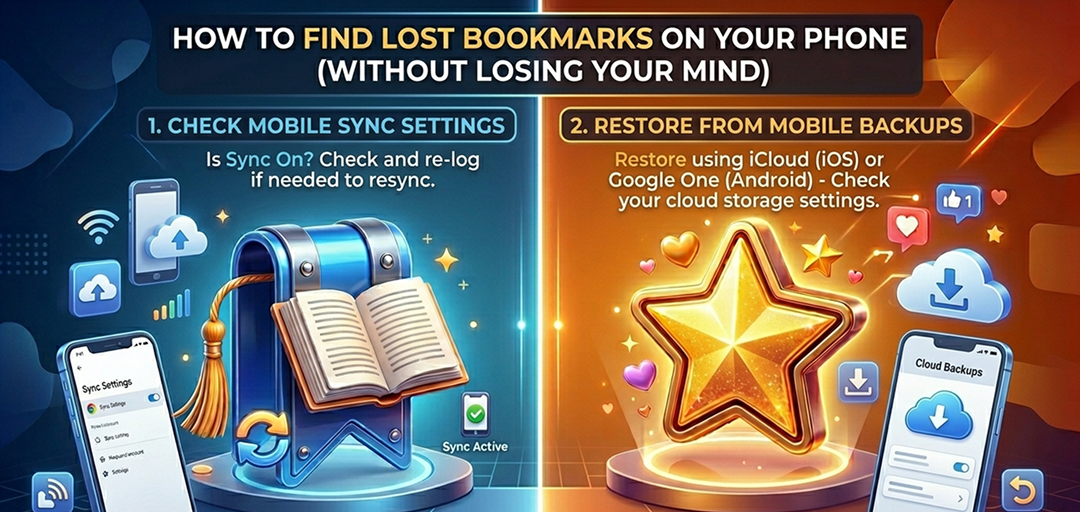
Finding Bookmarks on Your Phone Feels Harder Than It Should
Mobile devices complicate things because they hide information behind smaller interfaces. On a desktop, everything is visible. On a phone, you are navigating through layers of menus.
On some devices, bookmarks and reading lists are separate, which creates confusion if you do not remember where something was saved. At the same time, most bookmarks are stored in the cloud and tied to your account. What you see depends on whether your device is syncing properly. If sync is off or delayed, your bookmarks will not appear even though they still exist.
Stop Scrolling and Use Search Instead
Most people start scrolling endlessly through bookmarks, hoping something looks familiar. It rarely works.
Browsers already give you a better option. Use the search function inside the bookmark manager. Think of a word from the title, part of the website name, or even a vague keyword. Search is faster and does not rely on perfect memory. It just needs a starting point.
Check If Sync Is Actually Working
If your bookmarks appear on one device but not another, you are dealing with a syncing issue. The data exists, but it is not consistent across devices.
Make sure sync is enabled, confirm you are logged into the same account everywhere, and check your connection. Without sync, there is no continuity. That is what creates the feeling that things are missing.
Change the Variable If Nothing Works
If you have checked everything and still cannot find your bookmarks, repeating the same steps will not help. Change the environment.
Log into your browser from another device or open your account in a different browser. This helps you identify whether the issue is device specific or account related. Once you know that, the solution becomes clearer.
One Possibility Most People Ignore
Sometimes the bookmark was never saved. It feels real because you remember the content, but the action itself did not happen.
In that case, check your browsing history. Go through recently visited pages or search history and retrace your steps. It is not perfect, but it often leads you back to what you were looking for.
How to Avoid This Problem Completely
Once you deal with this once, the goal is to avoid repeating it. That comes down to having a simple system.
Stick to one primary account so everything stays in one place. Keep sync turned on so your bookmarks stay consistent across devices. Organize them into folders that make sense and name them clearly enough that you will recognize them later. Vague labels only create confusion.
A Small Habit That Prevents the Bigger Problem
A few minutes of maintenance each week makes a noticeable difference. Go through your bookmarks, remove what you do not need, and clean up what feels unclear.
It is a small habit, but it prevents clutter from building up. That is what usually leads to confusion in the first place.
Final Thought
Bookmarks do not disappear randomly. When something feels lost, it usually comes down to one of three things. The account you are using, the sync between devices, or the way your bookmarks are organized. Fix those, and the problem stops repeating.
Now test it. Open your bookmarks, check your account, and search for something you thought was missing. You will either find it or understand exactly why you did not.
If you want more control going forward, stop relying on a single browser to manage everything. Smart Transfer gives you a dedicated way to organize, back up, and restore your bookmarks across devices without depending on one system. You are not just saving links, you are building a structure that stays intact. Download Smart Transfer App and keep your bookmarks exactly where you expect them to be.