If you’ve ever struggled with how to share data between Android phones, slow Bluetooth, confusing apps, or risky cloud storage, you’re not alone. Whether you're switching to a new phone or just trying to send a few photos, the need for a smart sharing solution has never been more important.
That’s where Smart Transfer comes in, making it easier than ever to transfer data with speed, simplicity, and zero data costs. And with its Share Nearby feature, you get an ultra-smooth way to share files without any hassle.
In this guide, you’ll learn step-by-step how to use Smart Transfer to make your next phone transfer feel effortless. Let’s jump right in.
Step 1: Download Smart Transfer for Quick Share
To get started, both Android devices (the one sending and the one receiving) need the Smart Transfer app installed.
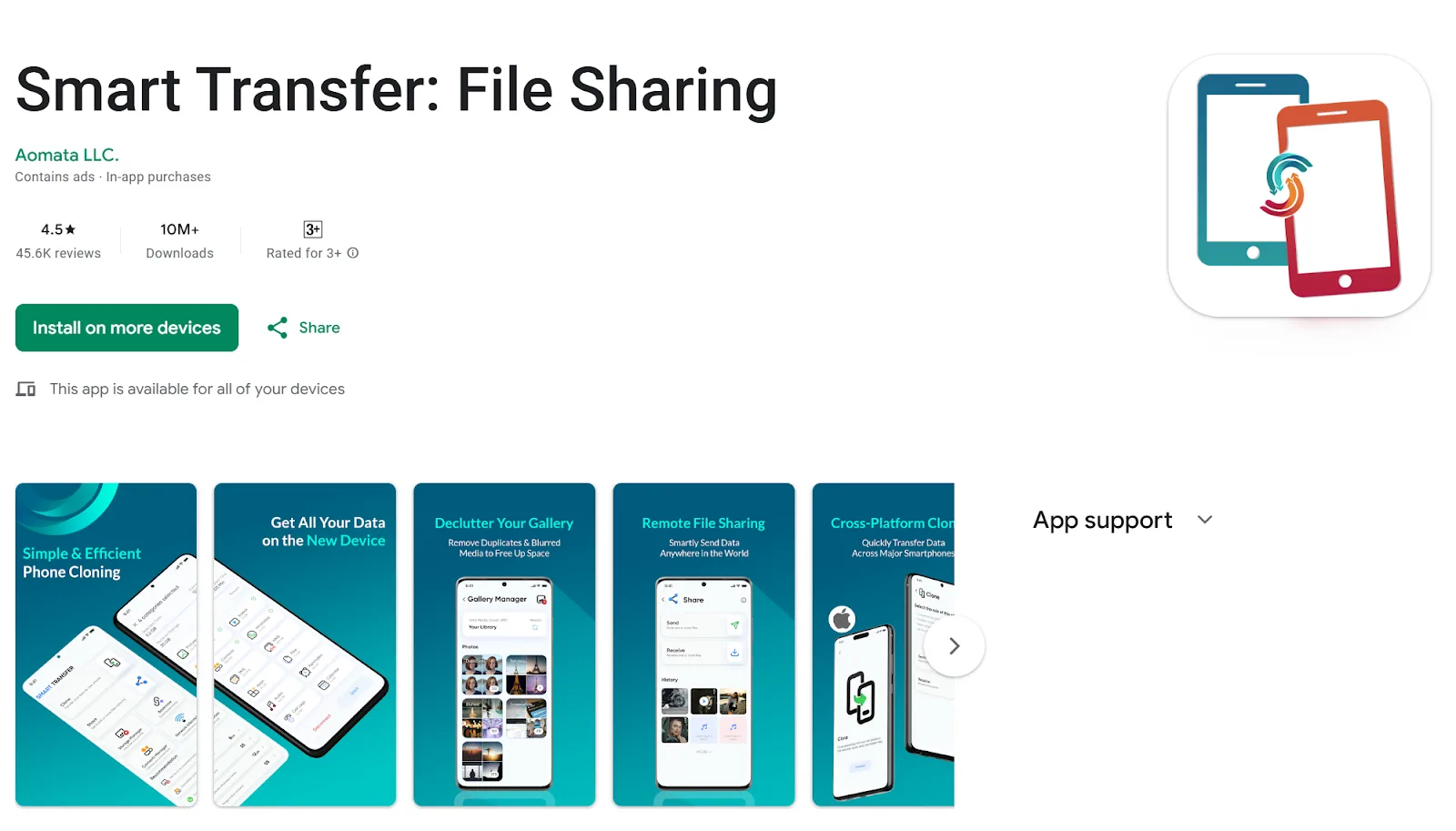
Go to the Google Play Store
Search and install Smart Transfer: File Sharing App
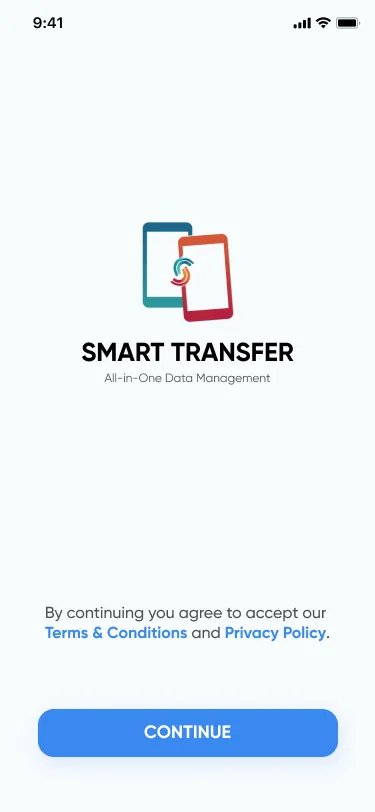
Open the app on both devices and tap Continue
This setup makes your devices ready for easy share and high-speed data transfer, without needing mobile data or cables.
Step 2: Launch the App and Select “Share”
Once both devices are ready:
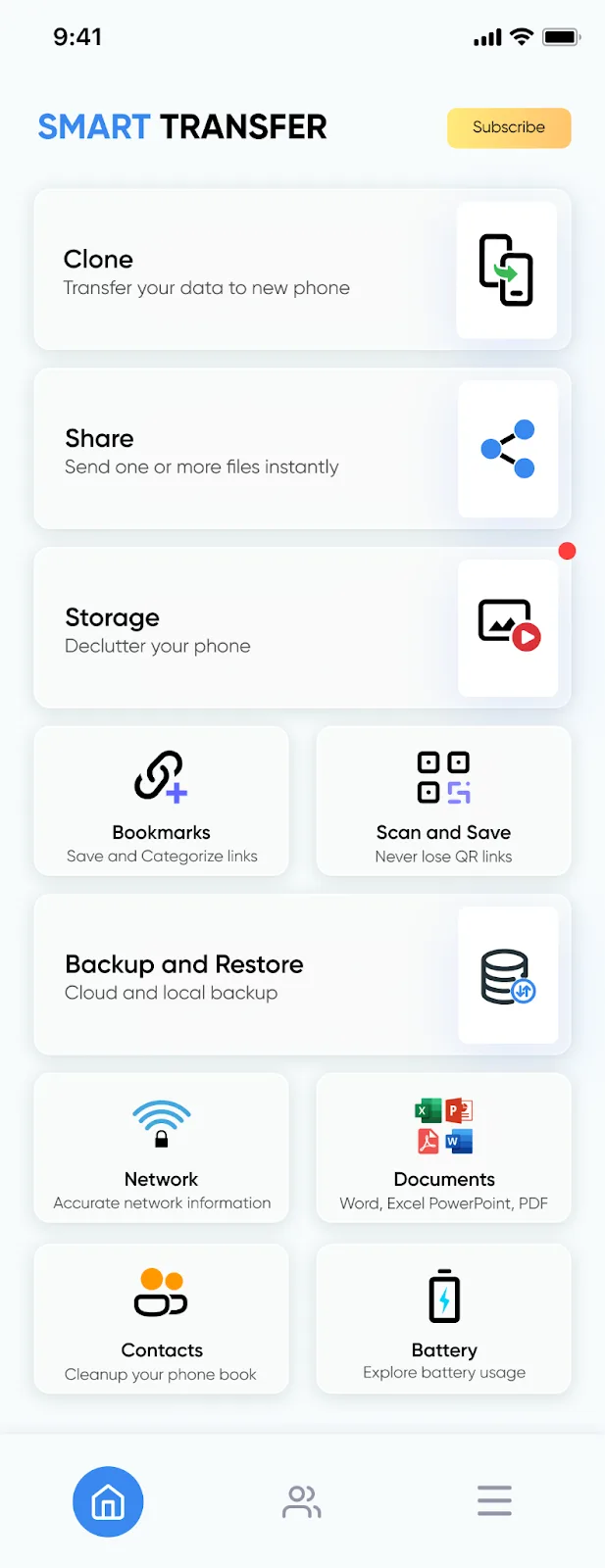
Open Smart Transfer
Tap Share
Tap Continue when prompted
This will lead you to the transfer share screen, where you can pick if you’re sending or receiving data.
Step 3: Choose Send or Receive
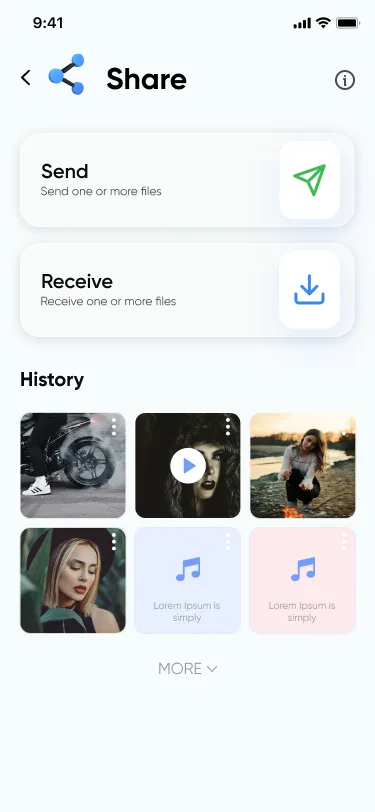
On the sending phone, tap Send
On the receiving phone, tap Receive, then select Receive Nearby
Now both devices are prepared for quick share, making the file transfer process fast and efficient. Remember, both devices should be connected to the same Wi-Fi.
Step 4: Select the Data You Want to Transfer
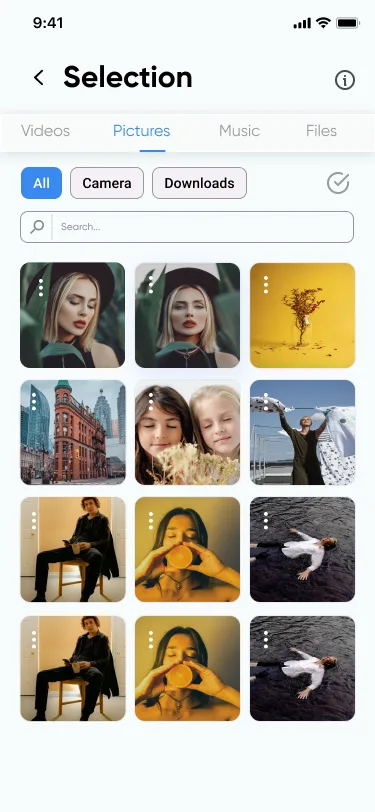
Photos
Videos
Audios
Apps
Files
Simply choose what you want to send. Whether you’re moving your photo gallery or sending over your favorite apps, this is the heart of the smart switch transfer data experience.
Tap Review to double-check your selection before continuing.
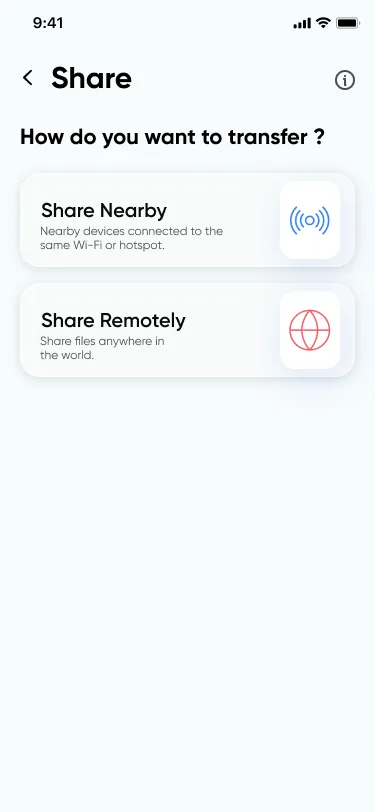
Step 5: Start Share Nearby for Transfer Share
After confirming your data, tap Share, then select Share Nearby.
You now have two options to connect devices:
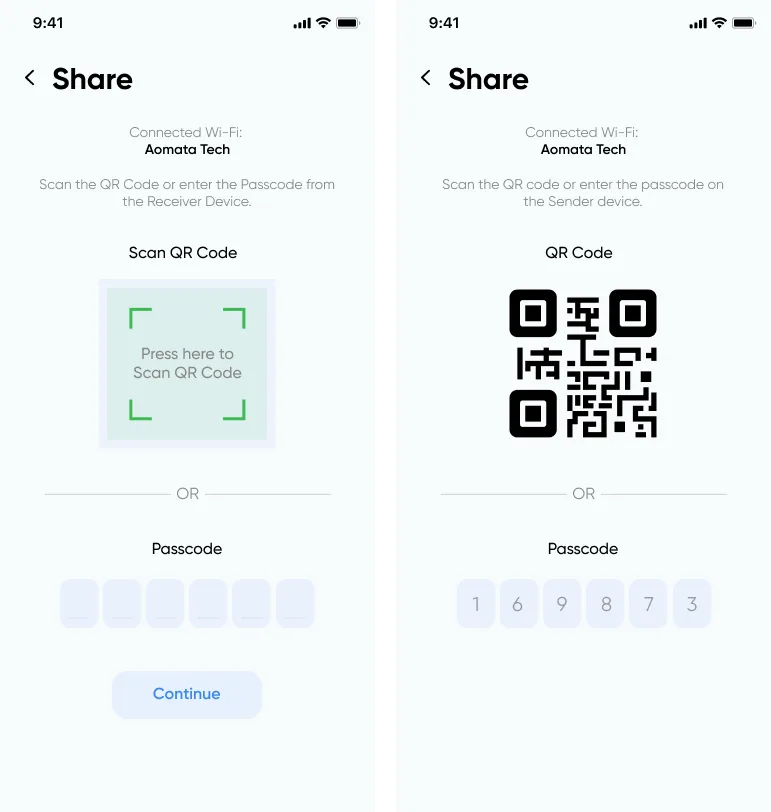
Both options connect both devices, allowing you to share files without data cost, keeping things simple and secure.
Step 6: Connect and Transfer Data
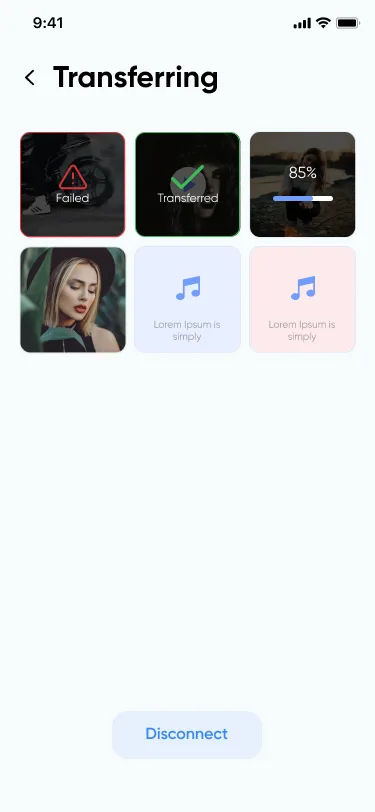
Step 7: Completion and Confirmation
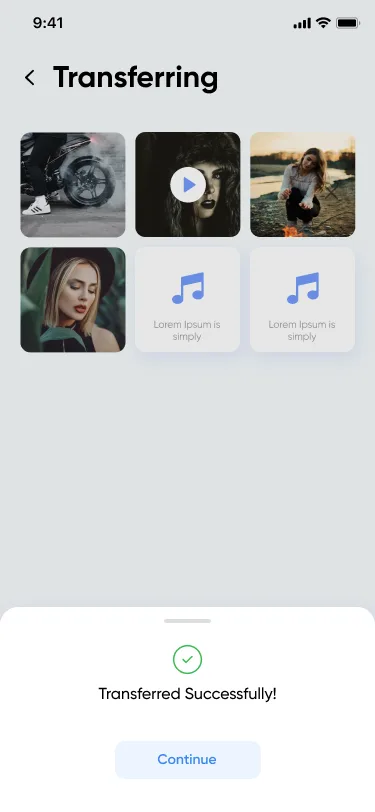
Tap OK and then Done
You’ll find all transferred files listed under History in the Smart Transfer app
This feature is perfect for anyone looking for a reliable phone transfer solution that just works, fast, private, and easy.
Why Smart Transfer Is the Best Way to Share Data
There are dozens of apps claiming to help with transfer share, but Smart Transfer stands out for some very important reasons.
1. Smart Sharing Technology
Unlike traditional methods, Smart Transfer uses Wi-Fi, enabling quick share even for large files.
2. Device Compatibility
Whether you're using a Samsung, Google Pixel, OnePlus, or another Android brand, smart switch transfer data works across them all.
3. Simplicity
Everything is just a few taps away. No confusing setup. No unnecessary steps. Just easy share from one device to another.
Real-World Uses for Smart Transfer
Still wondering when to use Smart Transfer? Here are some everyday situations where this app saves the day:
Upgrading your phone: Easily perform a full phone transfer without cables or cloud services.
Sharing event videos: Send high-quality videos from one Android to another instantly with quick share.
Collaborating on school or work projects: Share data like PDFs, presentations, and images with classmates or colleagues.
Transferring apps: Move your essential apps without needing to redownload them.
No matter the use case, this app makes file transfer feel effortless.
The Smarter Way to Share
Gone are the days of sending files one-by-one or waiting hours to upload large folders to the cloud. With Smart Transfer, you get an all-in-one solution that puts smart sharing, speed, and privacy in the palm of your hand.
Whether you're helping a friend, upgrading your own phone, or simply need to transfer data quickly, Smart Transfer’s Share Nearby feature delivers exactly what you need, seamless transfer share, zero stress, and no hidden costs.
Ready to share smarter? Download Smart Transfer today from Google Play Store and experience the easiest way to share data and perform a hassle-free phone transfer from Android to Android. If you have any questions drop us an email on support@smarttransferapp.com.
Frequently Asked Questions (FAQs)
1. Do both Android phones need the Smart Transfer app installed?
Yes. To share data using the Share Nearby feature, both devices must have the Smart Transfer app installed from the Google Play Store.
2. Does Smart Transfer require the internet to transfer files?
Yes. Both devices must be connected to the same active Wi-Fi network for Share Nearby to work. Smart Transfer does not support offline or hotspot-only transfers.
3. What types of data can I share between Android phones?
You can transfer photos, videos, audio files, apps, documents, and other files. The Share Nearby feature supports almost every major file type for quick and seamless data transfer.
4. How fast is Smart Transfer compared to Bluetooth?
Smart Transfer is significantly faster than Bluetooth. Instead of slow, outdated wireless transfer, Smart Transfer uses your Wi-Fi network to share files instantly, even when transferring large videos or app files.
5. Do I need cables or USB connections to use Share Nearby?
Not at all. Smart Transfer is fully wireless. You only need the app installed on both devices and a shared Wi-Fi connection, no cables, no USB debugging, and no tethering.
6. How do the phones connect during Share Nearby?
Connection happens through a secure pairing method. You can either:
Scan the QR code displayed on the receiving device, or
Enter the passcode shown on the receiving device.
This ensures a safe connection before any files are shared.
7. Is my data secure when I transfer files?
Yes. Your content stays within your Wi-Fi network and is transferred directly between your phones. Smart Transfer does not upload data to any cloud or external server, ensuring privacy and security.
8. Can I transfer multiple files or folders at once?
Absolutely. Smart Transfer allows bulk transfer. You can select entire galleries, app lists, multiple documents, or mixed file types and send them all in one go.
9. What should I do if the devices don’t detect each other?
Try these quick fixes:
Ensure both phones are on the same Wi-Fi network
Restart the Smart Transfer app
Turn Wi-Fi off and back on
Close heavy background apps
Make sure both devices are within close range
These steps typically restore detection immediately.
10. Can I use Share Nearby to clone a mobile phone completely?
Yes. While Share Nearby works perfectly for everyday file transfers, Smart Transfer also supports full phone-to-phone cloning through its Clone feature. You can move photos, videos, contacts, apps, and more when upgrading to a new Android device.