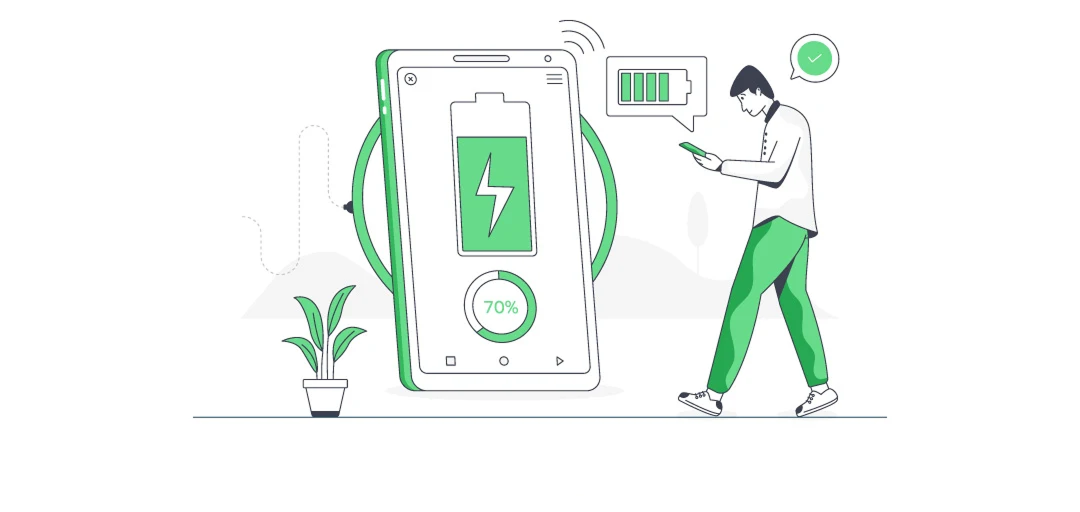
There’s nothing more stressful than watching your phone drop from 20%… to 10%… to 3% right when you need it most. Whether you’re waiting for a ride, paying at a store, navigating on maps, or joining an important call, a dying battery can turn a normal day into chaos. And in 2025, when phones power nearly every part of our lives, staying aware of your battery health and performance isn’t optional, it’s essential.
That’s why Smart Transfer includes a surprisingly powerful feature many users overlook: Battery Information. More than just a percentage indicator, this tool helps you understand your battery’s overall condition, temperature, voltage, charging status, and health, all in one clean, easy-to-read dashboard. It’s like having a simple built-in battery analyzer that helps you make smarter charging decisions and improve your phone’s longevity.
Whether you want to preserve battery life, prevent overheating, or simply understand how your device behaves during charging, this guide walks you through everything you need to know.
Step 1: Download and Open Smart Transfer

Before exploring battery details, make sure Smart Transfer is installed on your device.
Download the app:
Go to the Google Play Store
Search for Smart Transfer
Tap Install
Open the app:
Launch Smart Transfer
Tap Continue on the splash screen
Skip or view the tutorial screens
Once you reach the main dashboard, you’ll see several tools — including the one we’re focusing on today.
Step 2: Select “Battery”

From the dashboard:
Tap Battery
Tap Continue when the feature introduction appears
Grant the required permissions (Settings, Bluetooth, Notifications)
These permissions allow the app to access system-level battery data and display accurate information about your battery’s condition.
Step 3: Understand Your Battery Health

Once inside Battery Information, Smart Transfer immediately displays the core battery details your phone keeps hidden inside system menus. You’ll see:
✔ Battery Health
Shows whether your battery is in Good, Average, or Poor condition. This helps you understand long-term battery life and whether your battery is aging.
✔ Battery Level
Displays your current charge percentage, but in a more detailed, real-time format.
✔ Battery Temperature
Overheating is one of the biggest killers of battery health. Smart Transfer shows the exact temperature so you can take action if your device gets too hot.
✔ Battery Technology
Most modern devices use Li-ion or Li-Po batteries. Knowing your battery type helps explain how it behaves while charging.
✔ Voltage
Voltage spikes or dips can cause slow charging or battery drain. Smart Transfer gives you visibility into this.
✔ Charging Status
Shows whether your phone is:
Charging
Discharging
Full
Plugged into USB or AC power
Together, these details help you understand what’s really happening with your battery, something your phone’s basic menu doesn’t explain very well.
Step 4: Follow Smart Tips to Improve Battery Life

Smart Transfer provides simple, practical recommendations based on your current battery state. These suggestions help preserve long-term battery health and reduce unnecessary drain.
You may see tips like:
Turn off Bluetooth if not in use
Avoid using hotspot, which drains battery quickly
Lower screen brightness
Reduce background activity
Switch to power saving mode
Let your phone cool down if the temperature is high
These easy steps can make a noticeable difference in how long your battery lasts throughout the day.
Step 5: Monitor Charging Status in Real Time

Battery behavior during charging tells you a lot about your device’s condition. Inside the Battery Information screen, you can clearly see:
Whether your device is currently charging
The charging source (USB cable, AC fast charger, etc.)
Voltage changes during charging
Temperature shifts while plugged in
This helps you identify issues like:
Slow charging
Faulty or low-quality cables
Weak chargers
Overheating during charging
If your phone warms up more than usual while plugged in, Smart Transfer lets you spot that instantly, a helpful way to prevent long-term damage.
Step 6: Build Better Charging Habits
A healthy battery is not just about how you charge, it’s about how you care for your device over time. Smart Transfer gives you the information you need to create better habits:
✔ Avoid charging your phone overnight
It may cause minor long-term wear.
✔ Keep your battery between 20% and 80%
This is ideal for lithium batteries.
✔ Unplug your charger when your phone feels hot
Heat accelerates battery aging.
✔ Use certified chargers
Cheap cables and adapters often cause unstable voltage.
✔ Charge in shorter, frequent intervals
This improves longevity compared to charging from 0 to 100 regularly.
By understanding your battery health and charging patterns through Smart Transfer, you can take simple steps that extend your battery’s lifespan significantly.
Keep Your Phone Powered and Protected
Your battery is the heartbeat of your digital life, powering your calls, payments, navigation, entertainment, and work. Smart Transfer’s Battery Information feature gives you the insight you need to protect that heartbeat. With accurate battery health readings, charging information, temperature monitoring, and practical power-saving tips, you can keep your phone running longer and performing better every day.
Download Smart Transfer on Google Play Store today, explore the Battery Information feature, and take charge of your phone’s performance. Need help? Email us anytime at support@smarttransferapp.com.
Frequently Asked Questions (FAQs)
1. What does the Battery Information feature in Smart Transfer do?
The Battery Information feature provides detailed insights about your phone’s battery health, temperature, voltage, technology, and charging status, helping you understand and improve your battery life.
2. Can Smart Transfer check my battery health accurately?
Yes. Smart Transfer reads your system’s built-in battery health data and displays it clearly as Good, Average, or Poor, giving you an easy way to track long-term battery condition.
3. Does Smart Transfer show which apps drain my battery?
No. The app doesn’t track app-by-app battery usage. It focuses on showing real-time battery information such as temperature, voltage, and charging status, which helps you understand overall battery behavior.
4. Can Smart Transfer tell me why my battery drains quickly?
While it doesn’t analyze app usage, the Battery Information tool can highlight issues like overheating, unstable voltage, or poor battery health — all common causes of fast battery drain.
5. Does Smart Transfer help improve battery life?
Yes. The app provides practical battery saver tips such as reducing brightness, disabling background features, and managing charging habits to help extend your battery life safely.
6. Can I monitor charging speed with Smart Transfer?
Smart Transfer shows charging status, voltage, and temperature — useful indicators when checking charging performance. If your phone charges slower than usual, this data helps you identify cable or charger issues.
7. Does Smart Transfer notify me about battery issues?
The app provides guidance and insights while you’re viewing the Battery Information screen, helping you spot problems like overheating or poor health — but it does not send background notifications.
8. Is the Battery Information feature safe to use?
Absolutely. Smart Transfer only reads system-provided battery details and does not modify your battery settings. It is safe, secure, and designed for everyday users.
9. Can this feature extend my battery’s lifespan?
The feature itself doesn’t alter battery performance, but by following the recommended charging practices and power-saving tips, you can significantly improve long-term battery health.
10. Do I need any special permissions to view battery details?
Smart Transfer requests simple system permissions such as access to settings and Bluetooth to display real-time battery information. These permissions are standard and used only for showing accurate data.