In a world overflowing with information, we’re constantly collecting links, articles to read, recipes to try, tools to explore, and resources we want to revisit later. But without a simple system, those links get lost in message threads, notes apps, screenshots, or cluttered browser bookmarks.
That’s where Smart Transfer’s Bookmarks feature steps in. It provides a clean, organized space on your phone where every link you save stays easy to find. Whether it’s work resources, travel plans, study material, or weekend reading, this built-in bookmark app keeps everything in one place.
In this guide, you’ll learn how to use Smart Transfer as your personal mobile bookmark manager, helping you save bookmarks effortlessly, organize URLs by category, and bring clarity to your digital world in 2025.
Why You Need a Dedicated Bookmark Manager on Your Phone
Your smartphone has become your most important device, you shop on it, work on it, study on it, plan life on it, and stay entertained through it. Almost everything you explore online comes with a link:
a product you want to check later
a long-form article worth reading
a tutorial you want to try
a recipe that caught your eye
a research page essential for work or school
a travel guide for your next trip
But because we use so many apps, browsers, and social platforms, links end up scattered everywhere.
A message here.
A note there.
A screenshot somewhere else.
A browser bookmark that disappears when switching devices.
It becomes digital chaos.
The Bookmarks feature inside Smart Transfer solves this perfectly. Instead of juggling multiple apps, you get a single, reliable, mobile-friendly bookmark manager where every link stays visible, organized, and easy to revisit.
It’s the modern, mobile version of an online bookmark manager, designed for how people browse and save content today.
Why Smart Transfer’s Bookmarks Feature Is a Game-Changer
Smart Transfer is already known for its effortless phone-to-phone data transfer tools, but its built-in bookmark feature is just as powerful. Here’s why:
✔ Centralized and clutter-free
All your links stay in one place, instead of being scattered across browsers and apps.
✔ Designed for mobile users
Most bookmark apps are built for desktop browsers. Smart Transfer focuses on saving links directly from your phone, where you browse the most.
✔ Organize by category
Create custom categories such as Work, Recipes, Travel, Wishlist, Study, Inspiration, or anything else that matches your lifestyle.
✔ Easy access anytime
You don’t need a special browser or software. Your bookmarks live inside the app and stay accessible from any browser you prefer.
✔ Local and private
Your saved bookmarks belong to you, stored securely on your device.
✔ Perfect for multitaskers
If you research, shop, plan, study, save ideas, or curate your digital life, this tool becomes invaluable.
How to Use Smart Transfer’s Bookmarks Feature (Step-by-Step)
Ready to get organized? Here’s a complete guide to using Smart Transfer’s bookmarking system.
1. Download Smart Transfer
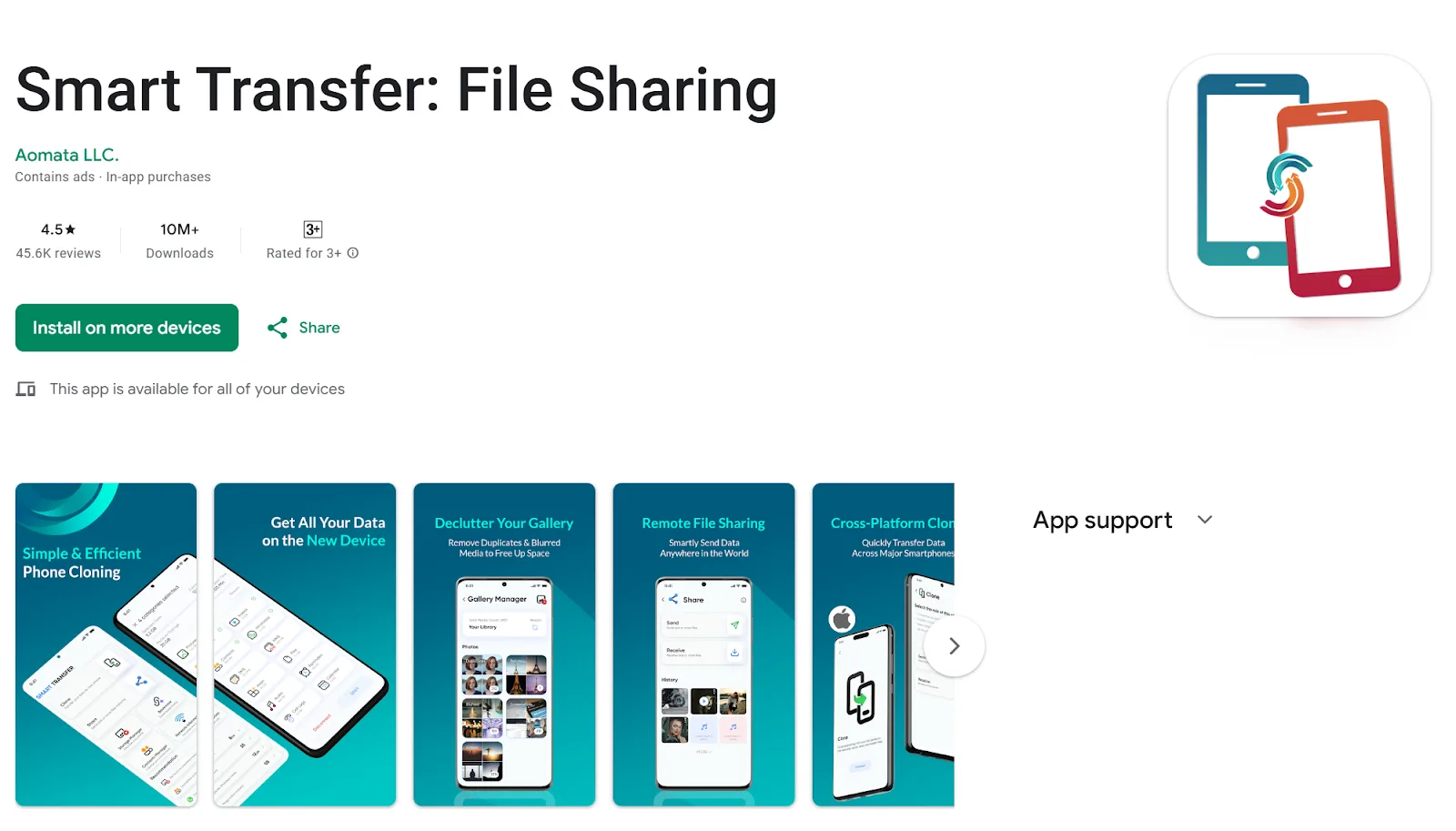
If you don’t already have the app:
Go to the Google Play Store.
Search for Smart Transfer.
Download and install it, it’s free.
2. Open the App and Tap Continue
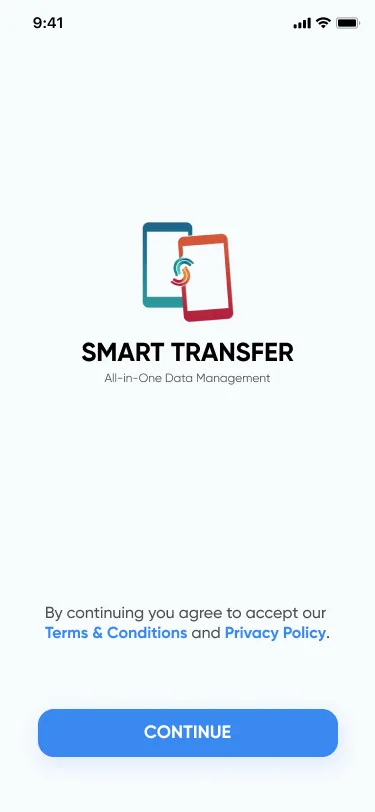
When you launch Smart Transfer, you’ll see a splash screen welcoming you.
Just tap, Continue to move forward.
3. Review or Skip the Tutorial
Smart Transfer will show you a few tutorial screens explaining the app’s features.
You can review them if you’re new.
Or tap Skip if you want to dive right in.
4. Tap on “Bookmarks”
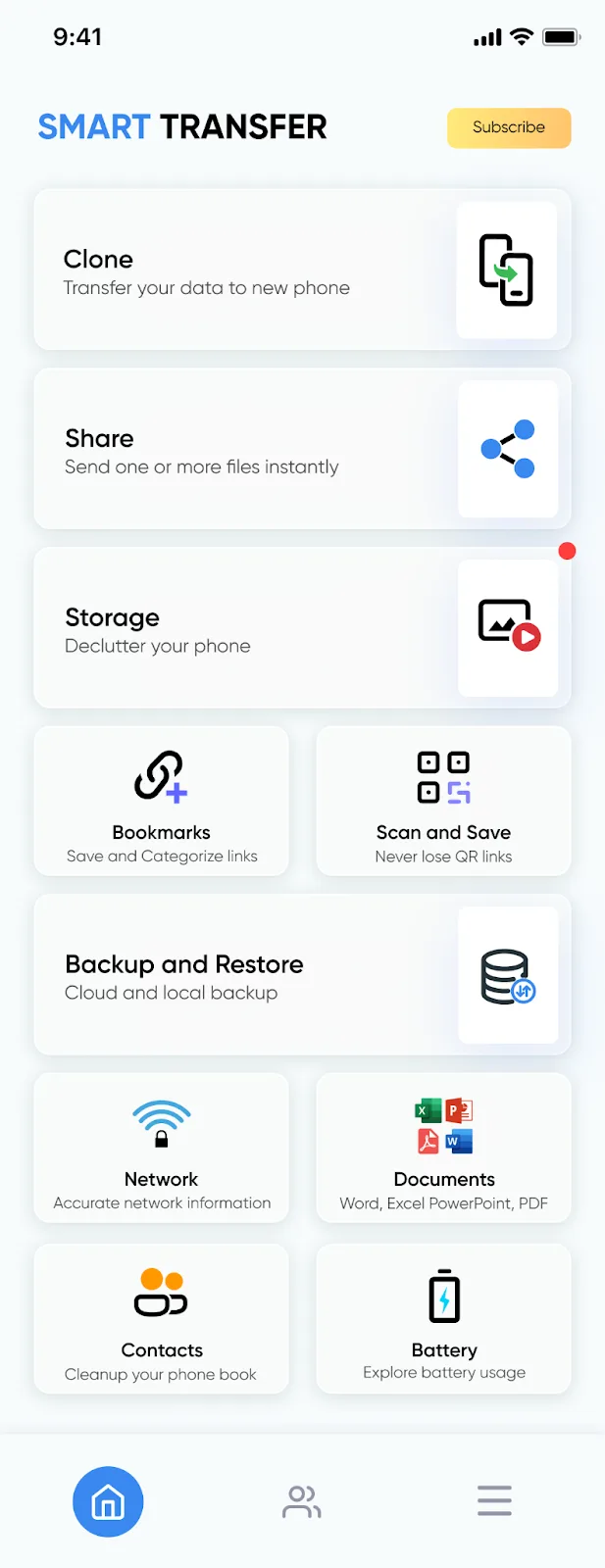
On the home screen, you’ll see the Bookmark option alongside other tools. Tap Bookmark to open the feature.
5. Tap Continue
You’ll get a short intro to the Bookmark Manager. Tap Continue to start using it.
6. Add Your First Bookmark
This is where your digital library begins.
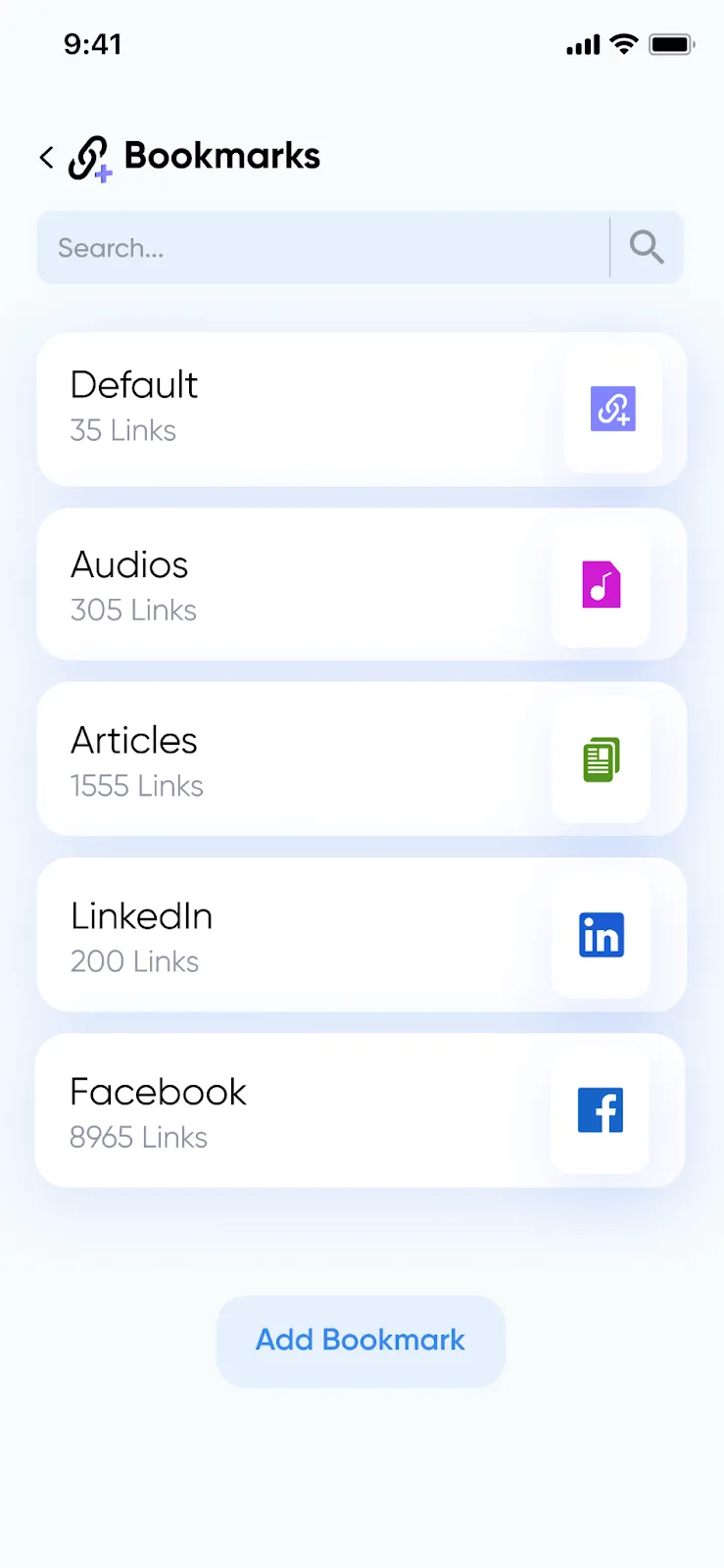
Tap Add Bookmark, then fill out three fields:
Title
Give each link a clear, memorable name. Example:
“Top 10 Baking Tips for Beginners”
“Freelancer Tax Guide”
“Budget Travel Ideas for 2025”
URL
Paste the link you want to save. It can be a webpage, video, product page, article, recipe, or tool.
Category
Organize bookmarks neatly by grouping them:
Work
Travel
Reading List
Recipes
Education
Shopping
Fitness
Finance
Motivation
Research
Tap Save and your bookmark is instantly stored.
7. Edit or Delete Bookmarks
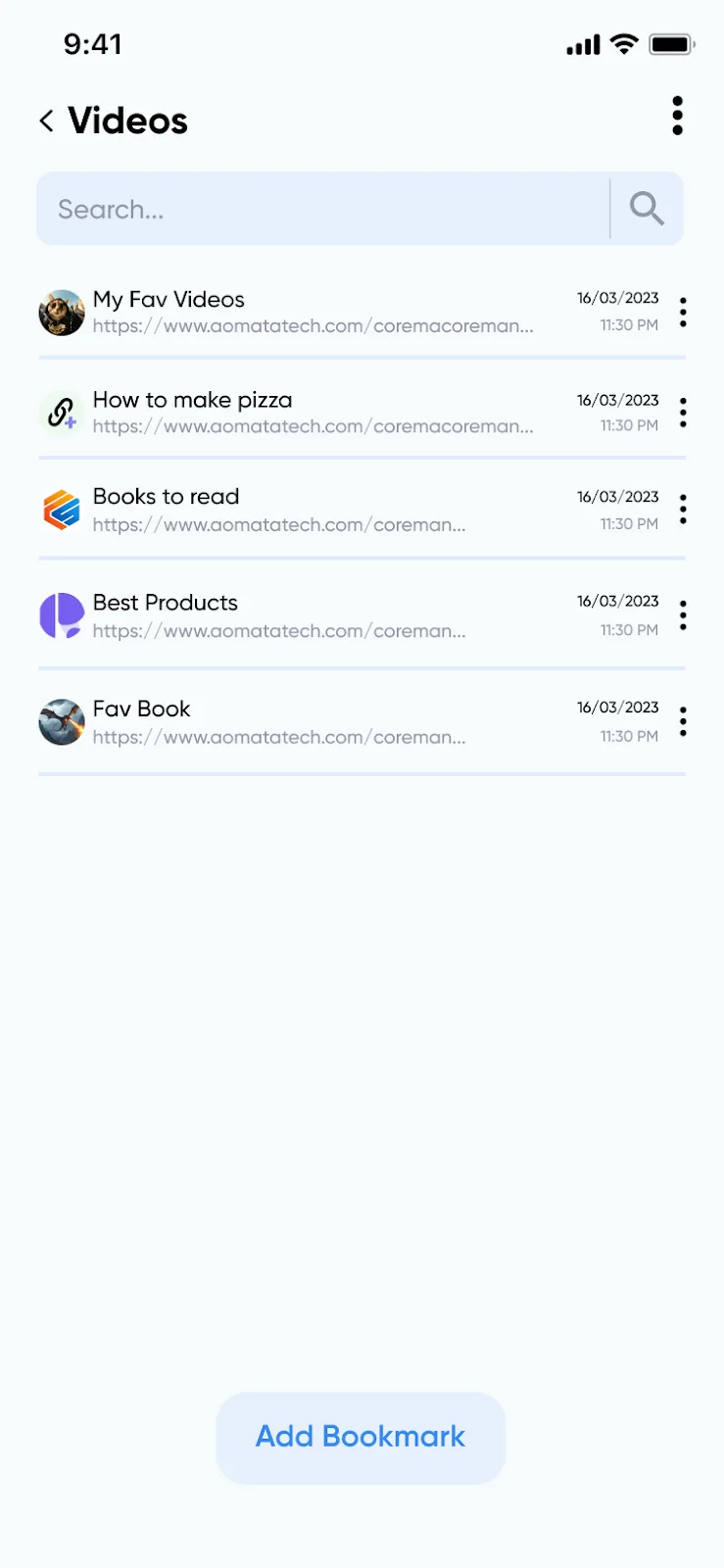
Your needs change, and so can your saved links.
Tap any bookmark to:
Edit the title, URL, or category
Delete it if you no longer need it
This keeps your bookmark library clean, current, and purposeful.
8. Open Links in Your Browser
When you want to revisit a saved link:
Tap the bookmark
Copy the URL
Open it in any browser
This gives you complete flexibility, Chrome, Firefox, Opera, Samsung Internet, or any app browser you prefer.
Smart Ways to Organize Your Bookmarks (and Why It Matters Today)
As the amount of content we interact with every day continues to grow, having a thoughtful way to organize bookmarks is becoming essential. Smart Transfer makes it easy to shape your saved links into a system that truly supports your routines—whether you're researching for work, planning upcoming travel, building habits, keeping recipes in one place, or collecting ideas that spark creativity.
This is exactly why having a mobile-friendly bookmark manager matters so much today. We browse constantly from our phones, and the information we save should be just as easy to organize and access. Smart Transfer gives you a clean, customizable space where your bookmarks can live in meaningful categories, helping you navigate the digital world with clarity instead of chaos.
To help you get started, here are practical ways to organize your bookmarks so they become a curated digital library that truly supports your everyday life.
Recommended Bookmark Categories to Keep You Organized
Use this table as inspiration for setting up your own bookmark system inside Smart Transfer. Each category is designed to simplify your digital routine and make your saved links easier to revisit.
How This Bookmark System Helps You Stay Organized
Once you set up categories that match the way you live, your bookmarks begin to work with you instead of against you. There’s no searching through apps, no guessing where a link went, and no wasted time. Everything is grouped with purpose, turning your phone into a more focused, efficient tool for work, study, planning, and everyday decision-making.
Using descriptive titles for your bookmarks helps you quickly recall meaning without reopening tabs. Reviewing your saved links from time to time keeps your collection tidy, relevant, and motivating. And because Smart Transfer stores everything locally, your bookmarks stay with you even if you change browsers or switch between apps.
In a world where information never stops flowing, this kind of organization makes your digital life feel lighter, clearer, and easier to manage. Smart Transfer gives you a simple, flexible bookmark tool designed for real people living busy, modern lives.
Make Bookmarks Your Digital Advantage
Your saved links represent the things you want to explore, learn from, revisit, or act on, not just random URLs. Smart Transfer’s Bookmarks feature keeps these meaningful pieces of your digital life organized and easy to access. Whether you're managing work tasks, school resources, travel plans, hobbies, or personal goals, this mobile bookmark manager helps you bring structure and ease to your online world.
Start organizing your online life today, download Smart Transfer from the Google Play Store or Apple App Store, and begin building your personal library of bookmarks right inside your phone. For help or support, contact support@smarttransferapp.com.
Frequently Asked Questions (FAQs)
1. What is the Bookmarks feature in Smart Transfer?
The Bookmarks feature in Smart Transfer allows you to save links, organize URLs, and store important webpages in one place. It works like a mobile-friendly bookmark app designed for quick access and easy management.
2. Do I need an internet connection to use the Bookmarks feature?
You only need internet access to open a URL in your browser. Adding, organizing, or editing bookmarks inside Smart Transfer works without being online.
3. What kind of links can I save using Smart Transfer bookmarks?
You can save almost any URL, including articles, recipes, videos, study resources, travel guides, tools, product pages, and more. If it has a link, you can save it.
4. Can I organize my bookmarks into categories?
Yes. Smart Transfer lets you create custom categories such as Work, Travel, Recipes, Reading List, Inspiration, Study, or any system that fits your lifestyle. This makes it one of the best bookmark manager tools for mobile users.
5. How is Smart Transfer different from regular browser bookmarks?
Browser bookmarks get scattered across devices and browsers. Smart Transfer gives you a centralized, app-based bookmark manager where all your important URLs stay organized, even if you switch browsers or apps.
6. Can I edit or delete bookmarks after saving them?
Absolutely. You can update the title, URL, or category of any saved bookmark at any time. You can also delete bookmarks you no longer need to keep your list clean and organized.
7. How do I open a bookmarked link?
Tap on the bookmark inside Smart Transfer, copy the URL, and open it in your preferred browser. This gives you full flexibility, Chrome, Firefox, Samsung Internet, Opera, or any browser installed on your phone.
8. Is Smart Transfer a good option for saving links for work or study?
Yes. Many users rely on Smart Transfer as their mobile online bookmark manager for research, academic resources, professional tools, and content they want to revisit later. Categories make it easy to manage work or study bookmarks.
9. Are my saved bookmarks secure?
Yes. All your saved links are stored locally on your device inside the Smart Transfer app. They are not uploaded to external servers, ensuring privacy and security.
10. Can I use the Bookmarks feature on both Android and iOS?
Yes. The Bookmarks feature works on both Android and iOS versions of Smart Transfer, making it an excellent cross-platform bookmark tool for users who switch between devices.