Need to move your files to another phone but don’t want to deal with cables, cloud logins, or slow Bluetooth? Whether you're setting up a new phone or just helping a friend out, Smart Transfer’s Share Remotely feature is a lifesaver. It’s the kind of smart sharing tool that turns what used to be a tedious task into a seamless experience.
In this guide, we’ll show you how to use Smart Transfer to share data from Android to Android, without tedious methods.
Step-by-Step: Transfer Share Made Simple
1. Download Smart Transfer
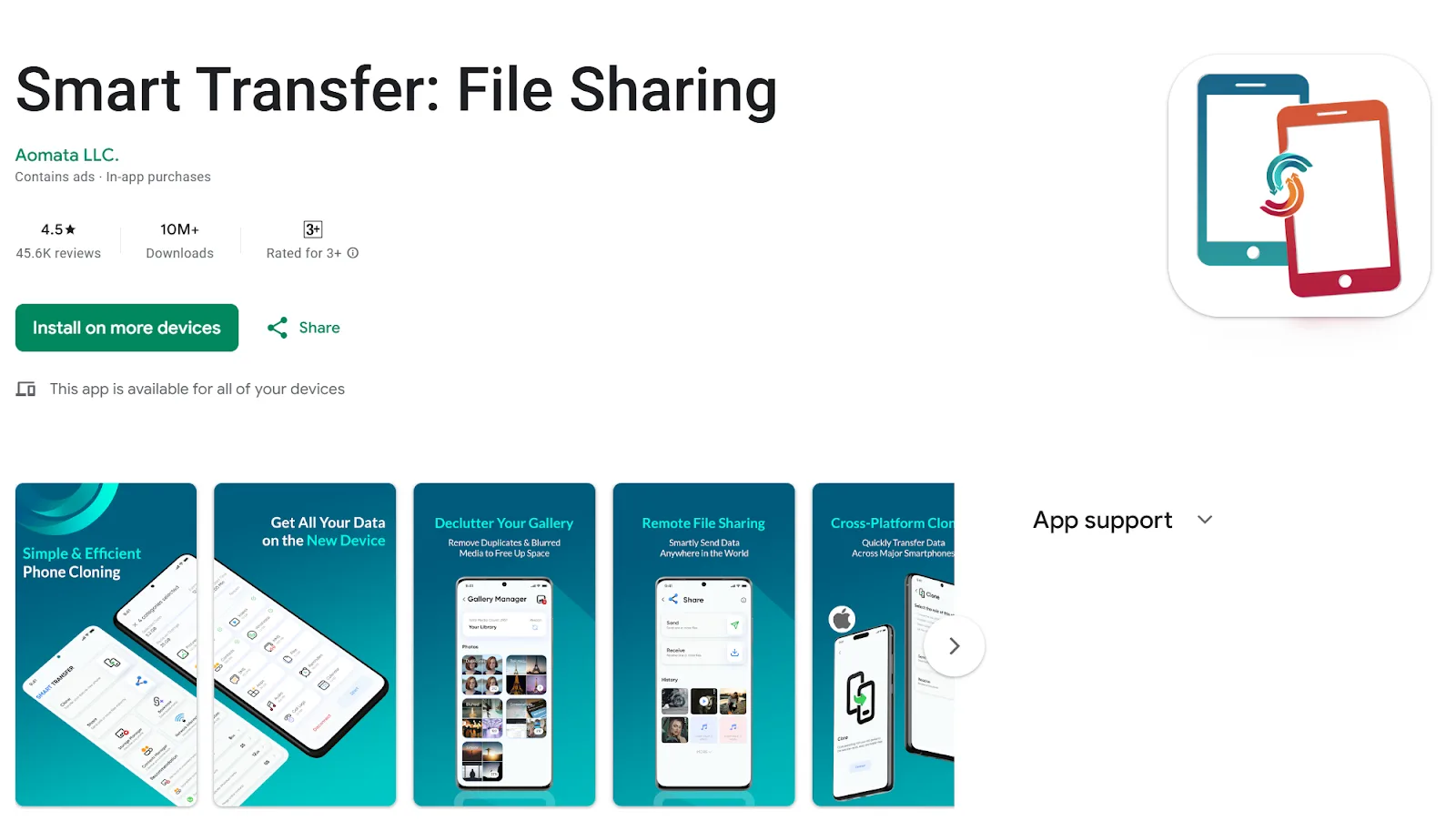
Start by installing the Smart Transfer app on both Android devices. You’ll find it on the Google Play Store. Just search for “Smart Transfer” and hit download.
2. Open the App & Get Started
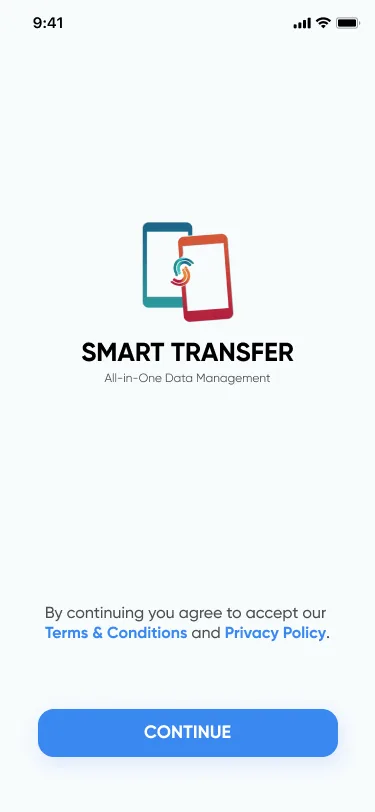
Open the app and tap Continue to move forward. You'll see a few tutorial screens, which you can skip if you’re ready to dive straight into the action.
3. Tap “Share” from the Dashboard
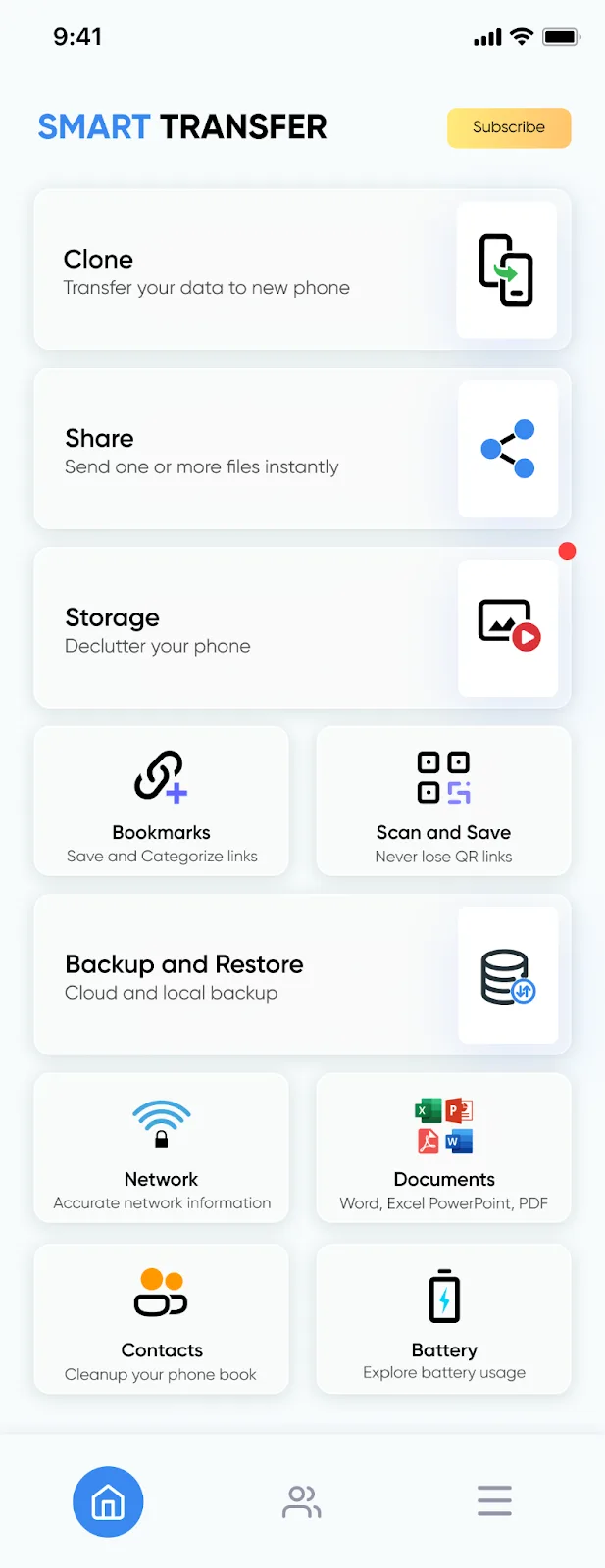
From the app dashboard, tap Share. Then, tap Continue when prompted.
4. Choose “Send” and “Receive”
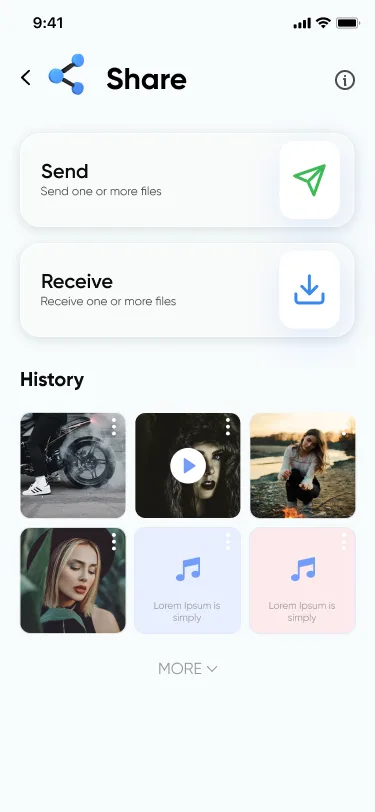
Decide which phone is sending and which one is receiving. On the phone sharing the data, tap Send. On the other device, select Receive.
5. Select What You Want to Share
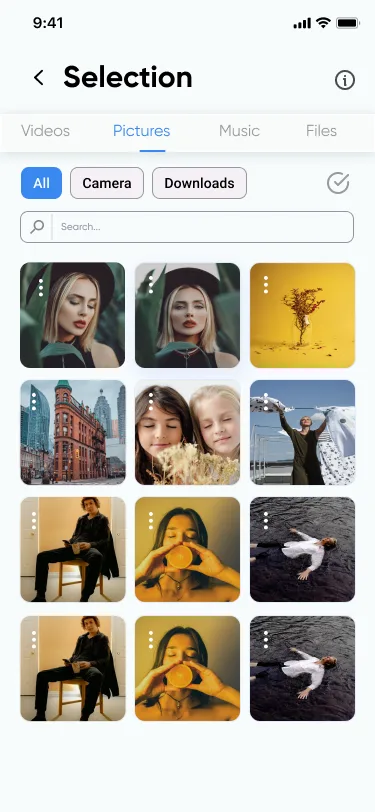
Now, choose what you want to share.
Photos
Videos
Apps
Audio files
Once you've made your selection, tap Share. It’s all about easy share and giving you full control over your data transfer.
6. Tap “Share Remotely” on Both Phones
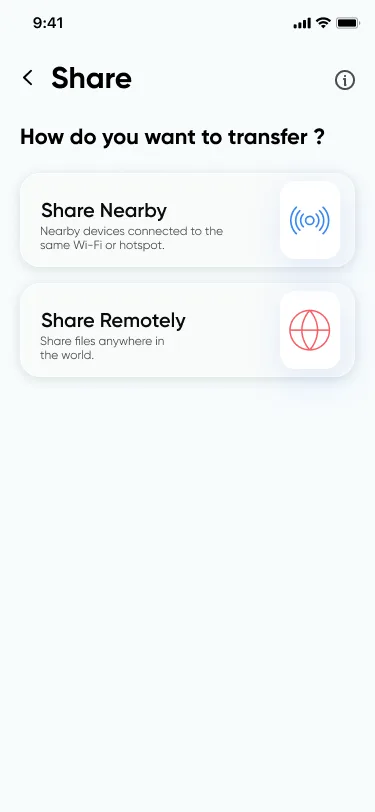
Here’s where Smart Transfer shines.
On both devices, tap Share Remotely. This enables the wireless connection and prepares the devices to share data.
7. Unlock the Feature
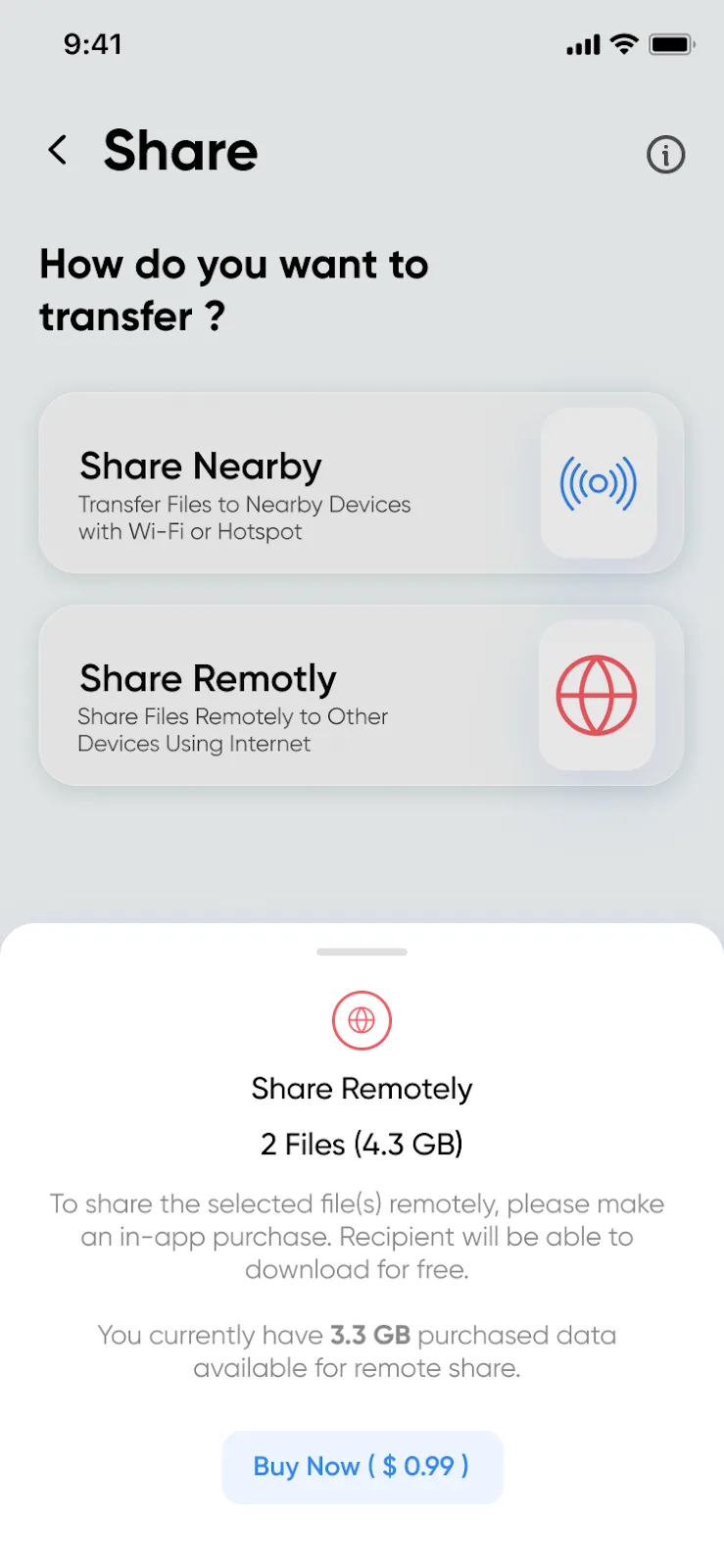
A one-time in-app purchase is required to unlock the Share Remotely feature. It’s a small price for unlimited phone transfer capabilities without limits.
8. Use the Passcode to Connect
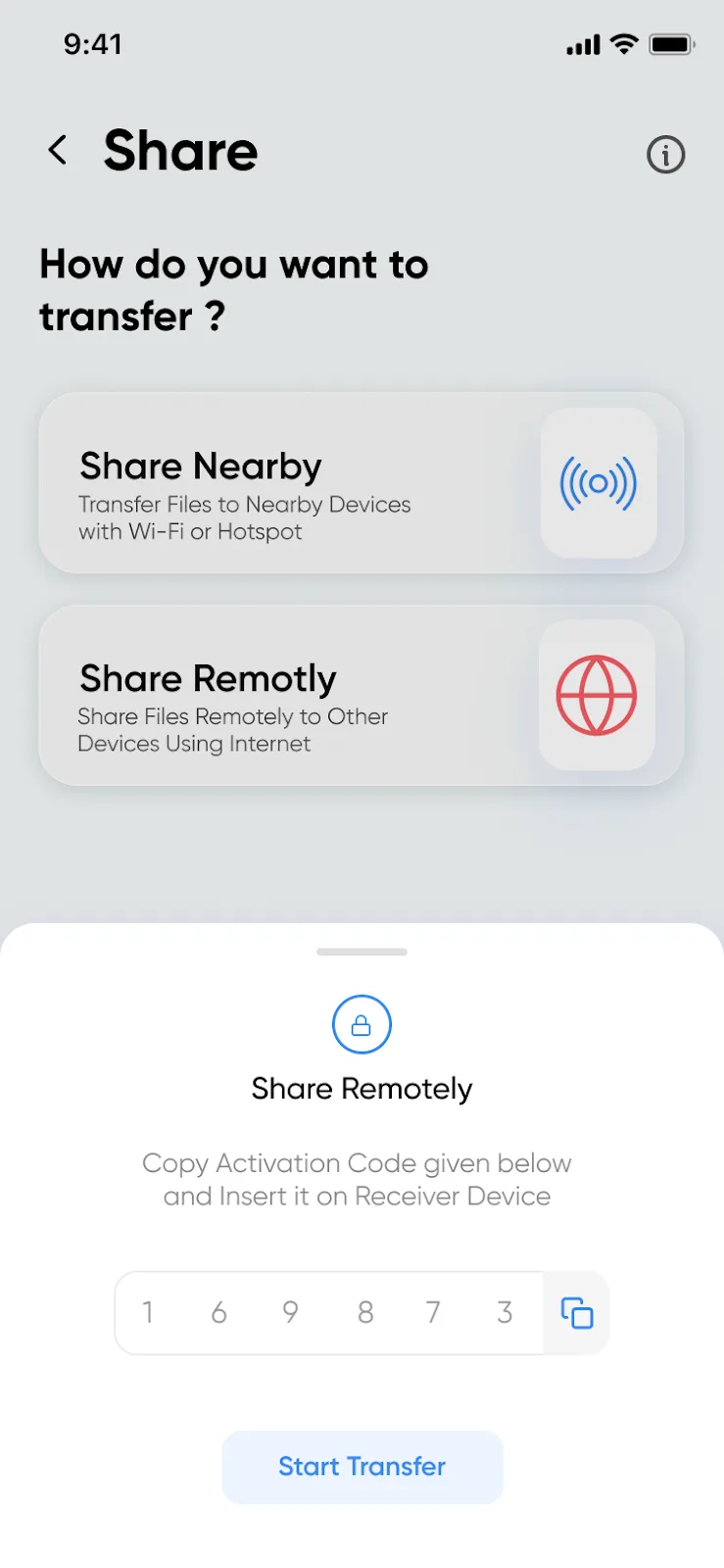
Once the feature is unlocked, the Sender phone will show a passcode.
On the Receiver, enter that passcode and tap Verify.
Now your smart switch transfer data session is fully synced.
9. Tap “Start Transfer” and Grant Permissions
You’ll now be prompted to tap Start Transfer on both phones. You may be asked for storage permission, just allow it so the app can access and move your files. Once granted, the file transfer begins!
10. Transfer Begins
The selected data is uploaded from the sender and instantly downloaded onto the receiver. Thanks to smart sharing over local Wi-Fi, this quick share method is super fast and completely secure.
11. Done! View Your Transferred Files
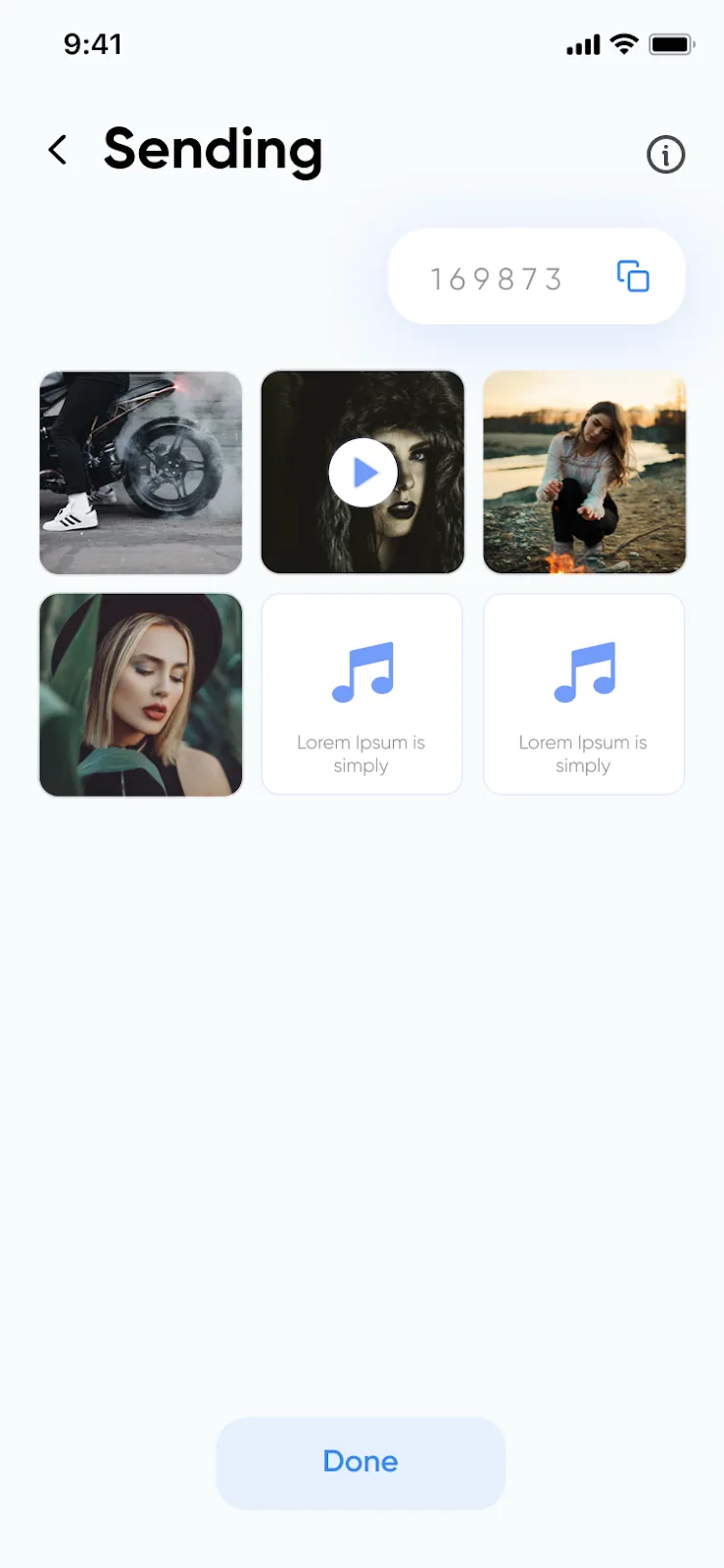
After the transfer is complete:
Tap Done
On the receiver, go to the History section in the app
All your file transfer details and successfully moved data will be there. Whether it’s your favorite apps or a full gallery of photos, it’s all been neatly received, mission accomplished!
Why Smart Transfer is a Must-Have App
Let’s recap why Smart Transfer is the smartest way to share data on Android:
Quick Share with Zero Hassle
Say goodbye to long uploads and Bluetooth timeouts. Smart Transfer delivers quick share in seconds.
Flexible and Intuitive
Whether you’re upgrading to a new phone or just helping a friend out, it’s your perfect phone transfer buddy.
Works Like a Smart Switch
Smart Transfer acts as a smart switch transfer data tool, helping you move everything you care about without breaking a sweat.
Start Sharing, The Smart Way!
In a world full of over-complicated options for file transfer, Smart Transfer stands out as the most user-friendly, fast, and reliable app to transfer data between Android devices. Its smart sharing system is designed for everyone, from casual users to tech pros.
Whether you’re switching phones, helping out a friend, or just sharing content across devices, Smart Transfer makes the process a breeze. With features like Share Remotely, you can share files without cables, and without any of the usual stress.
So go ahead, try Smart Transfer today and experience smart switch transfer data the way it was meant to be: simple, fast, and built for real life. Download Smart Transfer today from Google Play Store! If you have any questions drop us an email on support@smarttransferapp.com.
Frequently Asked Questions (FAQs)
1. What is the Share Remotely feature in Smart Transfer?
Share Remotely allows you to share files between two Android phones even if they are not side-by-side, as long as both devices are connected to the internet. It’s perfect for transferring content quickly and wirelessly without cables.
2. Do both phones need to be on the same Wi-Fi network?
No. Unlike Share Nearby, Smart Transfer’s Share Remotely feature does not require both devices to be on the same Wi-Fi network. Both phones simply need any active internet connection, Wi-Fi or mobile data, for remote transfer.
3. How does Share Remotely work?
Share Remotely uploads your selected files securely from the sender and instantly downloads them onto the receiver. This allows you to share data between Android phones even if they’re in different rooms, buildings, cities, or networks.
4. Is Share Remotely a free feature?
Share Remotely requires a one-time in-app purchase to unlock. After that, you can make unlimited remote transfers without restrictions.
5. Is my data safe when transferring remotely?
Yes. Smart Transfer uses secure, encrypted upload and download pathways. Your files are never stored permanently on external servers, ensuring privacy throughout the entire process.
6. What types of files can I transfer using Share Remotely?
You can send photos, videos, audio files, apps, documents, and many other file types. Smart Transfer supports a wide range of content for complete Android-to-Android data transfer.
7. Can I transfer large files or full galleries remotely?
Yes. Share Remotely supports large file transfers as long as both devices have a stable internet connection. Upload and download speeds will depend on network quality.
8. How do I connect the two devices using Share Remotely?
The Sender device generates a secure passcode. The Receiver enters that passcode, taps Verify, and both devices connect instantly, no QR scanning or same Wi-Fi required.
9. What should I do if the transfer stops or slows down?
Try the following:
Check both phones’ internet connection
Keep Smart Transfer open during transfer
Restart the app
Avoid switching networks mid-transfer
Disable VPNs if active
These steps usually restore the remote transfer right away.
10. Can I use Share Remotely when switching to a new phone?
Yes! Share Remotely is perfect for full Android phone migration, even if the phones are not physically near each other. This makes it ideal for upgrading devices, remote assistance, or sharing data with someone far away.