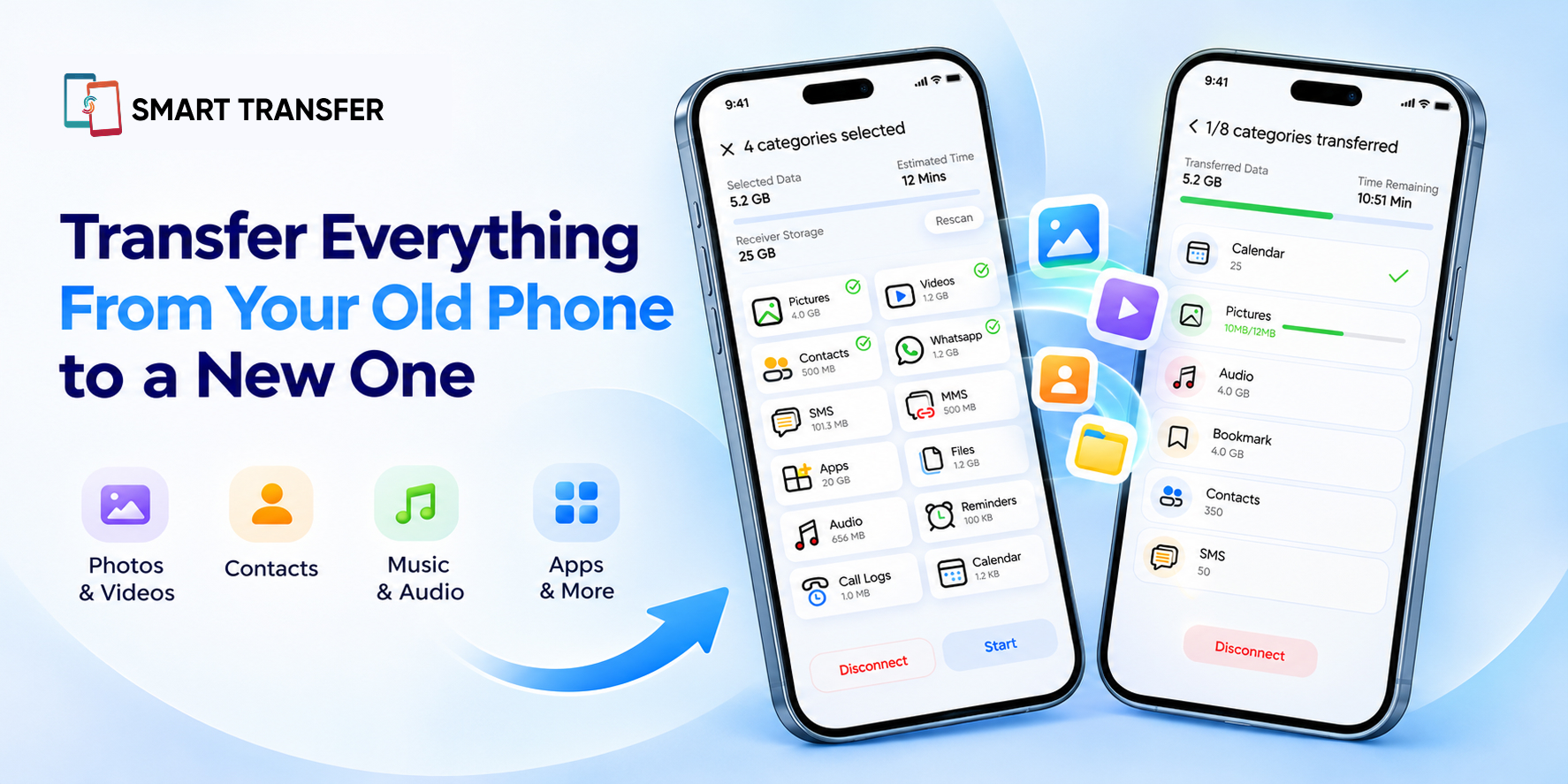
Getting a new Android phone should feel like an upgrade. You have a faster processor, a better camera, more storage, and new features to explore. But before enjoying any of that, there is one thing you need to take care of: moving your data from your old phone to your new one.
Your photos, videos, contacts, messages, documents, and other important information are part of your everyday digital life. Moving them should not involve complicated setups, tangled cables, or hours of manually copying files.
This is where wireless phone cloning makes a difference.
A wireless solution lets you transfer supported data between compatible Android devices without relying on a physical cable. It makes the process more convenient, reduces setup hassle, and gives you a simpler way to move important information when switching phones.
But why should you choose wireless phone cloning over traditional transfer methods? Let's explore how it works, what makes it useful, and how Smart Transfer can help simplify your next phone switch.
Key Takeaways
Wireless phone cloning eliminates the need for cables and adapters when switching Android devices.
Local Wi-Fi makes transferring supported data between compatible phones more convenient.
A dedicated cloning app simplifies the process of moving photos, videos, contacts, and other supported data.
Checking compatibility and verifying transferred files helps prevent missing data during a phone upgrade.
What Is Wireless Android Phone Cloning?
Wireless Android phone cloning is the process of transferring supported data from one Android device to another without connecting them through a physical cable.
Instead of manually copying files or connecting your phones to a computer, a compatible cloning app establishes a wireless connection between the devices and helps move selected information.
Depending on the app and device compatibility, this may include:
Photos and videos
Contacts
Messages
Documents
Supported apps and other data
The goal is to make moving to a new phone easier while reducing the number of manual steps involved.
Wireless phone cloning is particularly useful when you want to keep important information from your old device without spending time transferring individual files one at a time.
Why Is a Wireless Solution Better for Cloning Your Android Phone?
A wireless transfer method offers several practical advantages when moving data between Android devices. It removes the need for a physical connection and can make the entire process more convenient.
Here are five reasons why wireless phone cloning is worth considering.
1. Transfer Data Without Cables
One of the biggest advantages of wireless phone cloning is that you do not need a physical cable to connect your devices.
Traditional wired transfers require a compatible cable and, depending on the devices, the correct connectors or adapters. If you do not have the right equipment, the process can become inconvenient before it even begins.
A wireless solution removes that dependency.
You can connect compatible phones through the supported wireless pairing process and begin transferring your selected data without searching for cables or checking connector compatibility.
This is especially helpful when:
You do not have a suitable data cable.
Your devices use different charging connectors.
You want to avoid connecting your phone to a computer.
You prefer a simpler setup with fewer accessories.
Instead of worrying about the physical connection, you can focus on selecting the information you want to move.
2. Make Switching to a New Phone Easier
A new phone comes with plenty of things to explore. You should not have to spend the first few hours manually rebuilding your digital life.
Wireless cloning helps simplify the transition by allowing you to move supported information from your old Android device to your new one through a compatible transfer process.
Rather than sending photos individually, exporting contacts separately, and moving documents one folder at a time, you can use a dedicated phone cloning solution to manage supported data transfers.
This makes wireless cloning particularly useful when upgrading your phone, replacing an older device, or moving to a different Android model.
For a closer look at the process, read our guide on whether you can clone your entire Android phone.
3. Keep Important Files Together
Your phone stores more than just photos and contacts. Over time, it becomes a collection of documents, videos, messages, and other information that you may need every day.
Moving everything manually can make it easy to overlook something important.
A wireless cloning solution can help organize the transfer process by allowing you to select supported data categories and move them between compatible devices.
For example, you may want to transfer:
Data type | Why you may want to transfer it |
Photos | Preserve personal memories and important images |
Videos | Keep recordings and saved clips accessible |
Contacts | Avoid rebuilding your contact list manually |
Messages | Retain supported conversations and information |
Documents | Keep important files available on your new phone |
Supported apps | Reduce the time spent reinstalling and setting up supported applications |
The exact data you can transfer depends on the app, Android versions, device compatibility, and available permissions. Some apps and account-based information may require separate setup.
4. Avoid the Hassle of Manual File Transfers
Imagine moving to a new phone with thousands of photos, hundreds of contacts, and dozens of important documents.
Transferring everything individually would take considerable time and effort.
You would need to locate the files, select them, send them, and repeat the process for each category. It is also easy to forget a folder or leave behind information you intended to keep.
A dedicated wireless cloning app makes this process more manageable by bringing supported transfer options into one place.
You can follow the app's instructions, select the content you need, and let the transfer process handle the selected data.
This does not mean every file or application will move automatically. However, it can reduce the amount of manual work involved in switching devices.
5. Enjoy More Flexibility During the Transfer
A cable-free connection gives you more flexibility when preparing and connecting your devices.
You do not need to keep both phones physically connected to each other or depend on having a particular cable available. You simply need to follow the app's wireless connection requirements.
Some wireless transfer methods use a local Wi-Fi connection between devices rather than uploading files to cloud storage. This can be useful when you want to move supported data directly between compatible phones.
The exact connection process depends on the cloning solution you choose. Always check whether the app requires both devices to use the same Wi-Fi network or supports another wireless pairing method.
How Does Wireless Android Phone Cloning Work?
Wireless phone cloning may sound technical, but the basic process is straightforward.
A compatible cloning app establishes a wireless connection between the old and new devices. Once the connection is ready, you can select supported data and begin transferring it.
The general process looks like this:
Step 1: Prepare Both Android Phones
Make sure both devices have sufficient battery and that the required transfer app is installed. Check that your new phone has enough available storage for the information you want to move.
Step 2: Open the Cloning App
Launch the app on both devices and follow its instructions to identify the old phone as the sender and the new phone as the receiver.
Step 3: Connect the Devices Wirelessly
Use the connection or pairing method provided by the app. Depending on the solution, this may involve scanning a QR code or following another wireless connection process.
Step 4: Select the Data You Want to Transfer
Choose the supported categories or individual files you want to move. Review your selection before proceeding.
Step 5: Start the Transfer
Follow the on-screen instructions and allow the transfer to finish. Avoid interrupting the process while your data is being moved.
Step 6: Verify Your Transferred Data
Once the process is complete, check your new phone. Open important photos, videos, documents, and other transferred content to confirm that everything you need is available.
The exact steps and supported data types vary between cloning apps and Android devices.
Wireless vs. Wired Android Phone Cloning: Which Should You Choose?
Both wired and wireless methods can help transfer data between Android phones. The better option depends on your devices, available equipment, and personal preferences.
Comparison | Wireless cloning | Wired cloning |
Physical cable | Not required | Required |
Accessories | No transfer cable needed | May require a compatible cable or adapter |
Setup | Uses a supported wireless pairing process | Requires a physical connection |
Flexibility | Does not depend on a transfer cable | Limited by cable length and compatibility |
Internet or network requirements | Depends on the wireless method | Usually does not require an internet connection for a direct wired transfer |
Best suited for | Users who prefer cable-free transfers | Users who prefer a physical connection and have compatible equipment |
Neither method is automatically faster or better in every situation. Transfer speed depends on several factors, including file size, device capabilities, connection quality, and the transfer technology used.
If you prefer to avoid cables and accessories, wireless cloning is a convenient alternative.
Does Wireless Phone Cloning Require an Internet Connection?
Not necessarily. The internet requirements depend on how the cloning app establishes its connection.
Some wireless transfer solutions use a local Wi-Fi connection to communicate directly between devices. This allows supported data to move without first uploading it to an online storage service.
However, other activities may still require internet access. For example, downloading an app, signing in to an account, restoring cloud backups, or updating applications may need an internet connection.
Before starting, check the connection requirements of your chosen cloning app. A wireless transfer does not automatically mean that cloud storage or mobile internet is involved.
How to Clone Your Android Phone Wirelessly With Smart Transfer
If you want to move supported data between Android phones without connecting them through a physical cable, Smart Transfer offers a dedicated Clone Phone feature.
It uses a local Wi-Fi connection to help compatible devices transfer supported information wirelessly. This provides an alternative to manually copying files or relying on a physical transfer cable.
Here is how to get started:
Install Smart Transfer: Download the app on both compatible Android devices.
Open the Clone Phone feature: Follow the instructions to prepare the old phone and the new phone.
Connect both devices: Establish the wireless connection using the pairing process displayed in the app.
Choose your data: Select the supported content you want to move.
Begin cloning: Follow the on-screen instructions and allow the transfer to finish.
Check your new phone: Verify that the selected data has arrived successfully.
Smart Transfer is designed to make moving supported phone data more convenient without requiring a physical cable or uploading the selected transfer data to cloud storage as part of its local Wi-Fi cloning process.
Check device compatibility and the supported data categories before beginning. Some information, including certain app data and account-based content, may require additional steps.
How Long Does Wireless Android Phone Cloning Take?
There is no fixed transfer time for every Android phone. The duration depends on how much data you are moving, the types of files involved, the devices' capabilities, and the quality of the wireless connection.
A transfer containing a few documents and contacts will generally require less time than one involving thousands of high-resolution photos and large video files.
To help the process run smoothly:
Charge both devices before starting.
Make sure the new phone has sufficient storage.
Follow the app's wireless connection requirements.
Avoid interrupting the transfer.
Close unnecessary activities if your devices are struggling to perform multiple tasks.
For a more detailed explanation of the factors that affect transfer time, read our guide on how long it takes to clone a phone.
Common Mistakes to Avoid When Cloning an Android Phone Wirelessly
Wireless cloning can simplify phone migration, but a few common mistakes can still interrupt the process or leave important information behind.
Common mistake | How to avoid it |
Starting with low battery | Charge both phones before transferring |
Ignoring storage requirements | Check available space on the receiving phone |
Selecting the wrong data | Review your selection before starting |
Interrupting the connection | Follow the app's instructions and avoid stopping the process |
Assuming every app transfers completely | Check app compatibility and complete separate setup where necessary |
Resetting the old phone too soon | Verify your transferred data before erasing the original device |
The most important precaution is to keep your old phone intact until you have confirmed that your essential information is available on the new one.
If you are moving important personal or work-related data, consider creating a separate backup before beginning the transfer.
Switch to Your New Android Phone Without the Cable Hassle
Your new phone should bring new possibilities, not hours of transferring files one by one.
Wireless phone cloning makes switching devices more convenient by removing the need for physical transfer cables and helping you move supported data through a dedicated connection process.
With Smart Transfer, you can connect compatible Android devices through local Wi-Fi and transfer supported information without relying on a cable or uploading the selected cloning data to cloud storage.
Make your next phone upgrade simpler. Get started with Smart Transfer on Google Play or explore the app on the Apple App Store.
Frequently Asked Questions
What is the best way to clone an Android phone wirelessly?
A dedicated phone cloning app that supports both Android devices is a convenient option. It can establish a wireless connection and help transfer supported data without requiring a physical cable. Check the app's compatibility and supported data types before starting.
Can I clone my Android phone without a USB cable?
Yes. Wireless cloning apps allow compatible Android devices to transfer supported data through a wireless connection. With a solution such as Smart Transfer, you can use local Wi-Fi instead of connecting the phones with a physical cable.
Does wireless Android phone cloning use mobile data?
Not always. Some cloning solutions use a local Wi-Fi connection to transfer data directly between devices. However, downloading apps, signing in to accounts, or restoring cloud-based information may require internet access.
Is wireless phone cloning slower than wired cloning?
Not necessarily. Transfer speed depends on the connection technology, file sizes, device performance, and other factors. A wired connection may be faster in some situations, while a wireless solution offers the convenience of transferring data without a physical cable.
Can I transfer photos, contacts, and videos wirelessly?
Yes, many phone cloning solutions support transferring photos, videos, and contacts between compatible devices. Other data types, such as messages, documents, and apps, depend on the app's capabilities and device compatibility.
Will wireless cloning transfer all my Android apps?
Not necessarily. Some cloning tools support transferring selected apps, but app availability and data migration can depend on Android restrictions, device compatibility, and the individual app. You may need to reinstall certain applications and sign in again.
Do both Android phones need to be connected to the same Wi-Fi network?
It depends on the cloning app. Some solutions require both devices to connect to the same Wi-Fi network, while others establish a local wireless connection through their own pairing process. Follow the instructions provided by your chosen app.
Is wireless Android phone cloning safe?
The safety of a transfer depends on the app, its connection method, and how it handles your information. Choose a trusted app, review its permissions, and follow its official instructions. With Smart Transfer's local Wi-Fi cloning process, supported data is transferred directly between compatible devices rather than being uploaded to cloud storage as part of that local transfer.