Business travel rarely goes exactly as planned. You might need to share presentation files before a meeting, transfer photos from your phone to another device, or access important information while moving between airports, hotels, and client offices. When you're working on the go, even a small file-sharing delay can interrupt your workflow.
That's why having a convenient way to manage and transfer mobile data matters. Instead of relying on multiple methods for different tasks, business travelers can benefit from a tool that makes everyday file sharing and data management easier.
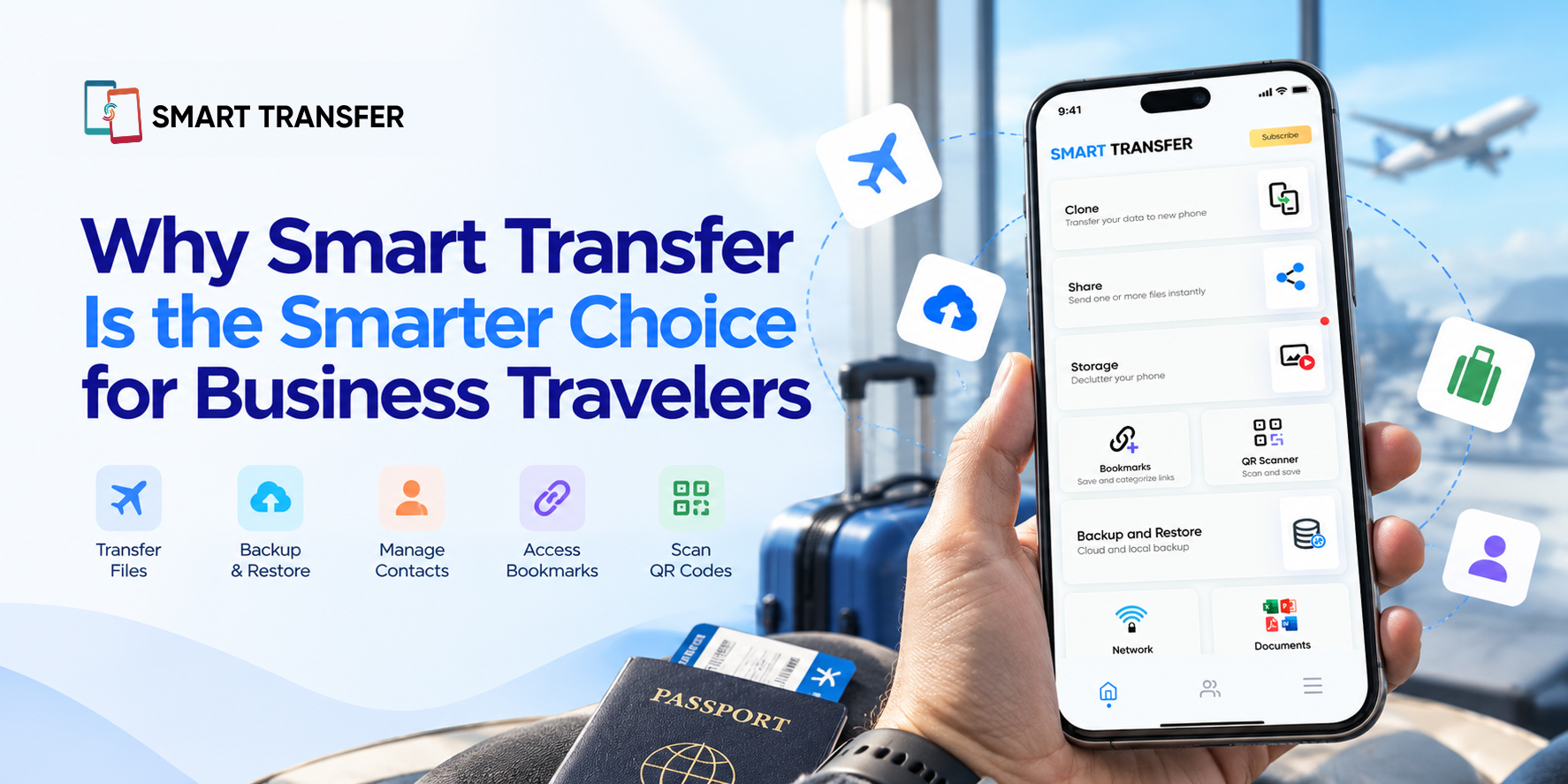
Smart Transfer helps users share files and manage supported mobile data between devices, making it a useful option for professionals who need flexibility while traveling. Whether you're preparing for a meeting or organizing files after a busy day, the right transfer tools can help reduce unnecessary steps.
In this guide, we'll explore how Smart Transfer fits into a business travel routine, which features may be useful on the road, and what to consider when transferring important files between devices.
Key Takeaways
Simplify everyday file sharing by using a dedicated tool to transfer supported files between compatible devices.
Stay organized while traveling by managing mobile data and keeping important files accessible on the devices you use.
Prepare before you leave by checking device compatibility, testing transfers, and keeping important files backed up.
The Everyday Challenges of Sharing Files While Traveling
Business travelers often switch between devices, locations, and work tasks throughout the day. A file that is easy to access at the office may be harder to move when you're using a phone, a colleague's device, or a different computer on the road.
Here are some common situations where a practical file transfer method can help.
Travel situation | Common challenge | What helps |
Preparing for a client meeting | Moving presentation materials between devices | Organize and transfer the required files before the meeting |
Sharing photos or videos | Sending multiple large media files | Use a transfer method suited to the file size |
Switching devices | Moving supported data to another phone | Check available device-to-device transfer options |
Working with limited connectivity | Depending on cloud uploads and downloads | Consider direct transfer options when supported |
Managing important documents | Keeping track of files across devices | Use clearly labeled folders and maintain backups |
The aim isn't to add another complicated process to your travel routine. It's to make file handling more predictable so you can spend less time troubleshooting transfers and more time focusing on work.
Share Files Between Devices Without Unnecessary Steps
One of the most practical needs during a business trip is moving files from one device to another. You might need to share photos from a work event, send documents to a colleague, or move media before freeing up space on your phone.
Smart Transfer's Share Files feature is designed to help users transfer files between supported devices. Rather than depending on a messaging app for every transfer, you can use a dedicated file-sharing option for compatible content.
This can be helpful when you're handling several files at once or regularly moving content between devices. Before traveling, test the transfer process with the devices you plan to use and check any file-size or compatibility limitations.
For work-related transfers, also consider where the files are going and who can access them. Sensitive business documents should be handled according to your organization's data-sharing policies.
Keep Important Mobile Data Backed Up
Losing access to important information while traveling can create unnecessary stress. A misplaced phone, a damaged device, or an unexpected technical issue can make it difficult to access the data you need.
Backing up supported data before departure gives you another way to recover information if something goes wrong. It's particularly worth checking that important contacts, documents, and media are available somewhere other than your primary device.
Smart Transfer offers a Backup & Restore feature for supported backup and recovery tasks. Before relying on it during a trip, review which data types it supports, where backups are stored, and how restoration works.
A few preparations can make a difference:
Confirm that your latest backup has completed successfully.
Check that the files you need are actually included.
Keep important documents available through an appropriate alternative when possible.
Avoid resetting or erasing your original device until you've confirmed that essential data can be recovered.
For business-critical information, follow your organization's backup requirements rather than relying on a single app or device.
Check Your Network Before Sharing Files
A transfer that works smoothly at home may behave differently in a hotel, airport, conference venue, or client office. Network congestion, weak Wi-Fi, and inconsistent connectivity can all affect how easily devices communicate.
Before troubleshooting a failed transfer, check your connection. Confirm that your devices are connected as expected and review the available network information. If you're using a wireless transfer method, follow its specific connection requirements.
Smart Transfer's Network Information feature can help you review available network details on your phone. This gives you a useful starting point when checking your connection before a transfer.
If a transfer is slow or fails, try moving closer to the router, reconnecting to the appropriate network, or transferring a smaller batch of files. Remember that public Wi-Fi may have restrictions that affect communication between devices, so a successful internet connection doesn't automatically mean every local transfer method will work.
Make Device Changes Easier Before and During a Trip
Business travelers sometimes carry a personal phone and a separate work device. Others replace a phone shortly before traveling or need to move supported data to another device while away from home.
In these situations, transferring data can be more convenient than manually recreating everything. Smart Transfer's Clone Phone feature may be useful for supported phone-to-phone transfer scenarios.
However, phone cloning and file sharing serve different purposes. File sharing is suitable when you need to send selected content, while cloning is intended for transferring supported data as part of a device migration. Neither should be assumed to move every app, setting, account, or business file.
If you're preparing a new phone for a trip, complete the transfer before departure whenever possible. Check your contacts, essential files, and required work apps before relying on the new device.
How to Prepare Smart Transfer for Your Next Business Trip
A little preparation can prevent common transfer problems when you're away from your usual workspace. Before leaving, make sure the app and your devices are ready for the tasks you expect to handle.
Use this quick checklist:
Check compatibility: Confirm that Smart Transfer supports the devices and transfer types you plan to use.
Test a transfer: Send a few non-critical files before your trip so you understand the process.
Back up important data: Verify that your backup has completed and includes the information you need.
Organize your files: Use clear folder names so presentations, documents, photos, and other work materials are easier to locate.
Plan for connectivity: Understand whether your chosen transfer method requires a particular network or internet access.
Keep devices charged: Transfers and other demanding tasks can consume battery power, so carry a suitable charger or power bank.
Follow workplace policies: Use approved methods for confidential documents, client information, and other sensitive business data.
These steps are especially useful when you have a packed schedule and little time to troubleshoot a device during a meeting or while traveling between locations.
Smart Transfer for Business Travelers vs. Traditional Sharing Methods
Different transfer methods suit different travel situations. Smart Transfer can be useful for supported device-to-device sharing, while cloud storage, email, and USB connections each have their own advantages.
Method | Best suited for | Considerations |
Smart Transfer | Sharing supported files and transferring supported mobile data | Check device compatibility and transfer requirements |
Cloud storage | Accessing files across locations and devices | May require an internet connection, available storage, and account access |
Sending individual documents and smaller attachments | Attachment limits may restrict large files | |
USB connection | Direct file transfers between compatible devices | Requires suitable cables, ports, and device support |
Messaging apps | Quick sharing of selected content | File-size limits and media compression may apply |
There isn't one method that works best for every business traveler. If you need to send a few documents to a colleague, email may be enough. If you need to move supported files between your own devices, a dedicated transfer tool may be more convenient.
For files that must remain available across multiple locations, cloud storage can complement direct transfers. The best approach is to choose the method that fits the file type, destination, connectivity, and any workplace requirements.
Make Business Travel Easier with Smart Transfer
Business travel already involves enough moving parts. Managing files across devices shouldn't become another source of frustration. By preparing your devices, checking your network, keeping important data backed up, and choosing the right transfer method, you can make everyday file handling more straightforward.
Smart Transfer offers features for sharing files, transferring supported mobile data, and managing backups. These capabilities can be useful when you're preparing for a trip, moving files between compatible devices, or organizing your mobile data while working away from the office.
The key is to prepare before you travel, understand what each feature supports, and use transfer methods that fit your work requirements.
Ready to simplify your mobile file management? Download Smart Transfer from Google Play or the Apple App Store and explore its features for your next business trip.
Frequently Asked Questions
How can Smart Transfer help business travelers?
Smart Transfer provides features for sharing files and managing supported mobile data between compatible devices. These functions can help business travelers move selected files, prepare for device changes, and manage data while on the go.
Can I use Smart Transfer without an internet connection?
Offline availability depends on the feature, device combination, and connection method. Check the app's current instructions before traveling, and test the transfer process in advance rather than assuming every feature works without internet access.
Is Smart Transfer suitable for transferring large business files?
It may be suitable for supported files, but the practical experience depends on file size, device compatibility, available storage, and the transfer method. Test large transfers before relying on them during a time-sensitive work task.
Can Smart Transfer move data to a new phone?
Smart Transfer includes a Clone Phone feature for supported phone-to-phone transfers. The data that can be moved depends on device compatibility and the feature's current capabilities, so confirm the supported data types before migrating a work device.
Should I back up my phone before a business trip?
Yes. A recent, verified backup can help you recover supported data if your phone is lost, damaged, or replaced. Check that essential information is included and that you know how to access or restore it.
Is Smart Transfer a replacement for business cloud storage?
Not necessarily. File transfer tools and cloud storage serve different purposes. A transfer tool helps move supported files between devices, while cloud storage can provide ongoing access to files across locations. Your organization's requirements should determine which methods you use for business documents.