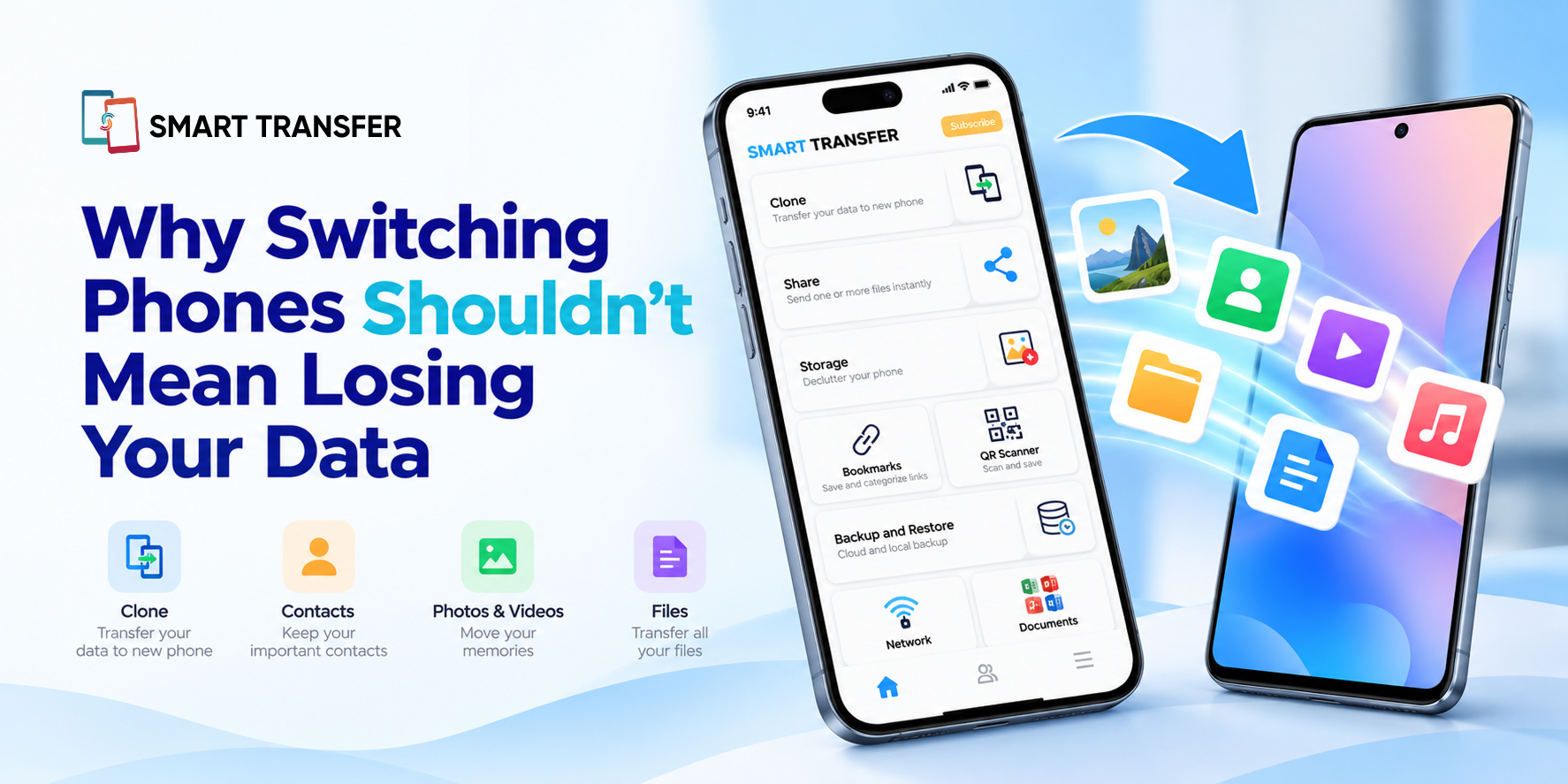
Getting a new phone is exciting, but moving everything from your old device can feel like a chore. You want your photos, contacts, videos, messages, and important files to come with you. The last thing you need is to discover that something is missing after your old phone has already been reset.
The good news is that switching phones does not have to mean starting from scratch. With a little preparation and the right transfer method, you can move your supported data to a new device while keeping important files safe.
The key is to back up your data, choose a transfer method that suits your devices, and verify that everything important has arrived before wiping your old phone.
What Should You Do Before Switching Phones?
Before transferring anything, take a few minutes to prepare both devices. This helps prevent incomplete transfers and makes it easier to identify anything that needs to be moved separately.
1. Back Up Your Important Data
Start by creating a backup of the information you cannot afford to lose. Depending on your device and the services you use, this may include contacts, photos, videos, documents, messages, and app data.
You can use your phone's built-in backup service, a supported cloud service, or a backup tool that works with your device. Check that the backup has completed successfully rather than assuming your latest files are included.
2. Check What Is Already Synced
Some information may already be linked to your account. Contacts might sync through your Google or Apple account, while photos and calendars may be stored through separate services.
Check these services before starting a transfer. This helps you avoid unnecessary duplication and shows you which information still needs to be moved manually.
3. Charge Both Phones and Connect to a Stable Network
A transfer can take time, especially if you have a large photo library or many videos. Charge both phones before starting and keep them connected to a reliable Wi-Fi network when the transfer method requires it.
Avoid interrupting the process or switching between apps unnecessarily. If a transfer fails, check the instructions for your chosen method before trying again.
4. Make Sure the New Phone Has Enough Space
Your new phone needs enough available storage for the data you want to move. If it is nearly full, some files or apps may not transfer as expected.
Review the size of your photos, videos, downloads, and other large files before beginning. If necessary, free up space on the new device first.
Which Data Can You Transfer to a New Phone?
The information you can move depends on your old phone, your new phone, the operating systems involved, and the transfer method you choose. Some data can be copied directly, while other information may need to be restored through an account or individual app.
Data type | Common transfer method | What to check |
Contacts | Account sync or device transfer | Confirm that all contacts appear on the new phone |
Photos and videos | Device-to-device transfer or cloud backup | Open several files to confirm they transferred correctly |
Documents and downloads | File transfer or cloud storage | Check folders for missing files |
Messages and call history | Built-in migration or supported backup | Confirm compatibility with both devices |
Apps | App store download or device migration | Some apps and their data may need separate setup |
App-specific data | App backup, account sync, or migration tools | Check the app's own transfer and restore options |
Settings | Built-in phone migration | Not every setting transfers between devices or platforms |
Bookmarks | Browser sync or a supported transfer method | Check that bookmarks are available in the destination browser |
Remember that transferring an app does not always transfer its data, login details, or settings. Banking apps, authenticator apps, messaging services, and other account-based apps may require additional steps.
How to Switch Phones Without Losing Your Data
Once your backup and preparation are complete, choose a transfer method that matches your devices and the information you need to move.
Use the Built-In Transfer Tool on Your New Phone
Many phones offer a setup process that helps transfer information from an old device. Depending on the manufacturer and operating systems, it may support contacts, photos, videos, messages, apps, and selected settings.
Follow the instructions displayed on both devices. You may be asked to connect them wirelessly, use a cable, sign in to an account, or scan a code.
Built-in tools are a useful starting point, but they do not necessarily move every type of data. Review the transfer summary and check whether any information needs to be handled separately.
Transfer Supported Files Between Devices
If you mainly need to move photos, videos, documents, or other files, a dedicated file-sharing tool can make the process more convenient.
Smart Transfer helps users share supported files between compatible devices. Its Share Files feature is useful when you need to send selected files without manually handling each one. The available transfer options depend on the devices and features supported.
For a broader device migration, explore the Smart Transfer Clone Phone feature. Check the supported data types and device compatibility before relying on it to move specific information.
Restore Data From a Backup
A backup can help you recover information when setting up a new phone or when a direct transfer is not available. Sign in to the relevant account or use the backup service that created the copy, then follow its restore instructions.
Smart Transfer also offers a Backup & Restore feature for supported data and devices. Review the feature's compatibility and backup options before beginning, and confirm that the backup contains the information you want to recover.
If you are unsure whether a full device migration is possible, this guide explains more about whether you can clone an entire Android phone.
Switching From Android to iPhone or iPhone to Android
Moving between different operating systems can require a little more planning than switching between two phones on the same platform. Some information transfers through a dedicated migration tool, while other data depends on the apps and accounts you use.
Moving From Android to iPhone
When moving to an iPhone, use Apple's supported migration process and follow its setup instructions. Depending on compatibility and the method used, you may be able to transfer contacts, messages, photos, videos, calendars, and other supported information.
Before you begin, check which data types are included. Some apps may need to be downloaded again, and certain app data, files, or settings may require separate steps.
Moving From iPhone to Android
When switching to Android, follow the setup and migration instructions provided for your new device. The available options can vary by Android manufacturer and iPhone model.
Check which information can be transferred directly and which data needs to be synced or exported separately. You may also need to sign in to your accounts and reinstall apps from the appropriate app store.
What About WhatsApp, Authenticator Apps, and Other Important Accounts?
Some apps have their own migration or backup procedures. Do not assume that transferring your phone's general data will automatically move every conversation, account, or security credential.
Before switching:
Check the app's official instructions for moving to a new device.
Confirm that any required backup has completed.
Make sure you can access the phone number, email address, or account needed for verification.
Follow the app's steps for transferring chats or restoring app-specific data.
Keep access to your old phone until you have verified that the new setup works.
This is particularly important for authenticator apps and services that use two-factor authentication. Losing access to an authentication method can make it harder to sign in to other accounts.
Common Mistakes That Can Lead to Data Loss
A transfer can appear successful while important information is still missing. Avoid these common mistakes to reduce the risk.
Mistake | Why it matters | What to do instead |
Resetting the old phone too early | Missing files may be difficult or impossible to recover | Verify the transfer before resetting |
Assuming everything transferred | Some data types may not be supported | Check photos, contacts, files, and important apps individually |
Skipping the backup | You may have no recovery copy if the transfer fails | Create and verify a backup first |
Ignoring storage limits | The new phone may not have room for all your files | Check available storage before transferring |
Interrupting the transfer | The process may fail or leave files incomplete | Keep devices charged and follow the transfer instructions |
Forgetting app-specific migration | Chats, credentials, and app data may need separate steps | Review important apps before switching |
Signing out or losing account access | Restoring synced data may become difficult | Confirm your account details and recovery options |
How to Check That Everything Transferred Successfully
Before you put your old phone away, take a few minutes to review the new device. This final check can help you spot missing data while you still have access to the original.
Use this checklist:
Contacts: Check that your contacts are present and that important entries are complete.
Photos and videos: Browse recent and older files, then open a few to confirm they work.
Documents and downloads: Look through important folders for missing files.
Messages and call history: Confirm that the information you need is available.
Apps: Reinstall missing apps and sign in to essential accounts.
App-specific data: Check messaging apps, authenticator apps, notes, and other services that store important information.
Cloud services: Confirm that synced files and photos are accessible.
Backup: Make sure you still have a usable backup or recovery option.
Only reset or trade in your old phone after you have checked the information you care about and confirmed that you can access your important accounts.
What If Some Data Is Missing After the Transfer?
If something has not appeared on your new phone, do not immediately erase the old device or repeat the entire transfer without checking what happened.
First, identify the missing information. Is it a photo, a contact, a document, a message history, or data from a particular app? The type of data determines the best recovery method.
Next, check the original phone, your backup, and any relevant cloud or account-based service. If the information was synced through an account, confirm that you are signed in to the correct account and that syncing is enabled.
If a transfer tool reported an error, review its instructions and compatibility requirements before trying again. For app-specific information, use the app's own backup or migration process where available.
If you find the missing data on your old phone, transfer or back it up separately. Keep the old device unchanged until you have confirmed that the missing information is safely available on the new one.
Make Your Next Phone Switch a Little Easier
A new phone should feel like an upgrade, not a fresh start. Back up important information, choose a transfer method that fits your devices, and take time to verify your files before resetting your old phone.
Smart Transfer can help you share supported files and manage supported transfer and backup tasks between compatible devices. Explore the app to find the features that fit your needs.
Get started with Smart Transfer on Google Play or the Apple App Store.
Frequently Asked Questions
How can I switch phones without losing my photos and contacts?
Back up your photos and contacts first, then use a compatible phone migration tool, account sync, or file transfer method. After the transfer, check that your photos open correctly and your contacts are complete before resetting the old phone.
Will everything transfer automatically when I get a new phone?
No. A transfer tool may move many common data types, but not every app, setting, account, or file is guaranteed to transfer. Some information requires a separate backup, account sync, or app-specific migration process.
Can I transfer data between Android and iPhone?
Yes, supported data can often be moved between Android and iPhone using the platforms' migration tools. However, the available data types and steps vary by device and operating system. Check compatibility before starting.
Should I back up my phone before transferring data?
Yes. A verified backup gives you another recovery option if the transfer is interrupted or some information is missing. Do not rely on the transfer process as your only copy of important data.
Can I erase my old phone as soon as the transfer finishes?
It is better to wait. Check your contacts, photos, videos, documents, messages, and essential apps first. Also confirm that you can access your important accounts and that any separate app migrations are complete.
What should I do if some data does not transfer?
Keep your old phone intact, identify what is missing, and check your backup, synced accounts, or the relevant app's migration options. If the data is still on the old device, transfer or back it up separately before resetting it.
Does Smart Transfer move every type of phone data?
The data you can transfer depends on the feature, device compatibility, and supported data types. Review Smart Transfer's available Clone Phone and backup options before starting. For information that requires a separate app-specific process, follow that app's instructions.