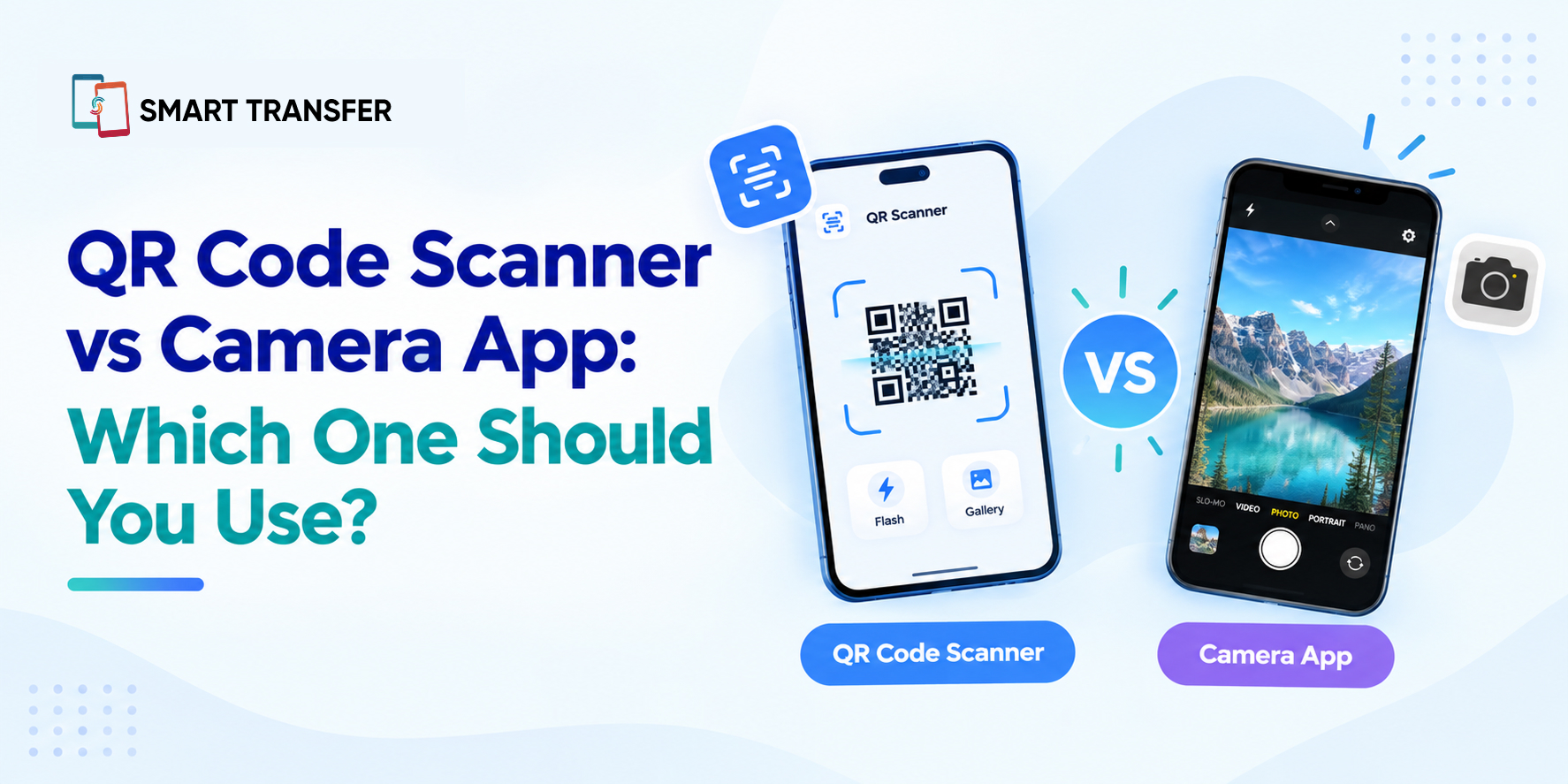
For occasional QR code scans, your phone's camera app may be all you need. A dedicated QR code scanner can be more useful if you scan codes regularly or want features such as scan history and saved results.
Most modern smartphones can recognize QR codes directly through the camera, making it quick to scan a website, payment code, contact details, or other information. So why would you need a separate QR code scanner app?
The answer comes down to how you use QR codes. A camera app is convenient for quick, one-time scans, while a dedicated scanner can offer a more focused experience and additional tools for managing scanned information. In this guide, we'll compare both options and explain when each one makes sense.
Key Takeaways
Your phone camera can scan QR codes without requiring a separate app on most modern smartphones.
A dedicated QR code scanner can offer extra features, such as scan history, saved results, and a QR-focused scanning experience.
The better option depends on your needs: use your camera for quick scans and consider a dedicated scanner if you scan QR codes frequently or want more control over your scan results.
QR Code Scanner vs Camera App: What's the Difference?
The main difference between a QR code scanner and a camera app is what happens after the code is detected. A camera app is primarily designed to capture photos and videos, although many modern phones also include built-in QR recognition. A dedicated QR scanner is designed specifically for scanning and managing QR codes.
Feature | Camera App | QR Code Scanner |
Scan QR codes | Yes, on many modern phones | Yes |
Open QR links | Usually | Yes |
Scan history | Limited or device-dependent | Often available |
Save scan results | Limited or device-dependent | Often available |
QR-focused interface | No | Yes |
Additional scanning tools | Limited | May offer more options |
For a quick, one-time QR code, opening your camera is usually the simplest approach. If you regularly scan codes and want easier access to previous results or dedicated scanning features, a QR code scanner may be more convenient.
The exact features available can vary between phones and scanner apps, so it's worth checking what your device already supports before installing anything new.
Can Your Phone Camera Scan QR Codes?
Yes, most modern Android phones and iPhones can scan QR codes directly with the built-in camera app. You usually just need to open the camera, point it at the QR code, and wait for a notification or link to appear.
The exact experience varies by device and operating system. Some phones recognize QR codes automatically, while others may require a QR scanning option to be enabled in the camera settings.
For occasional scans, this built-in functionality is often convenient because you don't need to install another app. However, if you scan QR codes frequently or want features such as saved scan results and scan history, a dedicated QR code scanner can provide a more focused experience.
When Should You Use Your Camera App to Scan a QR Code?
For most people, the camera app is the easiest choice for occasional QR code scanning. If you only need to scan a code once in a while, using the feature already built into your phone saves you from installing and managing another app.
A camera app makes sense when you:
Need to scan a QR code quickly.
Want to open a website or link from a code.
Don't need to save or revisit previous scans.
Prefer using built-in phone features instead of a separate app.
Are scanning straightforward QR codes in good lighting.
For example, if a restaurant menu has a QR code or a product package includes a website link, opening your camera and scanning it is usually all you need.
The camera becomes less convenient when you scan QR codes regularly or want to keep track of what you've scanned. That's where a dedicated QR code scanner can offer additional functionality.
When Should You Use a Dedicated QR Code Scanner?
A dedicated QR code scanner app can be useful when scanning QR codes is something you do regularly or when you want more than a one-time link opening. Instead of treating the QR code as just another camera feature, a dedicated scanner gives you a space built around scanning and managing QR results.
A dedicated scanner makes sense when you:
Scan QR codes frequently throughout the day.
Want to keep a history of previously scanned QR codes.
Need to revisit or manage saved scan results.
Want a simple interface focused specifically on QR scanning.
Scan different types of QR codes and want dedicated scanning tools.
For example, if you regularly scan codes for websites, contact information, Wi-Fi details, or other digital content, having your previous scan results available can save you from scanning the same code again.
That said, installing a separate app isn't automatically better. If you only scan a QR code occasionally and your phone's camera handles the job well, the built-in camera may be all you need.
What Can a QR Code Scanner Do That a Camera App Can't?
The biggest advantage of a dedicated QR code scanner is not necessarily better scanning. Modern camera apps can already scan many QR codes quickly. The difference is that a dedicated scanner may provide additional tools for handling the information you scan.
Feature | Camera App | Dedicated QR Code Scanner |
Scan QR codes | Often | Yes |
Open links from QR codes | Often | Yes |
Keep scan history | Varies by device | Often available |
Save scan results | Limited or varies | Often available |
Manage previous scans | Usually limited | More likely |
QR-focused experience | No | Yes |
One useful feature is scan history. Instead of losing track of a link after scanning it, a scanner with history can make previous results easier to find and revisit.
Some dedicated apps may also support additional QR-related functions, but these vary from one app to another. Before choosing one, check which features you actually need rather than assuming every scanner offers the same tools.
If you only need to scan a code and open its link, your camera is likely enough. If you want to scan, save, and revisit QR results, a dedicated scanner may fit your workflow better.
How to Choose Between a QR Code Scanner and Camera App
The right option depends on how often you scan QR codes and what you want to do with the results. For a quick scan, your phone's camera is convenient and usually requires no additional setup. If you scan codes regularly or want to keep previous results organized, a dedicated QR code scanner can be more practical.
If You Need To... | Better Fit |
Scan an occasional QR code | Camera app |
Quickly open a QR code link | Camera app |
Scan QR codes regularly | Dedicated QR scanner |
Keep track of previous scans | Dedicated QR scanner |
Save scan results for later | Dedicated QR scanner |
Use a focused QR scanning tool | Dedicated QR scanner |
There's no need to choose one option permanently. Use your camera when you need a quick scan, and use a dedicated QR code scanner when you want more scanning features and easier access to your previous results.
How Smart Transfer Makes QR Code Scanning Easier
If you scan QR codes regularly, having a dedicated tool can make the process simpler. Smart Transfer includes a built-in QR Code Scanner that lets you scan codes and keep your scanned results organized in one place.
Instead of using your camera every time you need to scan a code, you can open the QR scanner directly and quickly access your scanning history. This can be useful when you need to revisit a website, code, or other information you scanned earlier.
For occasional scans, your phone's camera may be all you need. But if you want a dedicated QR scanning experience with saved scan results, Smart Transfer gives you those tools alongside other useful phone utilities.
Common QR Code Scanning Problems and How to Fix Them
Even with a good camera or QR code scanner, a code may sometimes take longer to recognize. Most QR scanning problems are caused by focus, lighting, distance, or the condition of the QR code itself.
Problem | What to Try |
QR code looks blurry | Clean the camera lens and adjust the distance |
Code won't scan in low light | Move to a brighter area |
Glare appears on the code | Change the phone's angle or reduce reflections |
Scanner can't recognize the code | Make sure the entire QR code is visible |
Phone is too close to the code | Move back slightly and let the camera focus |
Damaged or unclear QR code | Try a clearer version of the code |
If the problem is specifically related to a blurry QR code, see our guide on how to fix blurry QR code scanning issues for more troubleshooting tips.
If the QR code itself is damaged, cropped, or too low in quality, changing the scanning app may not solve the problem. Start by checking the physical QR code and your camera conditions before trying another method.
QR Code Scanner vs Camera App: Which Should You Use?
For a quick, occasional scan, your phone's camera app is usually the simplest option. You can scan a QR code without opening a separate tool, making it convenient when you only need to access a link or information once.
A dedicated QR code scanner becomes more useful when you scan codes regularly and want features such as scan history, saved results, and a dedicated scanning interface. It gives you a more focused way to manage the QR codes you interact with over time.
So, the choice comes down to your needs. Use your camera for quick and occasional QR scans, or choose a dedicated QR code scanner when you want more functionality around scanning and managing QR results.
With Smart Transfer, you can scan QR codes and keep your scanned results available in one place, alongside other useful tools for your phone.
Download Smart Transfer from Google Play or the Apple App Store and make everyday phone tasks easier.
Frequently Asked Questions about QR Code Scanner vs Camera App
Can I scan a QR code with my phone camera?
Yes. Most modern Android phones and iPhones can scan QR codes directly through the built-in camera app. Open the camera, point it at the code, and follow the notification or link that appears.
Is a QR code scanner better than a camera app?
It depends on how you use QR codes. A camera app is convenient for occasional scans, while a dedicated QR code scanner can be more useful if you scan codes regularly or want features such as scan history and saved results.
Do I need a QR code scanner app?
Not necessarily. If your phone's camera already recognizes QR codes and you only need occasional scans, you may not need a separate app. A dedicated scanner can be helpful when you want a more focused scanning experience or additional QR-related features.
Why won't my camera scan a QR code?
The QR code may be too blurry, damaged, poorly lit, or positioned too close to the camera. Clean your camera lens, improve the lighting, adjust the distance, and make sure the entire QR code is visible.
Can a QR scanner save scanned codes?
Some dedicated QR code scanner apps can save scan results or maintain a scan history. This can make it easier to revisit information you've scanned previously instead of scanning the same QR code again.